Model Context Protocol (MCP)

Who is this for - Merchants, product teams, and developers who want to manage Paymob payments through an AI agent or assistant
Outcome - Connect an MCP client to your Paymob account and start using it to create payment links and more
Last Updated Date - July 16, 2026
Overview
The Paymob MCP server lets AI agents (whether you're chatting with an assistant or working in a code editor) manage, send information and take real actions on your Paymob account: creating payment links, checking balances, pulling transactions, and more. It's built on MCP (Model Context Protocol) an open standard that lets use use natural language working the same way across supported clients using one server URL to complete business tasks easier.
Server URL: https://mcp.paymob.com/mcp
You must have an active Paymob Dashboard account to authenticate with the Paymob MCP server.
Chat Assistants
For everyday conversations with your Paymob account.
Connect the Paymob MCP server to your chat assistant to check balances, look up transactions, and manage your account using plain language, right from the chat you already use daily.
Claude Desktop
Claude Desktop
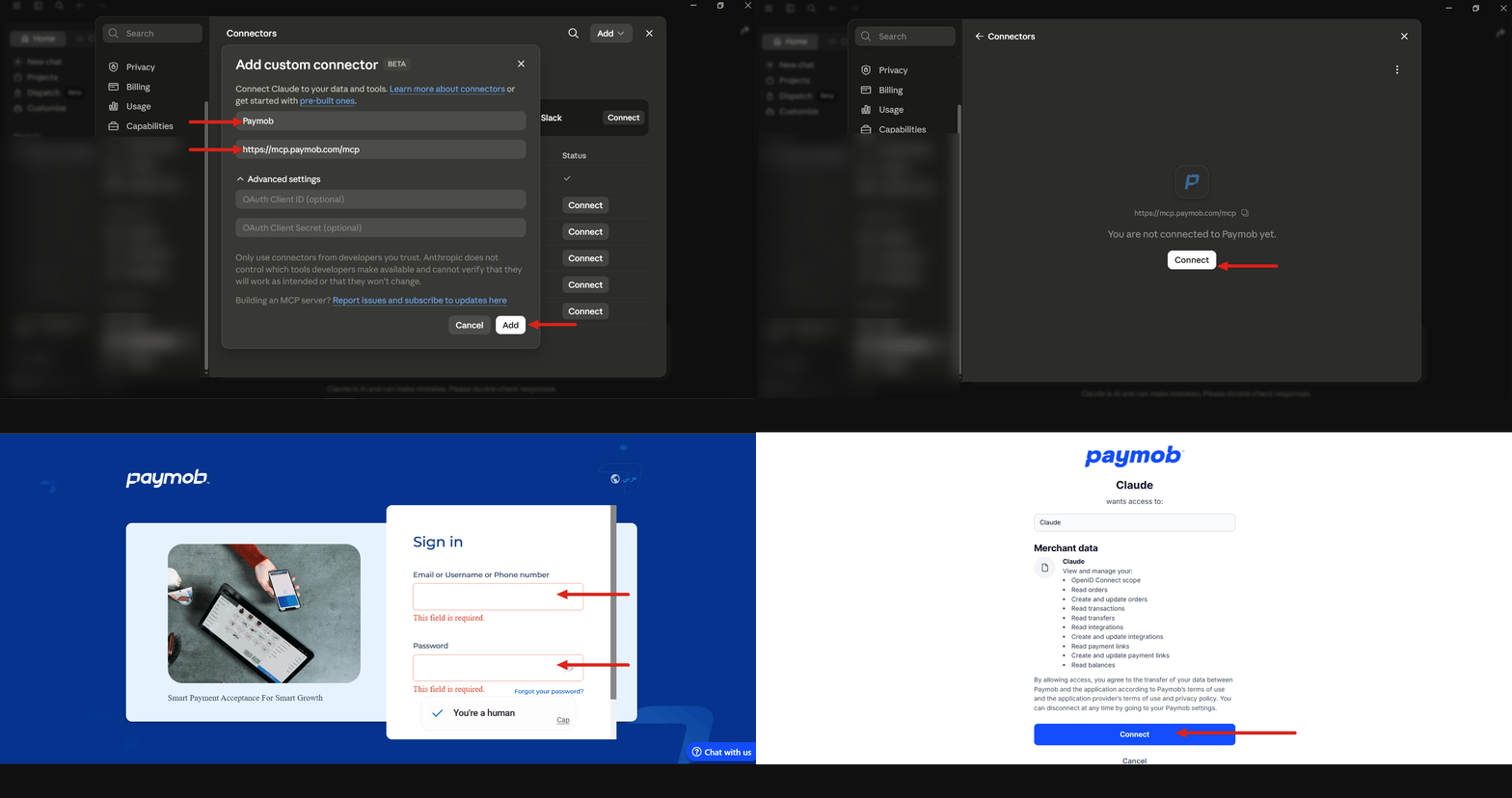
1. Go to Settings → Connectors, click Add, and choose Add custom connector
2. Enter a name (e.g. "Paymob") and paste https://mcp.paymob.com/mcp as the URL, then click Add
3. Select Paymob from your Connectors list — it will show "You are not connected to Paymob yet." Click Connect
4. Sign in with your Paymob username and password in the window that opens, then approve the requested permissions
ChatGPT
ChatGPT
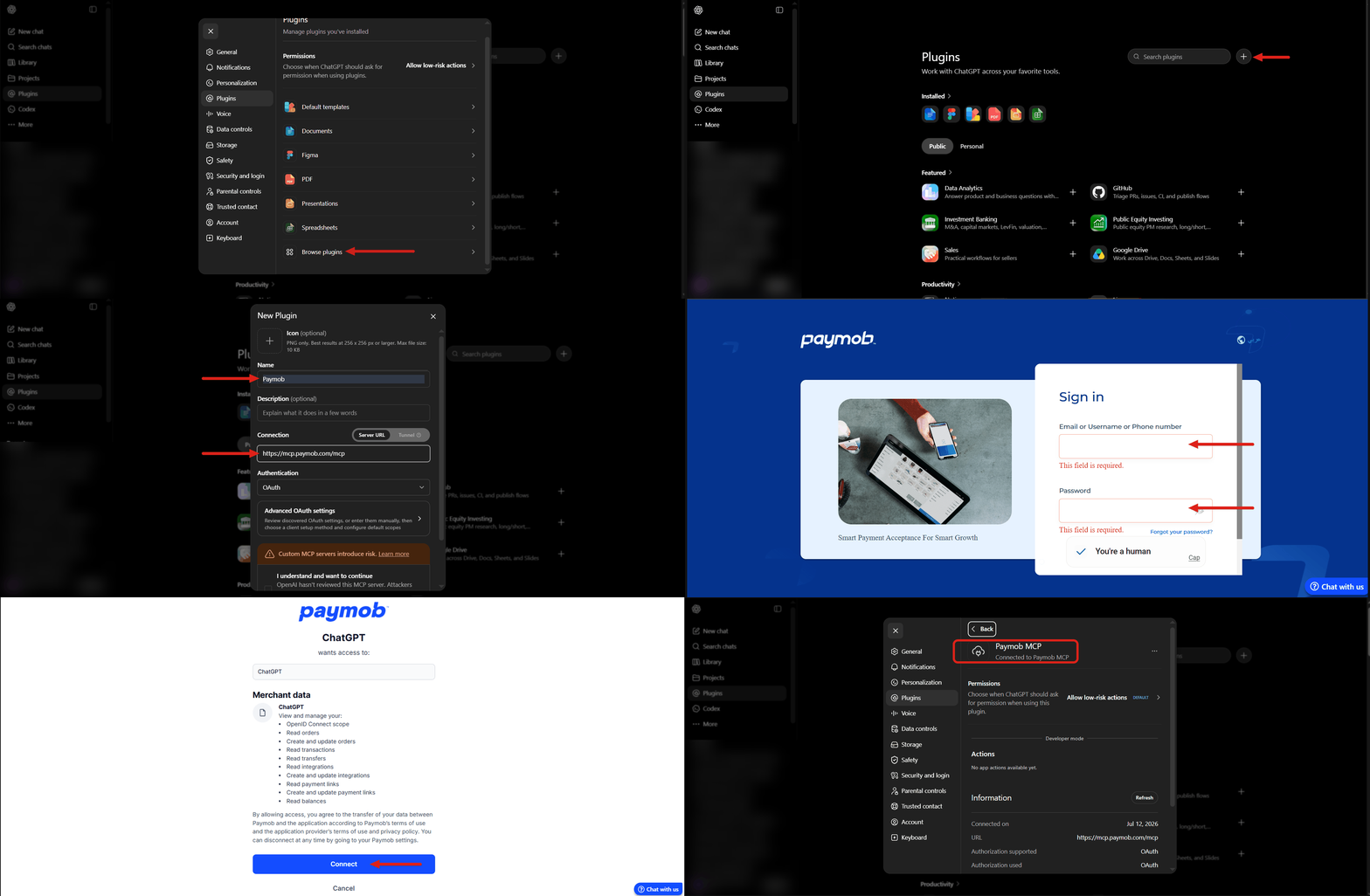
1. Open the profile menu (bottom left) → Settings
2. Go to Plugins → click Browse plugins → click the + icon (top right) to add a new plugin
3. Name it (e.g. "Paymob"), paste https://mcp.paymob.com/mcp as the Connection URL, leave Authentication set to OAuth, and check "I understand and want to continue" → Click Add
4. Click Sign in with Paymob MCP, log in with your Paymob username and password, then review the requested permissions and click Connect
IDEs & CLIs
For developers connecting Paymob directly into their coding workflow.
Connect the Paymob MCP server to your IDE or terminal so your AI coding assistant can call the Paymob tools, and debug payment flows without leaving your editor.
Claude Code
Claude Code
1. Add the server:
claude mcp add --transport http paymob https://mcp.paymob.com/mcp
2. Run claude mcp list (or /mcp inside a session) — Paymob will show as needs authentication
3. Select Paymob → Authenticate, then sign in with your Paymob username and password in the browser window that opens
Codex CLI
Codex CLI
1. Add the server:
codex mcp add paymob --url https://mcp.paymob.com/mcp
2. Codex detects OAuth support and starts the flow automatically — open the authorize URL it prints, sign in with your Paymob username and password, and approve the requested permissions
Cursor
Cursor
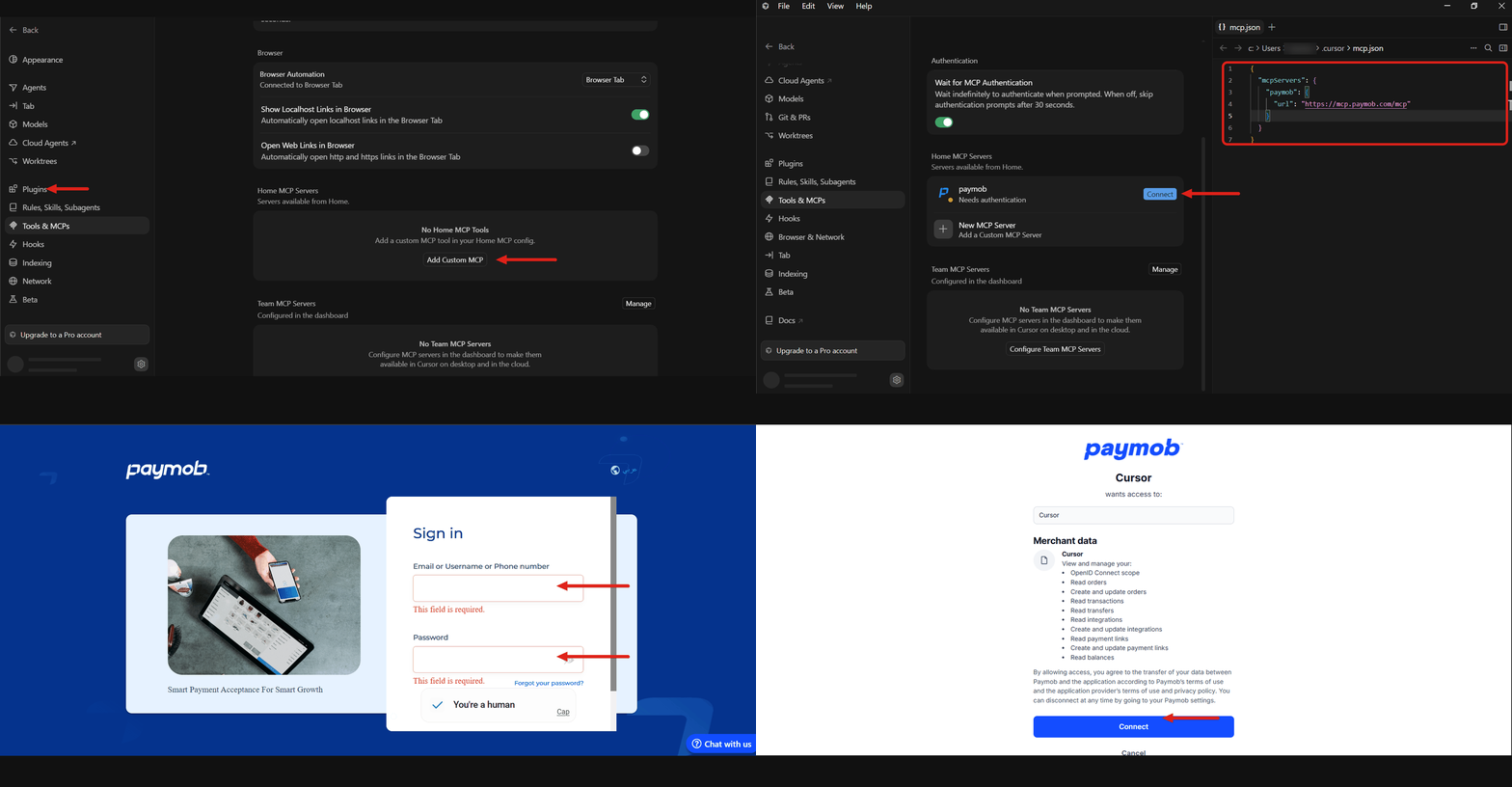
1. Go to Settings → Tools & MCPs and click Add Custom MCP (or + New MCP Server) — this opens mcp.json
2. Add the server with just the URL:
{
  "mcpServers": {
    "paymob": {
      "url": "https://mcp.paymob.com/mcp"
    }
  }
}
3. Back in Tools & MCPs, Paymob will show as Needs authentication — click Connect
4. Sign in with your Paymob username and password, then approve the requested permissions. Once connected, it will show as active with its tools enabled
VS Code
VS Code
1. In your project, create a .vscode folder with an mcp.json file inside it, and paste:
{
  "servers": {
    "Paymob": {
      "url": "https://mcp.paymob.com/mcp",
      "type": "http"
    }
  }
}
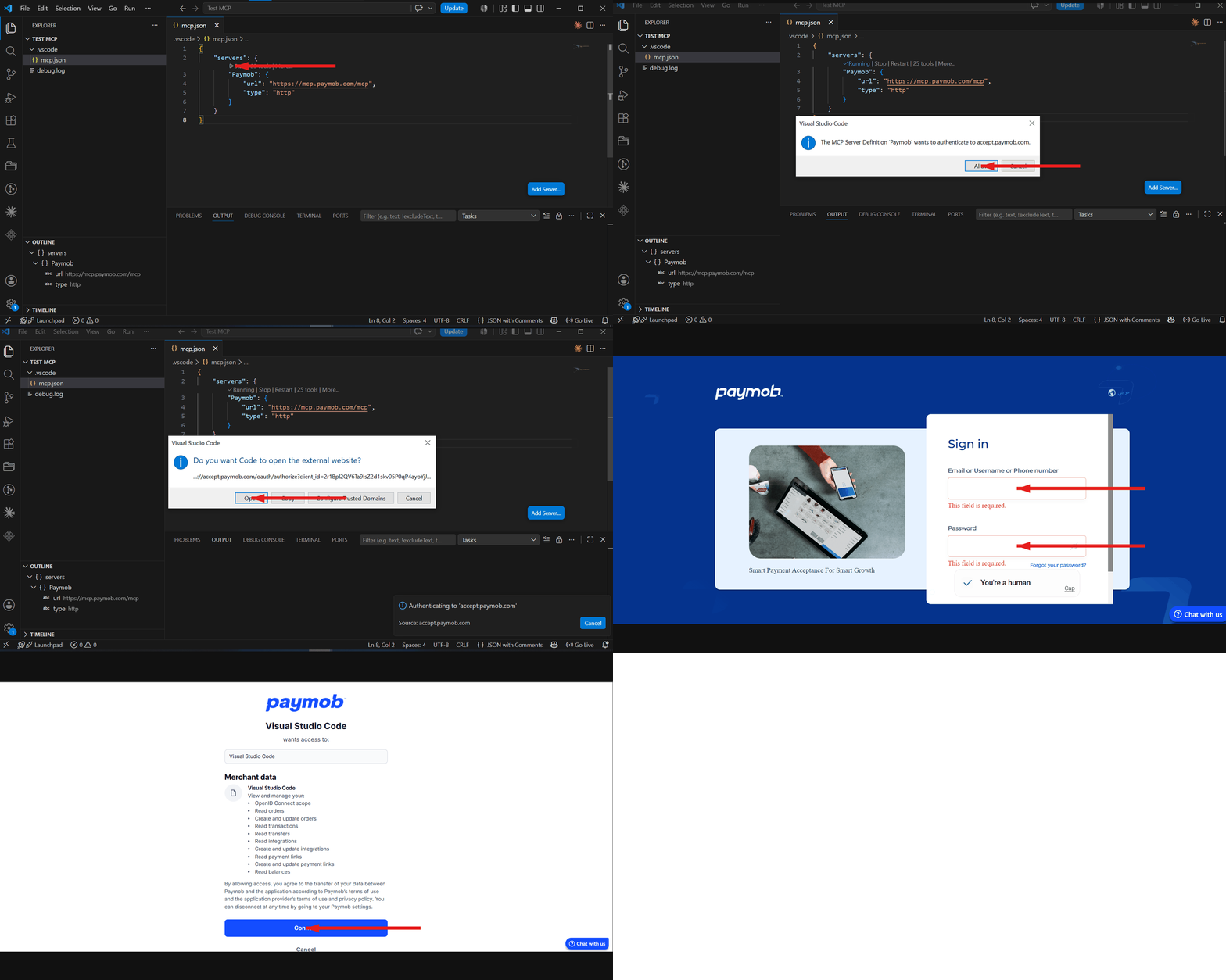
2. Click Start above the server config in the editor
3. When prompted "wants to authenticate to accept.paymob.com," click Allow
4. When prompted to open an external website, click Open
5. Sign in with your Paymob username and password, then approve the requested permissions — VS Code will show the server as Running with its tools listed
Test your connection
Once connected and authenticated (see the steps for your client above), ask your agent something simple first like "list my available payment methods" to confirm everything is working before running real requests.
Use a test account while you get familiar with the available tools, then switch to your live account once you're confident in your setup.
Available tools
The Paymob MCP server exposes the tools below. We recommend enabling human confirmation for actions that create or change data, since these have real effects on your account.
Payment Intentions
Payment Intentions
create_payment_intention: Create a payment intention. Requires amount, billing data, currency, and payment methods; optionally sets expiration, items, notification URL, redirection URL, or special reference.
update_payment_intention: Modify an existing intention. Requires the intention reference; optionally updates amount, billing data, expiration, items, notification URL, redirection URL, or special reference.
Payment Links
Payment Links
create_payment_link: Single-customer shareable link. Requires amount, live/test mode, and payment methods; optionally sets description, email, full name, phone number, expiry, notification/redirection URLs, or reference ID.
create_scaling_payment_link: Multi-customer link with usage limits. Requires amount, live/test mode, unlimited flag, and payment methods; optionally sets description, expiry, max attempts, or who it's shared with.
get_merchant_payment_links: List all payment links
get_payment_link_by_token: Look up a link by token. Requires the token.
Transactions
Transactions
get_merchant_transactions: All transactions
get_filtered_transactions: Transactions with filters. Optional filters: amount range, currency, dates, status, and more.
export_transactions: Export transactions to Excel. Optional filters: date range and success/pending status.
Transfers
Transfers
get_merchant_transfers: All transfers
get_filtered_transfers: Transfers with filters. Optional filters: amount range, dates, status, or transfer ID.
Balances & Settlement
Balances & Settlement
get_merchant_balances: Current balances by account/currency
request_instant_settlement: Request instant settlement. Requires the amount.
Invoices
Invoices
create_invoice: Create an invoice. Requires amount and customer name and phone number; optionally includes customer email.
get_invoices: Retrieve all invoices
Reference
Reference
get_available_payment_methods: List available payment methods. Optionally filtered by currency and live/test mode.
Support
Support
create_support_ticket: Open a support ticket. Requires a subject and description.
Security
Treat your Paymob login like you would any password — don't share it in public chat sessions. Enable confirmation prompts for sensitive actions if your client supports them.
Need help?
Ask your agent to re-check the connection, or contact support@paymob.com.


On this page
- Model Context Protocol (MCP)