Flutter SDK
Outcome: Integrate Paymob's native SDKs using a Flutter bridge
The Flutter SDK works as a bridge that connects your Flutter app to the native iOS and Android Paymob SDKs.
Dart section
Import dependency
- Redirect into your Dart file.
- Import the following dependency.
import 'package:flutter/services.dart';Add the code that will call the SDK
Add the following code to the same file.
This is the function that you will call in your Dart file when you need to call the SDK.
You need to pass the public and client secret keys to this function. These two parameters are required. The other parameters are optional.
static const methodChannel = MethodChannel('paymob_sdk_flutter'); // Method to call native PaymobSDKs Future<void> _payWithPaymob( String pk, String csk, { String? appName, Color? buttonBackgroundColor, Color? buttonTextColor, bool? saveCardDefault, bool? showSaveCard} ) async { try { final String result = await methodChannel.invokeMethod('payWithPaymob', { "publicKey": pk, "clientSecret": csk, "appName": appName, "buttonBackgroundColor": buttonBackgroundColor?.value, "buttonTextColor": buttonTextColor?.value, "saveCardDefault": saveCardDefault, "showSaveCard": showSaveCard }); print('Native result: $result'); switch (result) { case 'Successfull': print('Transaction Successfull'); // Do something for accepted break; case 'Rejected': print('Transaction Rejected'); // Do something for rejected break; case 'Pending': print('Transaction Pending'); // Do something for pending break; default: print('Unknown response'); // Handle unknown response } } on PlatformException catch (e) { print("Failed to call native SDK: '${e.message}'."); } }Client Secret
A unique, intention-specific token used to redirect the customer to Paymob’s Unified Checkout or to render Paymob’s Pixel component.
Public Key
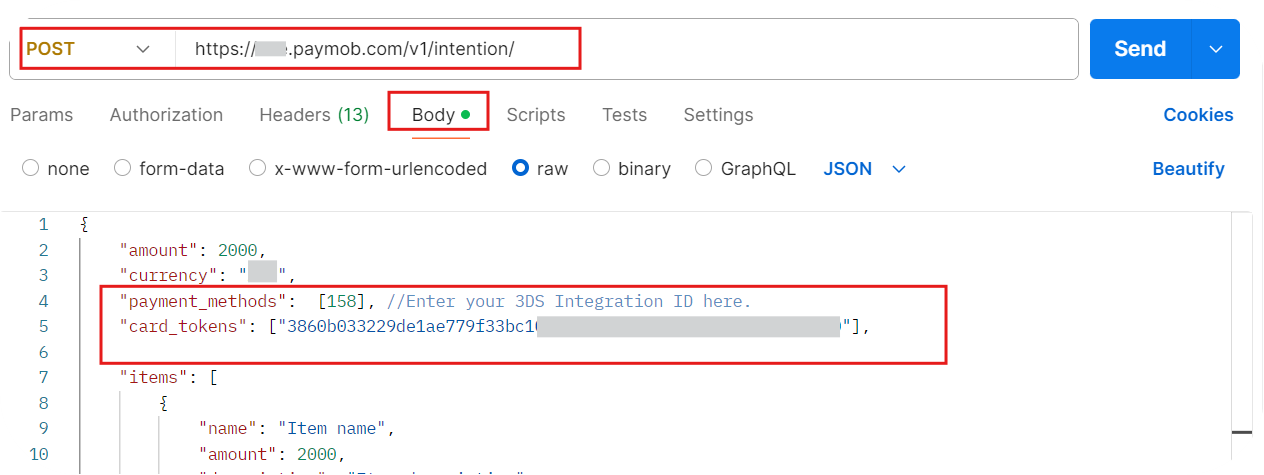
To pass the saved token to the SDK, you should pass the token as a string to the card_tokens array while calling the intention creation request
Optional parameters
The following are optional Parameters that are used to customize the SDK
// the extra UI Customization parameters are//sets the header to be the name you wantappName//changes the color of the buttons throughout the SDK, the default is blackbuttonBackgroundColor//changes the color of the buttons Texts throughout the SDK, the default is whitebuttonTextColor//set save card checkbox initial valuesaveCardDefault//set whether or not should show save card checkboxshowSaveCardIOS section
Download the SDK
You can download the SDK from this link and extract it on the local machine.
Locate SDK files in the project directory
Physically place the SDK files in your project folder structure
Add SDK to frameworks, libraries, and embedded content
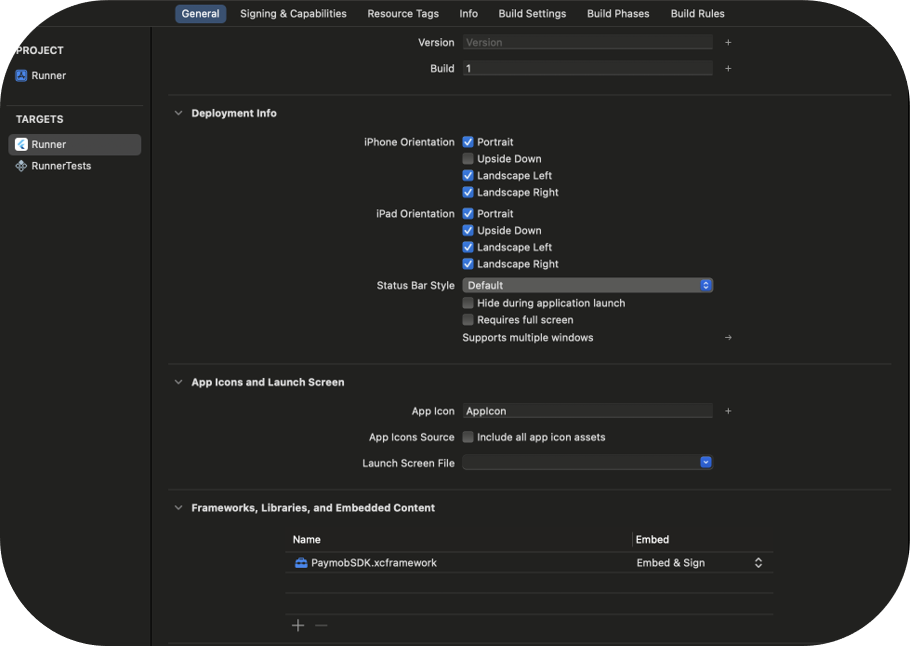
Drag and drop the PaymobSDK.xcframework folder into Frameworks, Libraries, and Embedded Content under the General Settings of Xcode.
Change the embedding option to "Embed & Sign"
In the general settings of your project, under Frameworks, Libraries, and Embedded Content, change the library from "Do not embed" to "Embed and Sign"
Import the framework
In your AppDelegate file. Add the following import
import PaymobSDKCreate a global variable
var SDKResult: FlutterResult?Code to handle receiving a call from Dart
Add the following code to handle receiving a call from the Dart file
let controller : FlutterViewController = window?.rootViewController as! FlutterViewController let nativeChannel = FlutterMethodChannel(name: "paymob_sdk_flutter", binaryMessenger: controller.binaryMessenger) nativeChannel.setMethodCallHandler { (call: FlutterMethodCall, result: @escaping FlutterResult) -> Void in if call.method == "payWithPaymob", let args = call.arguments as? [String: Any]{ self.SDKResult = result self.callNativeSDK(arguments: args, VC: controller) } else { result(FlutterMethodNotImplemented) } }Code to handle calling the native PaymobSDK
 // Function to call native PaymobSDK
      private func callNativeSDK(arguments: [String: Any], VC: FlutterViewController) {

          // Initialize Paymob SDK
          let paymob = PaymobSDK()
          paymob.delegate = self

          //customize the SDK
          if let appName = arguments["appName"] as? String{
              paymob.paymobSDKCustomization.appName = appName
          }
          if let buttonBackgroundColor = arguments["buttonBackgroundColor"] as? NSNumber{

              let colorInt = buttonBackgroundColor.intValue
              let alpha = CGFloat((colorInt >> 24) & 0xFF) / 255.0
              let red = CGFloat((colorInt >> 16) & 0xFF) / 255.0
              let green = CGFloat((colorInt >> 8) & 0xFF) / 255.0
              let blue = CGFloat(colorInt & 0xFF) / 255.0

              let color = UIColor(red: red, green: green, blue: blue, alpha: alpha)

              paymob.paymobSDKCustomization.buttonBackgroundColor = color
          }
          if let buttonTextColor = arguments["buttonTextColor"] as? NSNumber{

              let colorInt = buttonTextColor.intValue
              let alpha = CGFloat((colorInt >> 24) & 0xFF) / 255.0
              let red = CGFloat((colorInt >> 16) & 0xFF) / 255.0
              let green = CGFloat((colorInt >> 8) & 0xFF) / 255.0
              let blue = CGFloat(colorInt & 0xFF) / 255.0

              let color = UIColor(red: red, green: green, blue: blue, alpha: alpha)

              paymob.paymobSDKCustomization.buttonTextColor = color
          }
          if let saveCardDefault = arguments["saveCardDefault"] as? Bool{
              paymob.paymobSDKCustomization.saveCardDefault = saveCardDefault
          }
          if let showSaveCard = arguments["showSaveCard"] as? Bool{
              paymob.paymobSDKCustomization.showSaveCard = showSaveCard
          }


          // Call Paymob SDK with publicKey and clientSecret
          if let publicKey = arguments["publicKey"] as? String,
             let clientSecret = arguments["clientSecret"] as? String{
              do{
                  try paymob.presentPayVC(VC: VC, PublicKey: publicKey, ClientSecret: clientSecret)
              } catch let error {
                  print(error.localizedDescription)
              }
              return
          }
      }
Code to handle the result of the SDK
Add the following at the bottom to handle the result of the SDK
 extension AppDelegate: PaymobSDKDelegate {
    public func transactionAccepted(transactionDetails: [String: Any]) {
        self.SDKResult?(["status": "Successfull", "details": transactionDetails])
    }

    public func transactionRejected(message : String) {
        self.SDKResult?("Rejected")
    }
    public func transactionPending() {
        self.SDKResult?("Pending")
    }
}
Android Section
Download SDK files (.jar/.aar)
Download the SDK from this link and unzip the “Sdk package” folder.
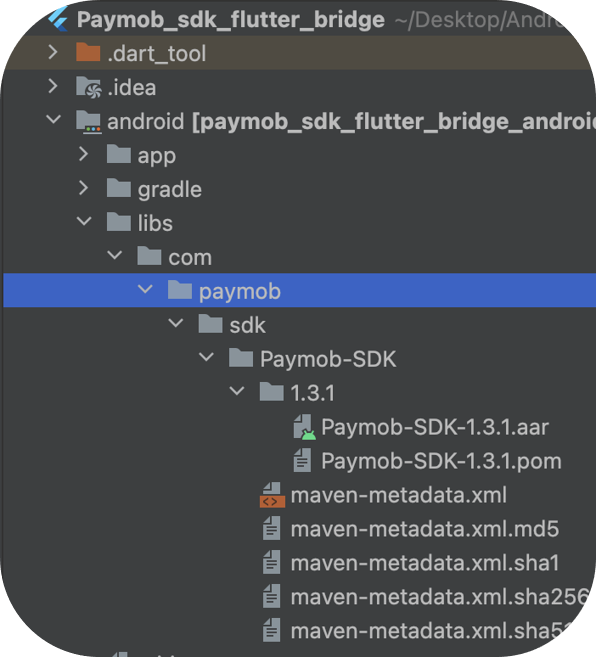
Locate the SDK files in app/libs/ the folder
Redirect into the Android directory.
Then, create a new directory there called 'libs' and place the Android SDK there
Add repository
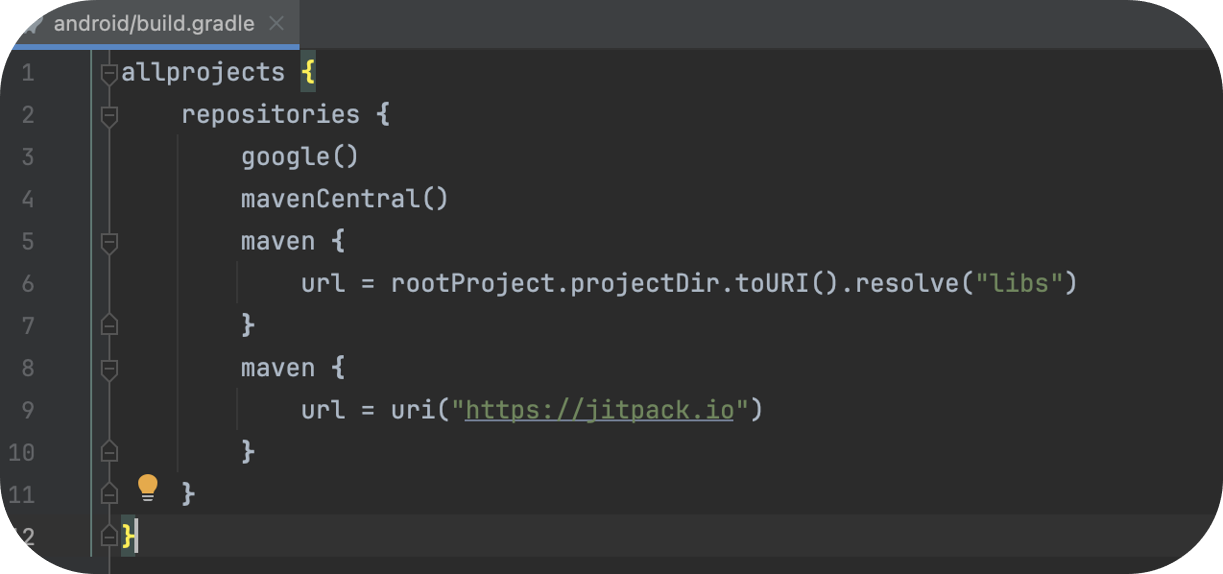
Inside the root Android directory, open the build.gradle, Then, add the code below inside
allprojects { repositories { ... maven { url = rootProject.projectDir.toURI().resolve("libs") } maven { url = uri("https://jitpack.io") } }}should look like this.
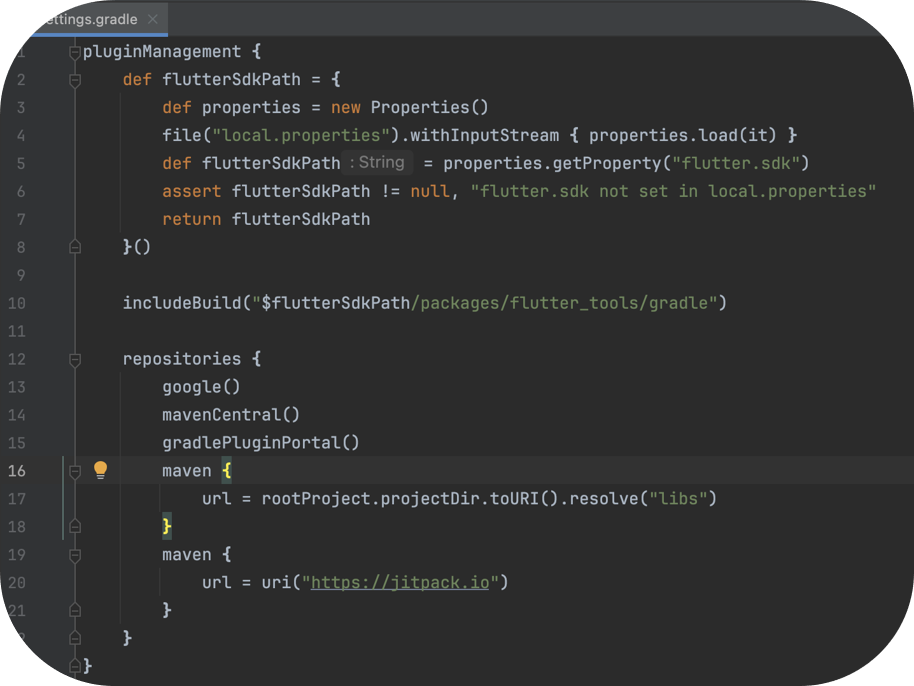
Then open the settings.gradle, Then add the following code
pluginManagement { repositories { ... maven { url = rootProject.projectDir.toURI().resolve("libs") } maven { url = uri("https://jitpack.io") }should look like this
Add dependency and enable databinding
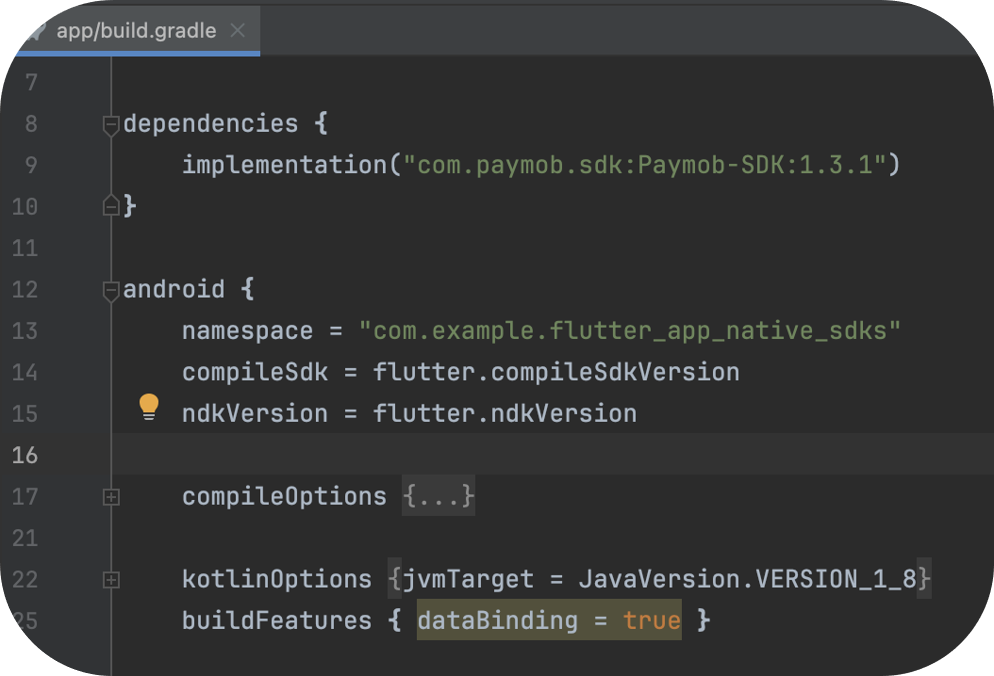
Inside the app directory, open the build.gradle file and add the following
dependencies { implementation("com.paymob.sdk:Paymob-SDK:{{latest version}}")//Please change this version number to match the version number of the downloaded sdk}android { ... buildFeatures { dataBinding = true }}should look like this
Code to handle receiving a call from Dart, calling the native SDK, and handling the result of the SDK
Then, in the MainActivity, add the following:
 import android.graphics.Color
import android.util.Log
import io.flutter.plugin.common.MethodCall
import io.flutter.plugin.common.MethodChannel
import io.flutter.plugin.common.MethodChannel.MethodCallHandler
import io.flutter.plugin.common.MethodChannel.Result
import io.flutter.embedding.android.FlutterActivity
import android.os.Bundle
import android.widget.Toast
import com.paymob.paymob_sdk.PaymobSdk
import com.paymob.paymob_sdk.domain.model.CreditCard
import com.paymob.paymob_sdk.domain.model.SavedCard
import com.paymob.paymob_sdk.ui.PaymobSdkListener
class MainActivity: FlutterActivity(), MethodCallHandler, PaymobSdkListener {
    private val CHANNEL = "paymob_sdk_flutter"
    private var SDKResult: MethodChannel.Result? = null
    override fun onCreate(savedInstanceState: Bundle?) {
        super.onCreate(savedInstanceState)
        flutterEngine?.dartExecutor?.binaryMessenger?.let {
            MethodChannel(it, CHANNEL).setMethodCallHandler { call, result ->
                if (call.method == "payWithPaymob") {
                    SDKResult = result
                    callNativeSDK(call)
                } else {
                    result.notImplemented()
                }
            }
        }
    }
    // Function to call native PaymobSDK
    private fun callNativeSDK(call: MethodCall) {
        val arguments = call.arguments as? Map<String, Any>
        val publicKey = call.argument<String>("publicKey")
        val clientSecret = call.argument<String>("clientSecret")
        var buttonBackgroundColor: Int? = null
        var buttonTextColor: Int? = null
        val appName = call.argument<String>("appName")
        val buttonBackgroundColorData = call.argument<Number>("buttonBackgroundColor")?.toInt() ?: 0
        val buttonTextColorData = call.argument<Number>("buttonTextColor")?.toInt() ?: 0
        val saveCardDefault = call.argument<Boolean>("saveCardDefault") ?: false
        val showSaveCard = call.argument<Boolean>("showSaveCard") ?: true

        if (buttonTextColorData != null){
            buttonTextColor = Color.argb(
                (buttonTextColorData shr 24) and 0xFF,  // Alpha
                (buttonTextColorData shr 16) and 0xFF,  // Red
                (buttonTextColorData shr 8) and 0xFF,   // Green
                buttonTextColorData and 0xFF            // Blue
            )
        }
        Log.d("color", buttonTextColor.toString())
        if (buttonBackgroundColorData != null){
            buttonBackgroundColor = Color.argb(
                (buttonBackgroundColorData shr 24) and 0xFF,  // Alpha
                (buttonBackgroundColorData shr 16) and 0xFF,  // Red
                (buttonBackgroundColorData shr 8) and 0xFF,   // Green
                buttonBackgroundColorData and 0xFF            // Blue
            )
        }
        val paymobsdk = PaymobSdk.Builder(
            context = this@MainActivity,
            clientSecret = clientSecret.toString(),
            publicKey = publicKey.toString(),
            paymobSdkListener = this,
        ).setButtonBackgroundColor(buttonBackgroundColor ?: Color.BLACK)
            .setButtonTextColor(buttonTextColor ?: Color.WHITE)
            .setAppName(appName)            .showSaveCard(showSaveCard ?: true)
            .saveCardByDefault(saveCardDefault ?: false)
        .build()
        paymobsdk.start()
        return
    }
    //PaymobSDK Return Values
    override fun onSuccess() {
        //If The Payment is Accepted
        SDKResult?.success("Successfull")
    }
    override fun onFailure() {
        //If The Payment is declined
        SDKResult?.success("Rejected")
    }
    override fun onPending() {
        //If The Payment is pending
        SDKResult?.success("Pending")
    }
     override fun onMethodCall(call: MethodCall, result: Result) {
    }
}What made this section unhelpful for you?


On this page
- Flutter SDK