Drupal

Who is this for - For developers or site administrators managing Drupal websites who need to add Paymob payments to a custom or Drupal Commerce–based setup
Outcome - Explore, Install, and Configure Paymob's Drupal plugin
Last Updated Date - June 1, 2026
Overview
The Paymob Drupal module allows you to integrate Paymob’s payment gateway into a Drupal-based website, enabling secure online payments while leveraging Drupal’s flexible content and commerce capabilities.
You can check the Paymob Drupal Commerce module from the Drupal marketplace.
Installation Steps
1
In the server cmd terminal, install the Paymob Payment module for Drupal Commerce e-commerce via Composer using the following command.
composer require paymob_drupal/commerce_paymob
2
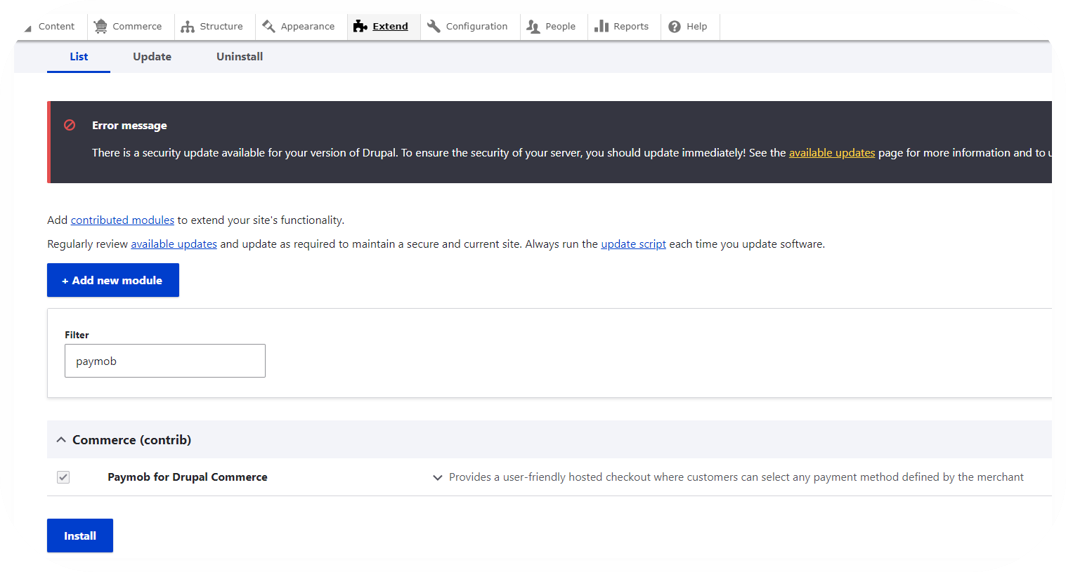
In the admin panel, the Extend tab, search for the Paymob module, select it, and click the install button to install it.
Plugin Configuration
1
In the Drupal Commerce Admin Panel Menu Commerce ⇒ Configuration ⇒ Payments ⇒ Payment Gateways section, paste each key in its place, select Paymob payment, paste each key in its place in the settings page
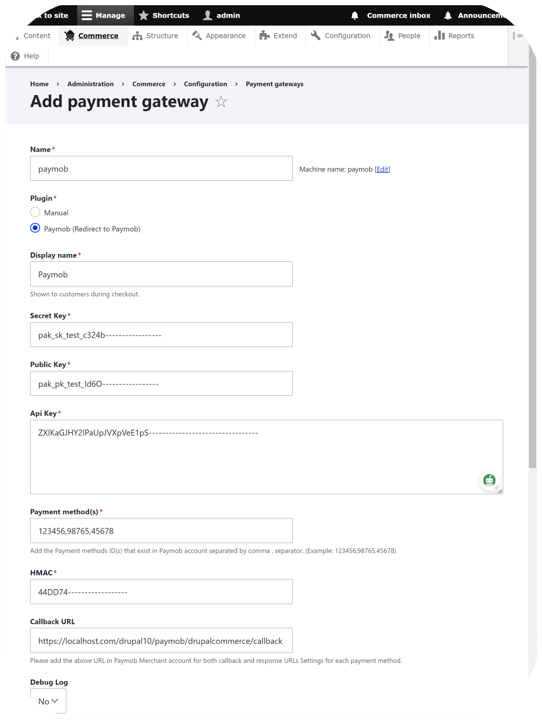
You can get all the credentials from your Paymob dashboard. Check the Getting Integration Credentials.
2
Enter the integration IDs separated by a comma (,).
3
Copy the integration callback URL that exists in the Paymob Drupal Commerce setting page. Then, paste it into each payment integration/method in the Paymob account.
You check the Getting Integration Credentials page for more guidance on how to update the callback URLs on the Paymob dashboard.
4
Save the changes
To test the payment cycle, you need to use test credentials for Card and Wallet. Please check the Test Credentials page.


On this page
- Drupal