Laravel-Bagisto
Who is this for - For developers working with Laravel Bagisto stores who want to add Paymob as a payment option.
Outcome - Explore, Install, and Configure Paymob's Laravel-Bagisto plugin
Last Updated Date - June 1, 2026
Overview
The Paymob Laravel Bagisto plugin enables merchants to accept online payments through Paymob within Bagisto’s Laravel-based e-commerce framework, integrating smoothly with Bagisto’s checkout flow.
Installation Steps for Bagisto 1.x
1
Install the Paymob Payment package for Laravel Bagisto 1.x e-commerce via paymob/laravel-bagisto1.x composer.
In the server CMD terminal, run the following command to install the Paymob Payment Package
composer require paymob/laravel-bagisto1.x
2
Then, run the commands below
php artisan migratephp artisan optimize
3
Go to app/Http/Middleware/VerifyCsrfToken.php file. Then, add paymob/callback in the protected array $except as below
protected $except = ['paymob/callback',];
4
After that, run the following command
php artisan config:cache
Installation Steps for Bagisto 2.x
1
Install the Paymob Payment module for Laravel Bagisto 2.x e-commerce via paymob/laravel-bagisto2.x composer.
In the server cmd terminal, run the following command to install the Paymob Payment Package
composer require paymob/laravel-bagisto2.x
2
Run the commands below
 php artisan vendor:publish --force --tag=paymob
php artisan migrate
php artisan optimize
3
Go to app/Http/Middleware/VerifyCsrfToken.php file. Then, add paymob/callback in the protected array $except as below
protected $except = ['paymob/callback',];
4
After that, run the following command
php artisan config:cache
Plugin Configuration
1
In the Bagisto Admin Panel Menu, configuration ⇒ sales ⇒ payment methods, search for Paymob payment, then paste each key in its place in the settings page.
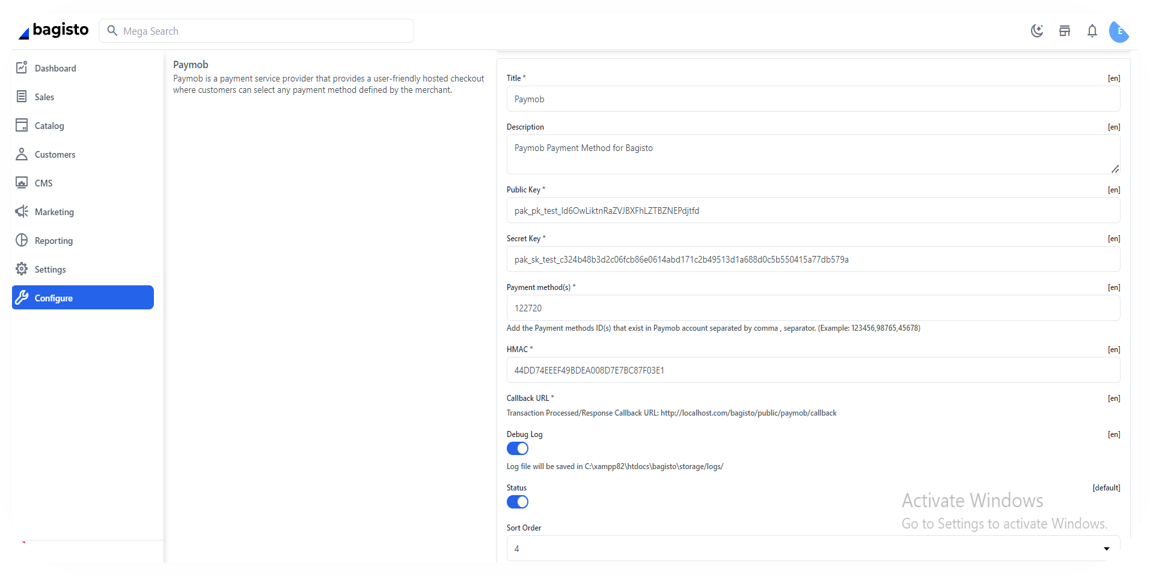
You can get all the credentials from your Paymob dashboard. Check the Getting Integration Credentials.
2
Enter the integration IDs separated by a comma (,).
3
Copy the integration callback URL that exists in the Paymob Bagisto setting page, then paste it into each payment integration/method in the Paymob account.
You check the Getting Integration Credentials page for more guidance on how to update the callback URLs on the Paymob dashboard.
4
Save the changes
To test the payment cycle, you need to use test credentials for Card and Wallet. Please check the Test Credentials page.


On this page
- Laravel-Bagisto