Magento 2

Who is this for - Merchants and developers using Magento who want to integrate Paymob payments into their store using an officially supported plugin.
Outcome - Explore, Install, and Configure Paymob's Magento plugin
Last Updated Date - June 1, 2026
Overview
The Paymob Magento plugin enables you to accept online payments securely on your Magento store using Paymob’s payment gateway. It supports a wide range of payment methods and provides a seamless checkout experience for your customers.
You can check it on the Adobe Marketplace
Installation Steps
1
Run the below command to install the Paymob Payment via composer
composer require paymob/magento-payment
2
Run the Magento commands below to enable the Paymob Module
 php -f bin/magento module:enable --clear-static-content Paymob_Payment
php bin/magento setup:upgrade
php bin/magento setup:di:compile
php bin/magento setup:static-content:deploy -f
php bin/magento cache:clean
php bin/magento cache:flush
Plugin Configuration
1
In Magento Admin Panel Menu Stores → Configuration
2
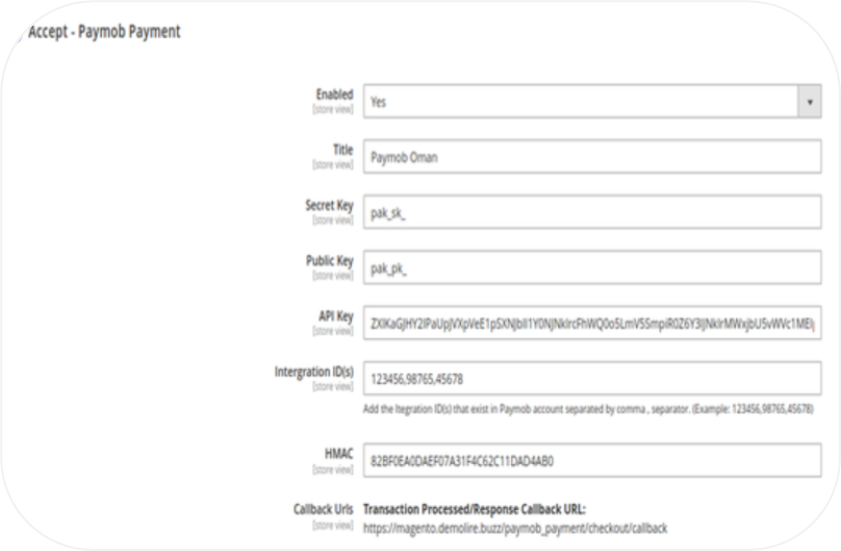
Expand Sales Menu ⇒ select Payment Methods ⇒ Accept Paymob payment, then paste each key of the below in its place in the settings page.
- Secret Key
- Public Key
- API key
- HMAC secret
You can get all the credentials from your Paymob dashboard. Check the Getting Integration Credentials.
3
Enter the integration IDs separated by a comma (,).
4
Copy the integration callback URL that exists in the Paymob Magento setting page. Then, paste it into each payment integration in the Paymob dashboard.
You check the Getting Integration Credentials page for more guidance on how to update the callback URLs on the Paymob dashboard.
5
Save the changes
To test the payment cycle, you need to use test credentials for Card and Wallet. Please check the Test Credentials page.


On this page
- Magento 2