Shopify

Who is this for - Merchants and developers who want to integrate the Paymob payment gateway with their Shopify store
Outcome - Successfully activate Paymob payment services on your Shopify store and process transactions
Last Updated Date - June 3, 2026
Overview
Paymob provides multiple Shopify apps to support different payment experiences and payment methods. These apps are designed to integrate seamlessly with Shopify stores, allowing merchants to accept payments using Paymob without custom development.
All Paymob Shopify apps follow the same configuration flow. The main difference between them is the checkout experience and the payment methods they offer to customers.
Available Shopify Apps
Multi App (Redirection App)
This app redirects customers from the Shopify checkout to Paymob Unified Checkout, where all enabled payment methods, based on your configured integration IDs, are displayed.
This option is suitable for merchants who want to offer multiple payment methods through a single hosted checkout experience.
App link: https://apps.shopify.com/paymob-accept-card-alpha
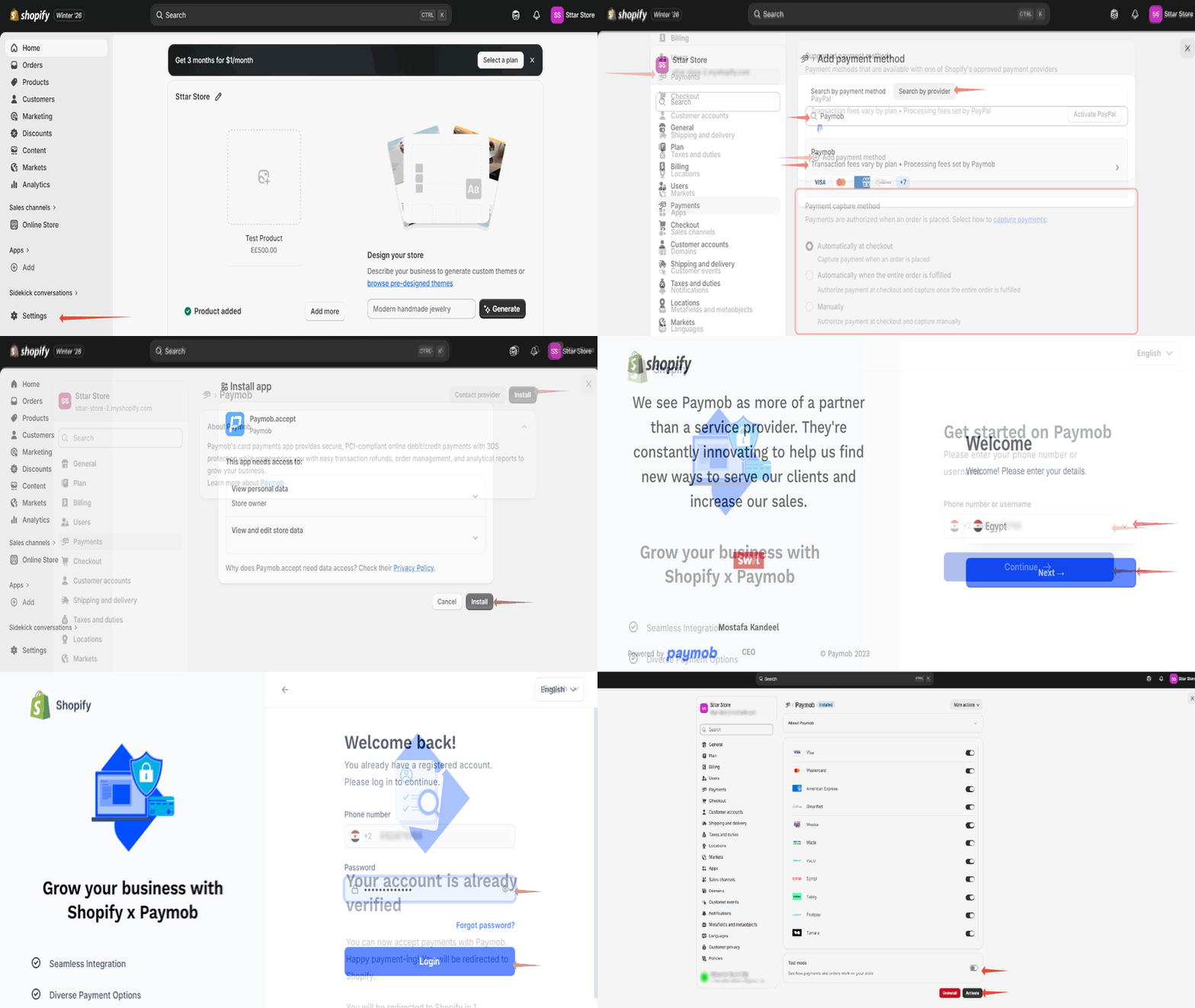
The Multi App can also be installed through your Shopify Payments settings:
1. Log in to your Shopify Dashboard → Settings.
2. Select Payments → Add Payment Method.
3. Select Search By Provider → search for Paymob.
4. Install the app.
Card App (Embedded App)
This app allows customers to enter their card details directly on the Shopify checkout page, then redirects them to the bank’s OTP page to complete authentication.
It also enables Apple Pay on the Shopify checkout, providing a native and streamlined card payment experience.
App link: https://apps.shopify.com/paymob-debit-credit-card
valU App
The valU app redirects customers to Paymob Unified Checkout, where the valU Buy Now, Pay Later option only is displayed.
This app is intended for merchants who want to offer valU as a dedicated payment option on Shopify Checkout.
App link: https://apps.shopify.com/paymob-valu
Sympl App
The Sympl app redirects customers to Paymob Unified Checkout, where the Sympl BNPL payment option is available.
It is used when Sympl is enabled as a payment method for the merchant.
App link: https://apps.shopify.com/paymob-sympl
Configuration Steps
1
Select the Region, then press the Next button
2
Enter your Paymob username and Password
3
- You will be redirected back to the app.
- Make sure that the Test mode is enabled if you don't have live Shopify integrations.
- Press the Activate Button
Ensure that Payment Capture is set to Automatic in your Shopify Payments settings; otherwise, the payment will not be processed.


On this page
- Shopify