WHMCS

Who is this for - For Business Owners & Operations Teams & Developers who want to accept online payments on WHMCS
Outcome - Explore, Install, and Configure Paymob's WHMCS plugin
Last Updated Date - June 1, 2026
Overview
The Paymob WHMCS plugin allows you to add Paymob as a payment gateway for invoices and recurring charges generated by WHMCS. Once configured, customers can complete payments directly from the WHMCS client area, while Paymob handles payment processing and confirmation.
Installation Steps
1
Download the Paymob WHMCS plugin from the marketplace
2
Extract the downloaded WHMCS module .zip file into your server in the path of the WHMCS project.
3
Log in to the WHMCS admin panel, navigate to Setup ⇒ Apps & integrations ⇒ Browse ⇒ Payments.
4
Search for Paymob Payment, then click on the Manage button.
Plugin Configuration
1
In WHMCS admin, navigate to Addons => Apps & integrations => Payments Apps.
2
Configure the new module in the Manage Existing Gateways tab.
3
Add all the credentials needed by pasting each key in its place.
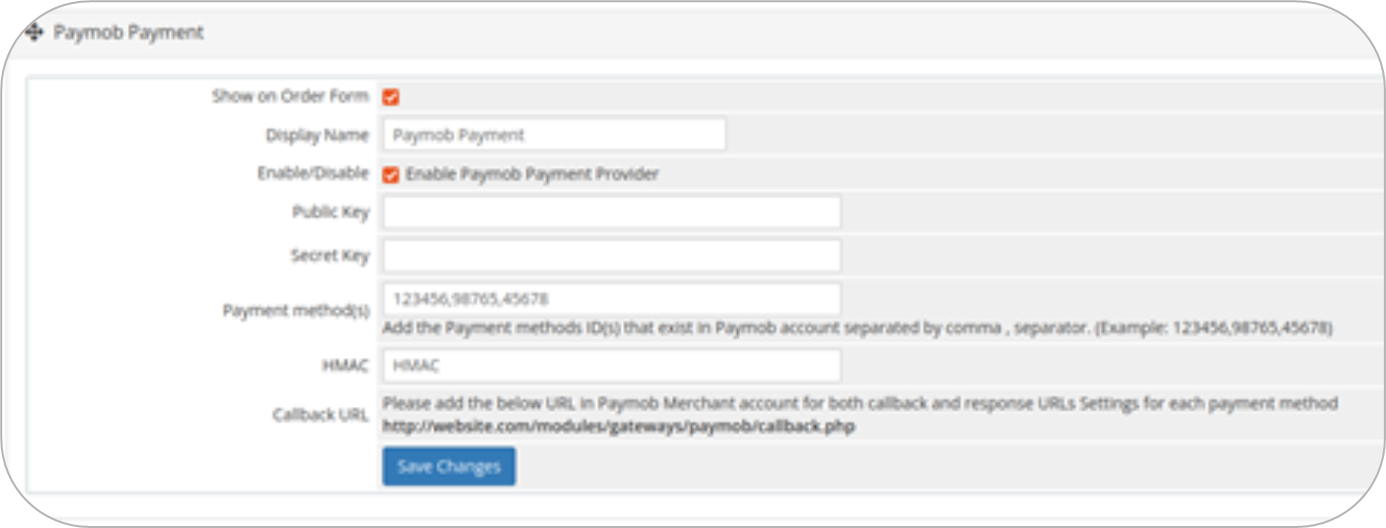
You can get all the credentials from your Paymob dashboard. Check the Getting Integration Credentials.
4
Copy the integration callback URL that exists in the Paymob WHMCS setting page, then paste it into each payment integration ID in the Paymob account.
5
Save the changes.
To test the payment cycle, you need to use test credentials for Card and Wallet. Please check the Test Credentials page.


On this page
- WHMCS