ZenCart

Who is this for - ZenCart store owners and administrators looking to add Paymob as a payment option without building a custom integration
Outcome - Explore, Install, and Configure Paymob's ZenCart plugin
Last Updated Date - June 1, 2026
Overview
The Paymob ZenCart integration enables merchants to connect their store to Paymob’s payment gateway using a dedicated payment module, allowing customers to complete payments securely during checkout.
Installation Steps
1
Download the Paymob PrestaShop module from this link.
2
Extract the downloaded ZenCart module .zip file into your server in the path of the ZenCart project.
3
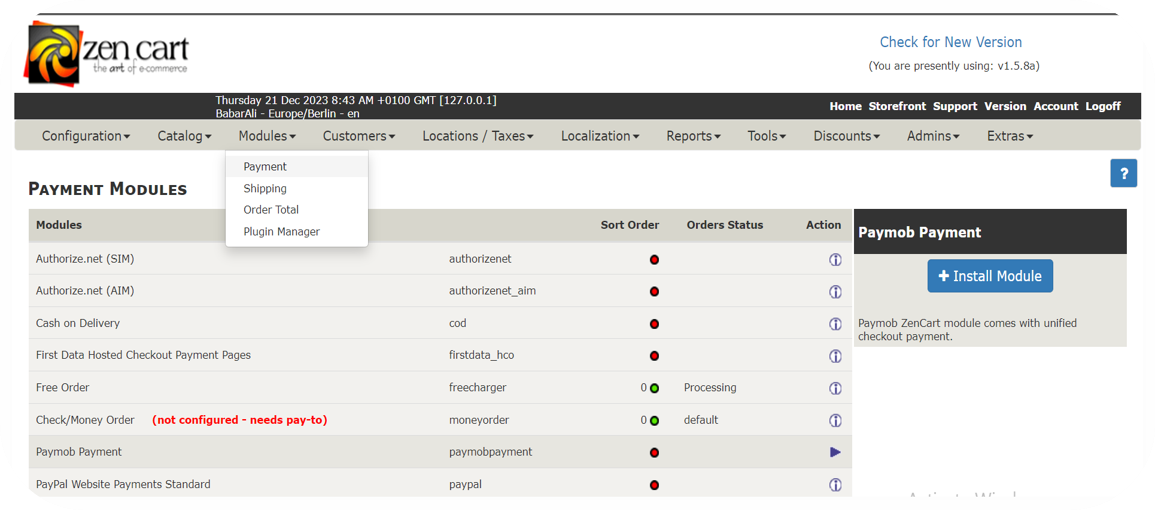
Log in to the ZenCart admin panel, navigate to Modules → Payment.
4
Search for Paymob Payment, then click on it and install the module.
Plugin Configuration
1
In Modules ⇒ Payment ⇒ Paymob Payment (on the right side), paste each key in its place, select Paymob payment, paste each key in its place in the settings page
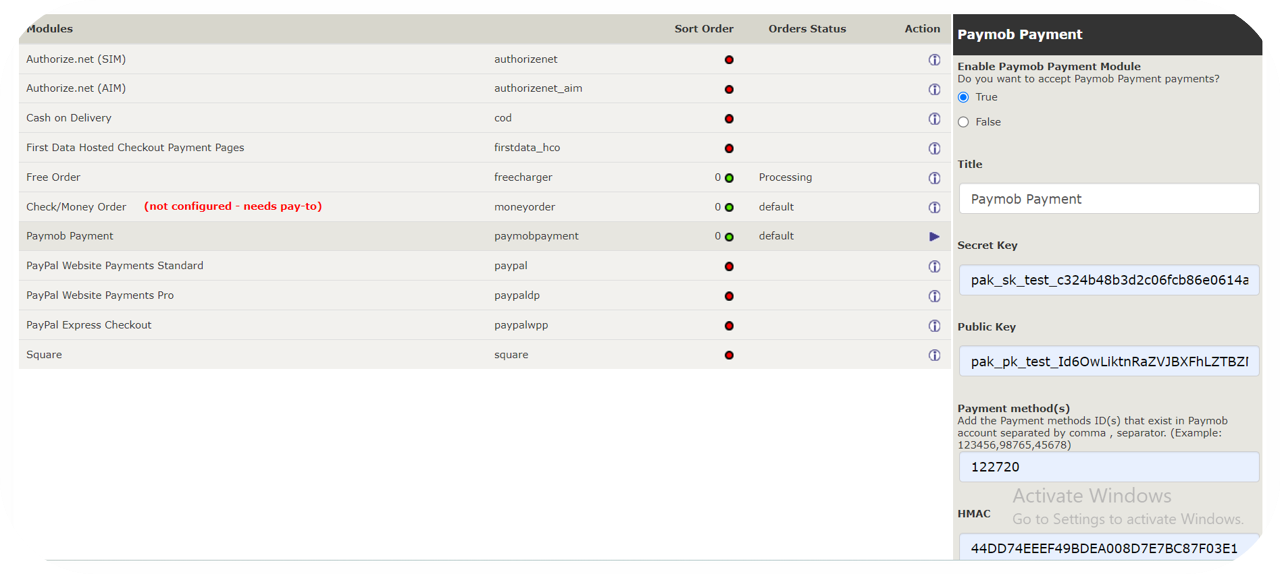
You can get all the credentials from your Paymob dashboard. Check the Getting Integration Credentials.
2
Enter the integration IDs separated by a comma (,).
3
Copy the integration callback URL that exists in the Paymob ZenCart Configuration page, then paste it into each payment integration in the Paymob account.
You check the Getting Integration Credentials page for more guidance on how to update the callback URLs on the Paymob dashboard.
4
Save the changes
To test the payment cycle, you need to use test credentials for Card and Wallet. Please check the Test Credentials page.


On this page
- ZenCart