FAQs

Who is this for: Everyone
Outcome: Explore common issues and the most commonly raised inquiries for faster resolution
Last Updated Date - October 4, 2026
Common Issues
"Unable to authorize store ownership" in Shopify
"Unable to authorize store ownership" in Shopify
Description
Facing the error “Unable to authorize store ownership” while trying to log into the Paymob Shopify app.
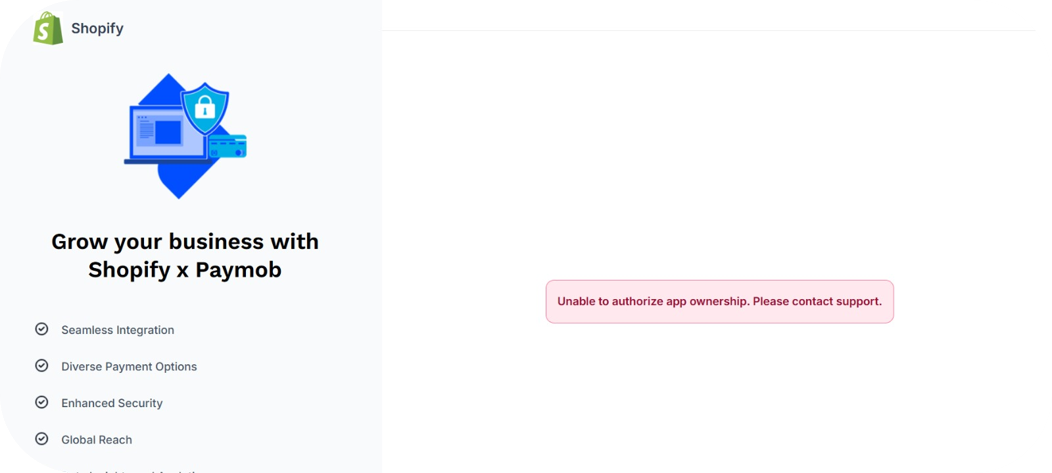
Solution
Log in with the correct account
- Use your main account credentials
Log in using the same username and password you use to access the Paymob dashboard. - If you’ve logged in before
Make sure to use the same credentials from your first successful login, as the app is linked to that account. - Need to switch accounts?
Switching accounts isn’t supported directly within the app.
To proceed, either: - Submit a support ticket at support@paymob.com, or
- Contact your account manager for assistance
Integration ID/Name does not exist
Integration ID/Name does not exist
Descritpion
Facing the error (Integration ID/Name does not exist in our system. You can find the list of Integration ID’/Names from Merchant Dashboard under Developers → Payment Integrations Tab) while calling the intention creation API request
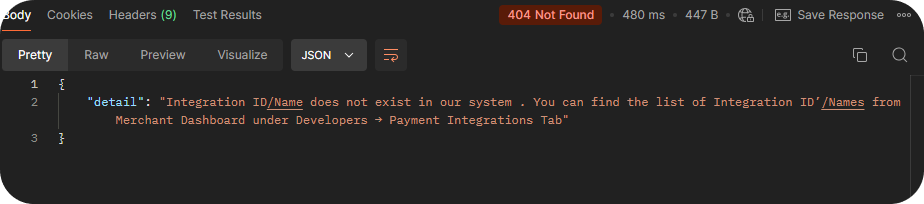
Solution
Make sure that the used integration ID meets the following 4 criteria:
- The integration ID related to your account.
- The integration ID matches the status of the used secret key (Live/Test)
- The integration ID is passed to the intention API as an integer, not as a string.
- The integration ID is well configured; if all the above steps have been followed, and you are still facing the same issue, then please contact your account manager or submit a support ticket to support@paymob.com. Be sure to include detailed information about the problem.
Refund Failure Error
Refund Failure Error
Description
Occurs when a refund request cannot be processed. This may be due to an insufficient account balance or other issues indicated by the error message returned on the dashboard or within the API response.
Solution
Follow the steps below to troubleshoot refund issues:
- Verify your balance
Ensure that your account has sufficient balance to process the refund, as insufficient funds are a common cause of failure. - Check the error message
Review the error message displayed on the dashboard or returned in the API response. This usually indicates the reason for the failure. - Handle generic error messages
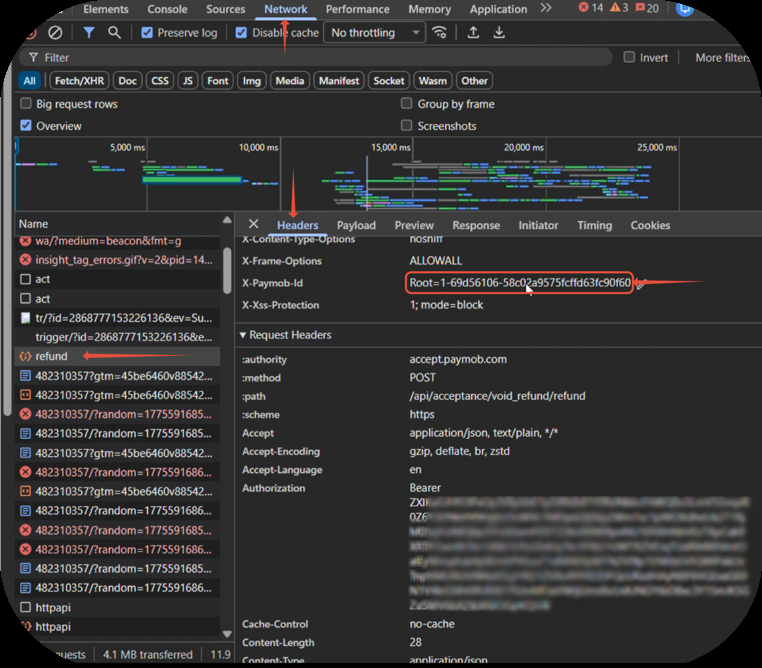
If you receive a generic message such as “Oops, something went wrong.”, follow these steps:- Open your browser’s Developer Tools (press Ctrl Shift I) and go to the Network tab.
- Attempt the refund again.
- Locate the failed request (highlighted in red) with the name refund.
- Capture a screenshot of the request.
- Copy and share the Request Headers and Response details for further investigation.
- In the Headers tab, find the x-paymob-id value and include it in your report.
"accept.paymobsolutions.com refused to connect" in Shopify
"accept.paymobsolutions.com refused to connect" in Shopify
Description
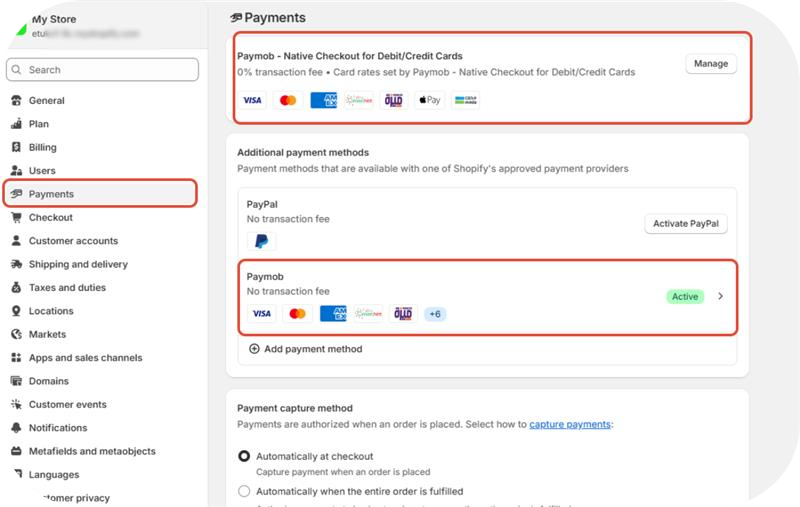
Facing the error "accept.paymobsolutions.com refused to connect" while you try to reach the Paymob shopify apps configuration on the Shopify store
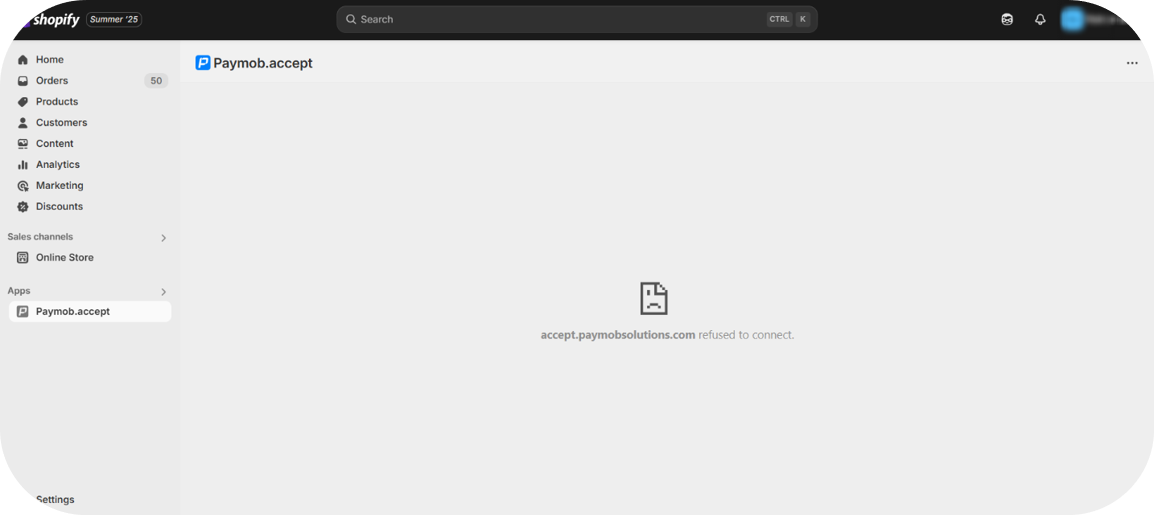
Solution
To successfully connect and configure the Paymob Shopify apps, please follow these steps:
- Log in to your Shopify Admin Dashboard.
- Go to Settings (located at the bottom-left corner of the dashboard).
- Select Payments from the list of settings.
- Manage the desired Paymob Shopify app.
Next user doesn't exist
Next user doesn't exist
Description
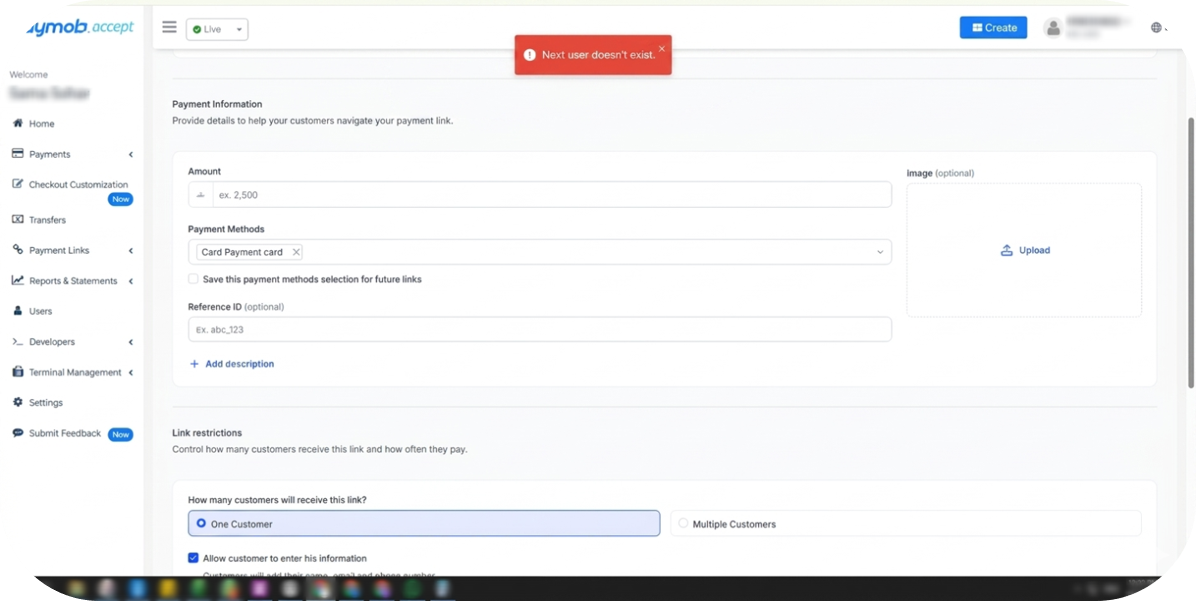
Facing the error "Next user doesn't exist" while creating a Quick Link through Paymob's dashboard
Solution
Please contact your account manager or submit a support ticket to support@paymob.com to configure your account for the new experience. Be sure to include detailed information about the problem.
Can't create IFrames
Can't create IFrames
Description
Occurs when a merchant requires setting up a new IFrame integration
Solution
We recommend using Unified Checkout, our latest checkout experience, designed to provide an improved and seamless user interface. All new merchants are encouraged to adopt this experience.
If you are an existing merchant currently using the IFrame integration and require a new IFrame setup, please note that this request must be handled by our team. To proceed, contact your account manager or submit a support ticket at support@paymob.com.
HMAC missing in API keys page in the dashboard
HMAC missing in API keys page in the dashboard
Description
The HMAC secret is not showing on the API keys page in the Paymob dashboard.
Solution
Check which type of user you are logged in with:
- Sub-user: Sub-users can't see the HMAC secret. Ask the main account user to log in to the dashboard and copy it.
- Main user: If you are the main user and the HMAC secret is still missing, please submit a support ticket at support@paymob.com. Be sure to include detailed information about the problem.
Common Inquiries
How do I set up a global account?
How do I set up a global account?
Answer
Currently, Paymob does not support the creation of a global account. You can only create an account for a specific region at this time.
How to Confirm Payment Status After Completion?
How to Confirm Payment Status After Completion?
Answer
Yes, after a successful payment attempt, Paymob triggers two types of callbacks:
1. Transaction Processed Callback (Server-to-Server)
- A POST request is sent to your backend endpoint.
- Includes key details such as transaction status (success or declined), order ID, transaction ID, and other relevant data.
- Used for securely updating your system with the final transaction result.
2. Transaction Response Callback (Redirect)
- Redirects the customer back to your platform after payment.
- Includes query parameters that can be used to display a success or failure message.
- If you are using the mobile SDKs, this step is handled automatically.
Please check the details in the callback section.
How can I configure custom callback URLs for each payment?
How can I configure custom callback URLs for each payment?
Answer
You can define or override callback URLs directly in the intention creation request using the following parameters:
notification_url: Used for the Transaction Processed Callbackredirection_url: Used for the Transaction Response Callback
Theredirection_url It is supported only with card and wallet payment methods.
How to Retrieve Details of a Specific Transaction?
How to Retrieve Details of a Specific Transaction?
Answer
Paymob provides the ability to inquire about a specific transaction status using the Transaction ID, Order ID, or Special Reference Number. For detailed instructions on each method, please refer to the Transaction Inquiry API section.
How to Retrieve the Subscription ID After Creation?
How to Retrieve the Subscription ID After Creation?
Answer
There are two ways, please check them below:
- In the Subscription Callback returned after subscription creation.
- By Subscription Inquiry using the first 3DS transaction ID (The transaction that created the subscription).
Can I force saving the customer's card?
Can I force saving the customer's card?
Answer
Yes, this can be enabled using a dedicated Integration ID configured to enforce card saving.
To request this configuration, please contact your account manager or submit a support ticket at support@paymob.com
Can I use PayMe in Test Mode?
Can I use PayMe in Test Mode?
No. PayMe is only available in Live Mode.
If I deactivate my main handle, do my branch handles also get deactivated?
If I deactivate my main handle, do my branch handles also get deactivated?
Yes, and reactivating the main handle reactivates them too.


On this page
- FAQs