Transaction inquiry & Reports

Who is this for - Product managers, business owners, finance teams, and developers who need visibility into payment activity, reporting, or card token data
Outcome - Understand the available ways to access transaction data and card tokens, and identify which option best fits your needs
Last Updated Date - August 4, 2026
Paymob provides multiple ways to track, review, and analyze payment activity, allowing merchants to monitor transactions, investigate issues, and support financial reporting needs.
Available Options
Paymob supports four ways to inquire about transactions and access payment data:
1. Transaction Inquiry APIs
Transaction Inquiry APIs allow you to retrieve transaction details programmatically using identifiers such as transaction ID, order ID, or merchant order ID.
This option is suitable if you need to access transaction data from internal systems
Paymob provides a callback mechanism that should be used as the primary method for receiving transaction details after every payment or payment-related action. Callbacks ensure timely and reliable updates to your system.
Transaction Inquiry APIs should be used only for manual checks from your system or as a fallback mechanism in case a callback is missed.
Check the technical implementation guide in the Transaction Inquiry APIs guide under the Developers Reference sections
2. Card Token Inquiry
The Card Token Inquiry API lets you retrieve the card token saved against a specific order, using the order ID.
This is useful if you need to look up a customer's tokenized card details (e.g. masked PAN, token ID) tied to a previous order.
Check the technical implementation guide in the Card Token Inquiry guide under the Developers Reference sections
3. Reports via Dashboard
The Paymob Dashboard enables you to generate reports for transactions and transfers.
With dashboard reports, you can:
- Select date ranges and relevant criteria
- Create the report
- Export reports for accounting, auditing, or internal analysis
This option is ideal for finance and operations teams who rely on periodic reporting.
The selected date range must be within one month, starting from the chosen start date.
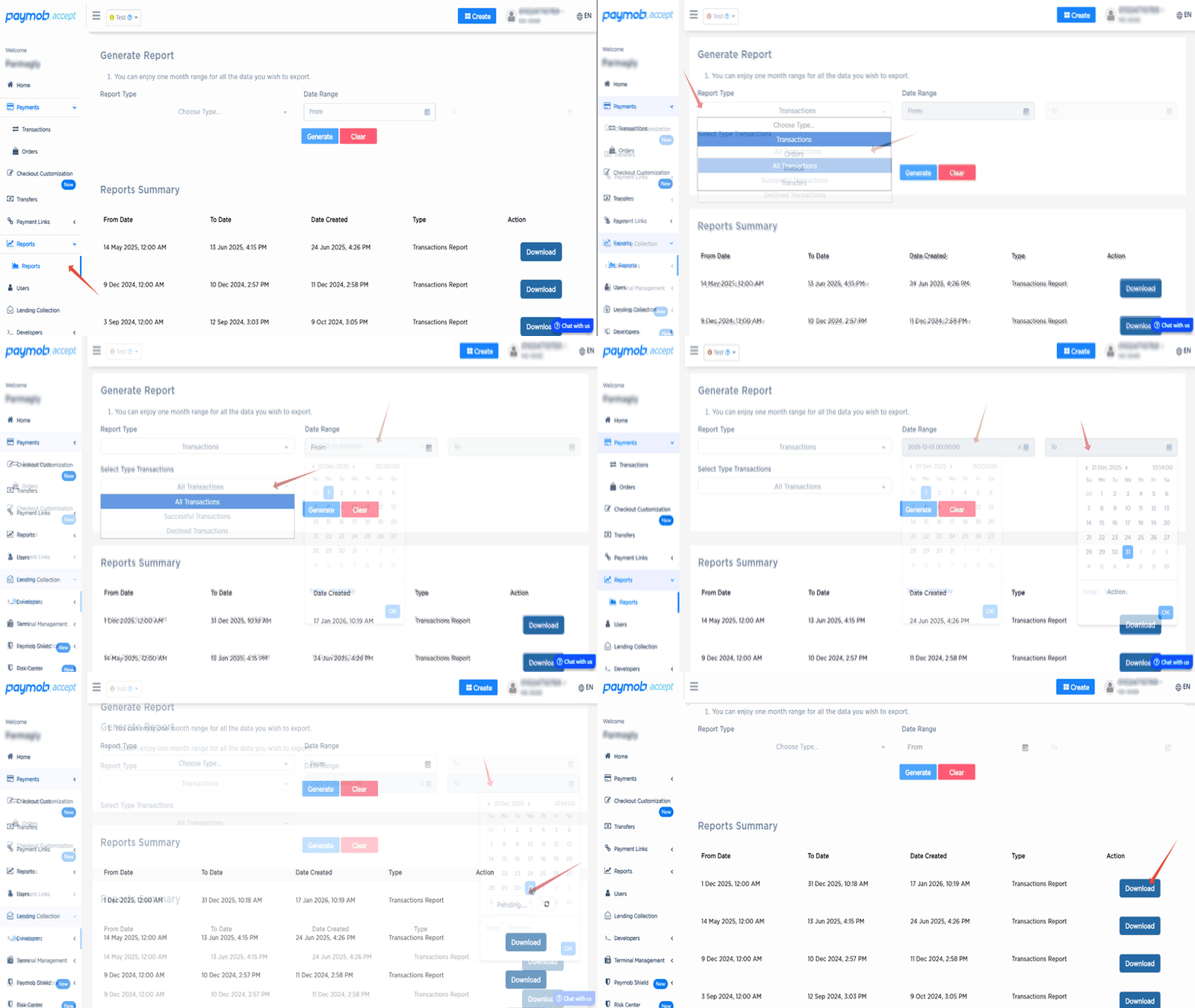
How to create a report
1
Navigate to the Reports Tab
Go to the Reports tab from the left navigation sidebar
2
Choose the Report Type
Choose if you need a report for Transactions or transfers, or another report type.
If Transactions is selected, you need to select the transaction status also (All Transactions, Successful Transactions, or Declined Transactions)
3
Press the Generate Button
Once you press the Generate button, a report with the status pending will be generated. It'll take a while to be ready for download.
4
Download the Report
Once you press the Download button, a CSV file will be downloaded to your device.
4. Transaction Filtering in the Dashboard
You can also view and filter transactions directly from the Paymob Dashboard for day-to-day monitoring and quick lookups.
This option is covered in detail in the Dashboard documentation and is intended for operational use rather than reporting or automation purposes.
Choosing the Right Option
Automated or system-based transaction checks | Transaction Inquiry APIs |
Retrieve a saved card token for an order | Card Token Inquiry |
Financial reporting and reconciliation | Dashboard Reports |
Quick transaction lookup or status check | Dashboard Filtering |


On this page
- Transaction inquiry & Reports