Overview

Who is this for - Anyone involved in setting up or managing payments with Paymob, including Merchants, Developers, and Product or technical teams
Outcome - know where to start, what you need, and which path makes the most sense for you
Paymob helps businesses accept online and in-person payments securely and at scale. Whether you’re just getting started with payment links, setting up an online store, or building a custom checkout from scratch, Paymob gives you a few different ways to integrate so you can choose what fits your business and technical setup.
This overview will help you understand what Paymob offers, which payment methods are available, and how to get up and running with the right integration.
Who Is This For?
In our documentation, to help you with navigation visual indicators is used to clarify the intended audience. When you see the People figure, the content applies to all users, including marketers and non-technical roles. When you see a code figure, the content is intended specifically for developers and may include technical or implementation-focused details.

Everyone
Essential information for anyone getting started with Paymob.

Developers
Detailed API documentation, integration guides, and technical specifications. Ideal for those implementing Paymob's payment solutions directly into applications or platforms.
Payment methods available
Paymob supports a range of payment methods commonly used, so your customers can pay the way they prefer:
Cards

Methods included: Visa, Mastercard, Amex, MADA, OmanNet
When to use: Standard online card payments with 3D Secure
Mobile Wallets
Methods included: Vodafone Cash, Orange Cash, e& money, We Pay, … in EgyptStcPay in KSA When to use: Basic banking services are provided by banks and their agents (e.g., mobile network operators).
Quick Payments
Methods included: Apple Pay, Google Pay
When to use: Faster checkout using cards saved on the user’s device or browse
BNPL
Methods included: (Tabby, Tamara) in the UAE and KSA(vaLU, Sympl, Souhoola, Halan, TRU, MOGO, …) in Egypt
When to use: Allow customers to split payments into installments
In-Person Payments
Methods included: Tap to Pay
When to use: Accept contactless payments on supported devices using the Paymob App
Payment links | Freelancers, invoicing, social selling | Minutes | None |
E-commerce plugins | Shopify, WooCommerce, Magento | Hours | Low |
Hosted checkout | PCI-compliant payment redirection | Days | Medium |
Pixel (Embedded) | Embedded checkout experience | Days–Weeks | High |
Mobile SDKs | iOS, Android, Flutter, React Native | Days–Weeks | Hig |
Ways to integrate with Paymob
There’s more than one way to integrate Paymob. The right option depends on how technical your setup is and how quickly you want to launch.

Sandbox (Test)
What it's for: Development and testing
When to use it: While building and QA

Production (Live)
What it's for: Real payments When to use it: After go-live approval
Not sure where to start?
Use this quick guide:
- No developers involved? → Start with Payment Links
- Running a Shopify or WooCommerce store? → Use an E-commerce Plugin
- Want a hosted payment page → Go with Hosted Checkout
- Want an embedded payment experience, not redirection → Go with Pixel
- Building a mobile app? → Use the Mobile SDKs
How payments work (at a high level)
No matter which integration you choose, the payment flow stays mostly the same:
You don’t need to handle sensitive card data yourself. Paymob takes care of that.
Test vs. live environments
Paymob gives you two environments to work with:

For all integrations
- A Paymob merchant account
- Access to the Paymob Dashboard
- Completed business verification
Both environments use the same base URL.

For API or SDK integrations
- API Secret Key and Public Key
- Integration ID(s) for your payment methods
- A webhook endpoint
- Success and failure redirect URLs
What you’ll need before you begin
Here’s a quick checklist to help you prepare.

For e-commerce plugins
- Admin access to your platform
- Integration ID(s)
- API key, secret key, and public key
Where to go next
Depending on what you want to do, here’s where to continue:
Your goal | Start here |
Accept your first payment quickly | Quick start guide |
Set up API credentials | API keys setup |
Test your integration | Test environment & credentials |
Prepare for production | Integration checklist |
Get guided setup | Onboarding wizard |
Need help?
If you get stuck, you’re not on your own:
- Documentation: Use the sidebar to explore all topics
- API reference: Full API details live under Developer Reference
- Postman collection: Try the APIs quickly using Postman
- Support: support@paymob.com
- Community: Join the Paymob Developer Community
What made this section unhelpful for you?


On this page
- Overview
Integration Checklist

Who is this for - Developers, product managers, and business owners who are preparing to launch Paymob in production
Outcome - Confirm that your integration is complete, tested, and ready for a smooth go-live
Overview
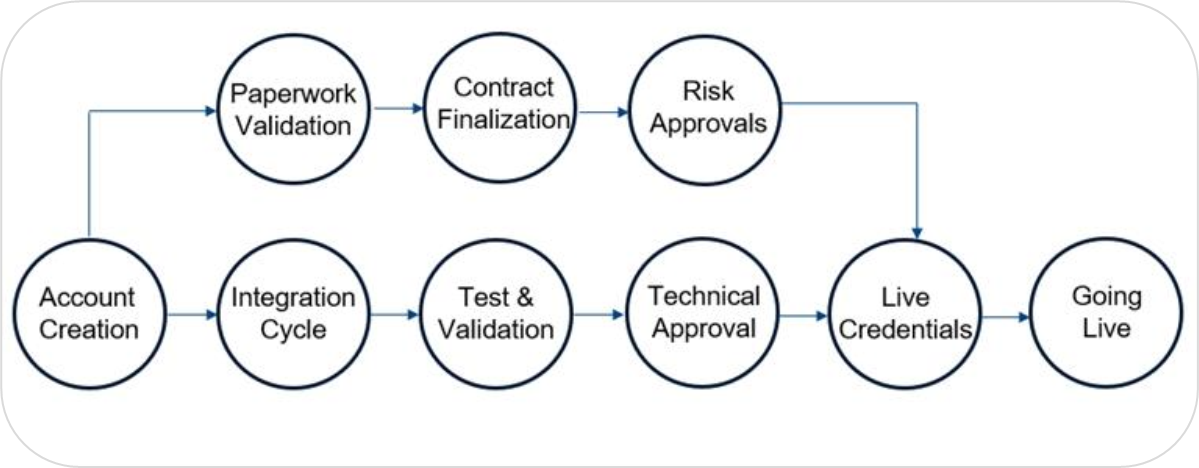
Within this section, we will help outline the end-to-end onboarding and go-live journey for integrating with our platform. It shows the required business, technical, and risk steps from account setup and documentation through testing, approvals, and credential issuance. Each stage must be completed in sequence to ensure a secure, compliant, and smooth transition to production.

Account Creation
The merchant account is created, granting access to the dashboard and test environment.

Paperwork Validation
Business and legal documents are reviewed to verify the merchant’s information and compliance.

Contract Finalization
Commercial terms are confirmed and the contract is signed by both parties.

Risk Approvals
The merchant is assessed by the risk team based on business model and transaction activity.

Integration Cycle
The merchant integrates the payment solution using APIs, SDKs, or plugins in the test environment.

Test & Validation
Test transactions are completed to ensure correct payment flow and system behavior.

Technical Approval
The integration is reviewed to confirm it meets technical and security requirements.

Live Credentials
Production credentials are issued to enable live transactions.

Going Live
The merchant starts accepting real customer payments.
What made this section unhelpful for you?
On this page
- Integration Checklist
Onboarding Wizard

Who is this for - Everyone
Outcome - Build the integration plan using this interaction wizard
Overview
The Onboarding Wizard is an interactive tool designed to help you build a clear and tailored integration plan based on your business needs and technical setup. Through a series of simple choices, such as your platform, preferred checkout experience, and required features, the wizard maps out the recommended Paymob integration path for your use case
What made this section unhelpful for you?
On this page
- Onboarding Wizard
Dashboard

Who is this for - Everyone
Outcome - Full and quick guide for the Paymob dashboard.
Overview
Our Dashboard allows you to monitor and analyze all payment activities from a single, centralized platform. You will have access to detailed payment histories, transaction insights, and comprehensive analytics to support leading informed business decisions.
Through the video below, we will guide you from the first steps of Signing Up until your full Account Creation.
Sign-up
Account Configuration
Manage and control your account’s core settings directly from the Settings tab, including:
Business Branding
- Update your business name, account type, sector, and industry
- Add and manage social media links
- Upload and manage your business logo
Contact Information
- Edit company name
- Manage phone numbers
- Update email addresses
Account Information
- Access integration credentials (Secret Key, Public Key, API Key, HMAC Secret)
- View account mode and status (Live / Test)
Notifications & Reports
- Enable or disable selected notification settings
- Control reporting and alert preferences
Checkout Customization
From the Merchant Dashboard, you can fully personalize the checkout experience to align with your brand and business needs.
Branding Customization
- Add your business logo and details
- Customize brand colors
- Select fonts that match your brand identity
- Choose button styles (Rounded or Rectangular)
Payment Experience
- Choose how payment methods are displayed (Tabs or List)
- Enable or disable specific payment methods
- Show or hide billing address fields
- Display purchased item details
- Enable the “Save Card” option
- Activate Split Payments and control the number of cards allowed
- Display Terms & Conditions link
- Enable or disable payment retries
Post-Payment Experience
- Show a custom thank-you message
- Customize the post-payment redirection flow
Payment Integrations
Manage all payment integrations from the Payment Integrations tab:
- Retrieve integration credentials based on selected mode (Live / Test)
- Add test integrations for payment methods:
- Cards (MIGS)
- Wallets
- Kiosk payments
- Update callback URLs for each integration
Transactions Management
From the Transactions tab, you can monitor and manage all transaction activities:
- Filter transactions using:
- Date range
- Transaction ID
- Order ID
- Merchant Order ID
- Transaction status
- Access full transaction details, including:
- Transaction and order details
- Shipping and billing information
- Installment details (if applicable)
- Perform supported actions based on transaction status:
- Refund
- Void
- Capture
Orders Management
Use the Orders tab to track and manage all orders efficiently:
- View orders by selected mode (Live / Test)
- Filter orders using:
- Date range
- Order ID
- Merchant Order ID
What made this section unhelpful for you?
On this page
- Dashboard
Overview

Who is this for - Product managers and developers who need a high-level overview to plan the payment feature for their app or website
Outcome - Understand the overall payment flow and the available integration options
Overview
The figure below is a high-level view of the payments architecture, from user touchpoints to transaction execution, designed to guide decisions across wallets, cards, installments, and post-payment actions. This will help you map what you’re building, how you’re integrating, and which payment methods and flows you support.
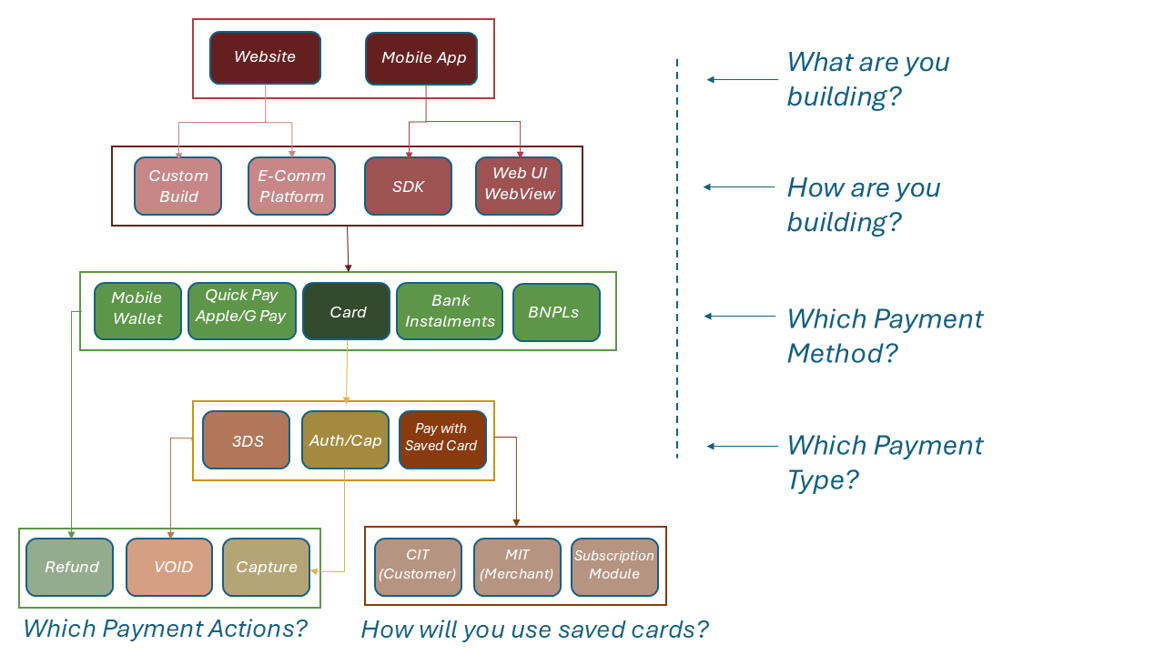
Phase 1: Define Your Product & Integration Method
Start by defining what you are building and how you will connect to us.
Phase 2: Choose Your Payment Options
Select the payment methods and types that match your needs.
Phase 3: The Payment Actions you can take
Determine what payment actions you’ll perform.
1. What are the payment actions you'll perform?
Please check the Managing Payment Actions section to know more about the available payment actions and how to do each one through the Paymob dashboard or APIs.
If you are still confused regarding the path you'll follow to implement your needed payment experience, please send an email to support@paymob.com, and we'll be glad to help you get the best payment experience for your business.
What made this section unhelpful for you?
On this page
- Overview
No Code

Who is this for - Product managers and Merchants (non-technical) who want to start accepting online payments without any coding or development
Outcome - Start accepting online payments using Payment Links even without a website or development team.
Overview
Payment Links (fastest start)
Ideal when you don't have a website. Share via WhatsApp, social media, or any communication tool.
Good for: Event tickets, reservations, small businesses, electronic invoices
Option A: Payment Links (fastest start)
Payment links are ideal when you don’t have a website. You can share them via WhatsApp, social media, or any communication tool, and your customer pays on a hosted checkout page.
Common use cases
- Event tickets and reservations
- Small businesses selling without a website or POS
- Adding a payment link to an electronic invoice
Security and compliance
With hosted checkout, your customers complete payment on a payment page handled by the payment provider, which helps keep sensitive card data off your website.
Go live checklist
- Confirm your business profile is complete and approved (documents).
- Make sure the payment methods you want are enabled on your account.
- Run a full test: link creation → payment → confirmation → refund/void (if applicable).
- Train your team on what “paid” looks like in the dashboard (so orders don’t get missed).
On this page
- No Code
APIs

Who is this for - Product managers and developers who need a high-level overview of how to integrate through APIs and our available checkout experiences
Outcome - Understand the overall API payment flow, the available checkout options, and how payment results are securely communicated back to your system
When should you use APIs?
Use Paymob APIs if you are:
- Building a custom website without a CMS or ready-made plugin
- Using a platform that allows calling third-party APIs but has no direct Paymob integration
- Building a mobile app and choosing to use a web-based checkout in a WebView instead of a native SDK
APIs give you flexibility while still relying on Paymob’s secure payment infrastructure.
Integration flow
What made this section unhelpful for you?
On this page
- APIs
Plugins
Integrate Paymob payments into your existing e-commerce platform without writing code
When should you use Plugins? Use Paymob Plugins if you are: * Running an online store on a supported e-commerce platform * Looking for a no-code or low-code integration solution * Want to be up and running quickly without custom development
Plugins


On this page
- Plugins
Mobile SDKs
Who is this for - Product managers and developers who need a high-level overview of how to integrate through Mobile SDKs
Outcome - Understand the overall Mobile flow, the available checkout options, and how payment results are securely communicated back to your system
When should you use Mobile SDKs?
Use Paymob Mobile SDKs if you are building a native mobile application and want a checkout experience that feels fully integrated with your app.
Mobile SDKs are recommended when you want a native UI experience without using WebViews
Integration flow
What made this section unhelpful for you?
On this page
- Mobile SDKs
Overview

Who is this for: Product managers, business owners, and stakeholders who need a high-level overview of Paymob’s supported payment methods and features
Outcome: Identify the supported payment methods and features, and decide which ones best fit your business needs
Paymob enables businesses to accept and manage digital payments through a wide range of payment methods and Core features.
Payment Methods
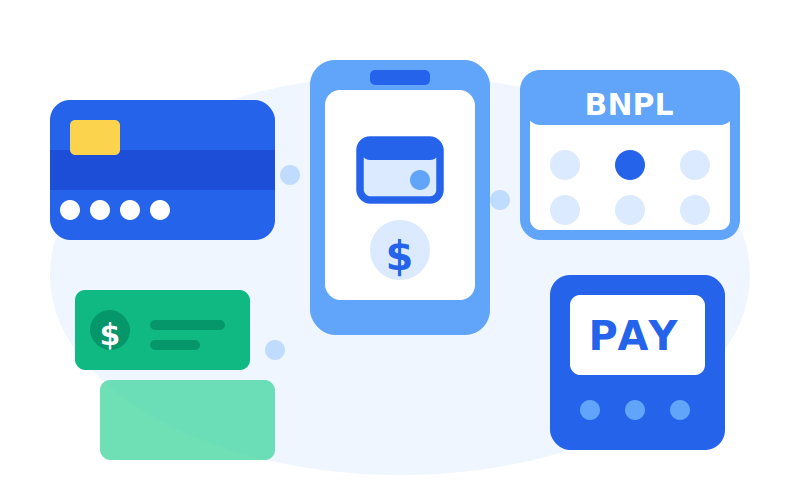
Paymob supports multiple payment methods to serve different customer preferences and markets, including:
- Card payments for online credit and debit card transactions
- Mobile wallets for fast, wallet-based payments
- Bank installments & BNPLs for spreading payments over time
- Kiosk payments for cash-based transactions
Each payment method has its own availability, flow, and requirements, which are covered in detail on its respective page.
Core Features
Paymob also provides features that help optimize payment operations and customer experience, such as:
- Pay With Saved cards for faster repeat payments through checkout
- Authorization and capture for flexible fund settlement
- Subscriptions Module for recurring payments
- Split Features for splitting the amount through multiple parties (Split Amount), or using up to 3 cards to fulfill the same payment (Split Payment)
Further details about each feature can be found in the dedicated feature pages.
What made this section unhelpful for you?
On this page
- Overview
Payment Methods

Who is this for: Product managers, business owners, and stakeholders who need a high-level overview of Paymob’s supported payment methods and their use cases.
Outcome: Identify the supported payment methods and decide which ones best fit your business needs
Overview
Paymob supports a wide range of payment methods to help businesses accept payments across different customer preferences and markets. Each payment method serves a specific use case and may vary in terms of availability, customer experience, and supported features.
Supported Payment Method Types
Card Payments
Allow customers to pay using debit or credit cards. This is the most common payment method and supports standard online card payment flows
Mobile Wallets
Enable payments using mobile wallets linked to a customer’s phone number
On this page
- Payment Methods
Core Features

Who is this for: Product managers, business owners, and stakeholders who want a high-level overview of Paymob’s core capabilities, without diving into technical implementation details
Outcome: Understand the key payment management and value-added features offered by Paymob, and identify which features are most relevant to your business mode
Paymob provides a set of core payment features that help merchants manage transactions, enhance customer experience, and optimize business operations. Each feature addresses specific business needs, from controlling funds to enabling flexible payments and generating insights.
Core Features Overview

Subscription Module
Automate recurring payments by charging customers periodically based on predefined subscription plans.

Pay With Saved Cards
Allows returning customers to pay quickly without re-entering card details, streamlining checkout and increasing repeat purchases.

Authorization & Capture (Auth/Cap)
A two-step payment flow that lets merchants reserve funds first and collect them later, offering control over settlement timing and flexibility in transaction amounts.

Split Features
Split a single payment across multiple parties (Split Amount) or allow customers to use up to three cards to complete the same payment (Split Payment).

Convenience Fee
Merchants can add additional charges to cover transaction processing costs or service fees, clearly presented to customers at checkout.

Transaction Inquiry & Reports
Provides insights into payments through detailed reports and Transaction Inquiry APIs, helping merchants track performance and reconcile accounts.
On this page
- Core Features
Managing Payments

Who is this for - Product managers, business owners, and stakeholders who want a clear understanding of how to manage payments
Outcome - Understand the different types of payment management actions and when to use each one
Paymob gives you flexible control over how payments are handled throughout their lifecycle. This section focuses on the actions available to manage transactions once they exist, allowing you to cancel, reverse, or finalize payments based on your business needs.
Available Actions
The following actions help you manage different payment scenarios. Each action is covered in detail in its own dedicated page.
On this page
- Managing Payments
Authentication Request (Generate Auth Token)

Who is this for: Developers
who implement the integration
Outcome: Generate an Auth token to use for authentication across multiple API endpoints (e.g., Subscription APIs, create QuickLink).
What made this section unhelpful for you?
Response
What made this section unhelpful for you?
Authentication Request (Generate Auth Token)
Outcome: Generate an Auth token to use for authentication across multiple API endpoints (e.g., Subscription APIs, create QuickLink).
You'll need to pass your API Key in the body of the request
Body Parameters
Response
Response Attributes
Show child attributes
What made this section unhelpful for you?
Base URL
Production:
Sandbox:
Response
What made this section unhelpful for you?
Overview
Outcome: Understand what Paymob's Payment Intention is, and its APIs
Detention
Intention: The initial component of any payment that contains key details such as the payment amount, customer information, currency, and the available payment methods.
When will it be used?
It will be used each time you need to create a payment. It will be used with:
- Normal redirection integration on a website
- Embedded experience (Pixel) on a website
- Integrating with our SDKs
- Create subscription
- Auth/Cap payment model
- Pay with saved cards
Available actions
Create Intention
You can create an intention by using the Create Intention API, passing the amount that should be paid, customer info, and other information.
Update Intention
You can update an already existing intention by using the Update Intention API, passing the amount that should be paid, customer info, and other information.
What made this section unhelpful for you?
On this page
- Overview
Create Intention
Outcome: Create an Intention that will be used to complete a payment, either via APIs or through one of our UI options.
Authorization
Add your “secret key“ in the authorization header preceded by the word "Token ".
Key values in the response
You'll receive a response, which is an object that represents an intention and includes all the intention details.
- Important parameters: Order ID: Paymob order ID, which will be received in the transaction callback and can be used to correlate the transaction to the order on your system.
- Intention ID: Paymob intention ID can be used to do the same as the Order ID.
- Client Secret: A unique, intention-specific token used to redirect the customer to Paymob’s Unified Checkout or to render Paymob’s Pixel component.
Header Parameters
This is the secret key which you can get from your Dashboard
Body Parameters
The total transaction amount, expressed in cents.
The currency in which the transaction is processed. This must match the currency of the selected Integration ID.
The Integration ID(s) used to process the payment. Values can be provided as integers (e.g., 1256) or as names enclosed in quotes (e.g., "card"). The status (Live/Test) of the provided ID(s) should match the status of the secret key used for authentication.
Show child attributes
Show child attributes
Show child attributes
A set of additional custom parameters provided by the merchant. These values are returned in callbacks under the payment key claims object.
Show child attributes
A unique reference associated with the transaction or order, returned in the transaction callback under merchant_order_id.
A callback URL that receives a POST request with full transaction details after the transaction succeeds or fails. Supported only with card Integration IDs. This endpoint
A URL to which the customer is redirected after the transaction completes, with transaction details included as query parameters. Supported only with card and wallet payment methods. > ⚠️ Important Notes
The endpoint used in the notification URL will receive the transaction callback (transaction details) and the card token (for pay with saved card features)
Response
Response Attributes
Show child attributes
Show child attributes
Show child attributes
Show child attributes
What made this section unhelpful for you?
Base URL
Production:
Sandbox:
Response
What made this section unhelpful for you?
Update Intention
Outcome: Update the (amount, billing_data, special_reference, and notification_url) of a already created intention
Authorization
Add your “secret key“ in the authorization header preceded by the word "Token ".
Header Parameters
Bearer token authentication. Format: "Token YOUR_SECRET_KEY"
Path Parameters
Client secret token for completing the payment
Body Parameters
The item amount, expressed in cents and located under the items array. When multiple items are provided, the sum of all item amounts must equal the total transaction amount.
Currency code (e.g., EGP, USD)
Available payment methods for this transaction
Show child attributes
List of items in the order
Show child attributes
Customer billing information
Show child attributes
Additional custom data
Show child attributes
A unique reference associated with the transaction or order, returned in the transaction callback under merchant_order_id.
A callback URL that receives a POST request with full transaction details after the transaction succeeds or fails. Supported only with card Integration IDs. This endpoint
A URL to which the customer is redirected after the transaction completes, with transaction details included as query parameters. Supported only with card and wallet payment methods.
Response
Response Attributes
Show child attributes
Unique identifier for the transaction
Show child attributes
Client secret token for completing the payment
Available payment methods for this transaction
Show child attributes
Special reference identifier for merchant use
Additional custom data
Show child attributes
Indicates if the transaction has been confirmed
Current status of the record
Card details used for the transaction
List of saved card tokens
Type of object returned
What made this section unhelpful for you?
Base URL
Production:
Sandbox:
Response
What made this section unhelpful for you?
Overview
Outcome: Understand the checkout experiences supported by Paymob, and know when to use Unified Checkout vs. Pixel.
Paymob offers two flexible checkout experiences to help you accept payments online. Each experience supports different merchant needs and integration preferences, while both rely on Paymob’s Intention API as the initial step.
Checkout Options
Unified Checkout
Unified Checkout is Paymob’s redirect-based payment experience. When a customer is ready to pay, you redirect them to Paymob’s hosted checkout page, where they enter their payment details and complete the transaction.
The flow generally involves creating a payment intention, then directing the customer’s browser to the hosted checkout using the generated client secret
Pixel
Pixel is Paymob’s JavaScript SDK that enables an embedded checkout experience directly on your site or application. Instead of redirecting the customer to a separate page, Pixel allows you to integrate payment elements inside your own UI.
Pixel is ideal for:
- Seamless, branded checkout experiences
- Embedded Card, Apple Pay, and Google Pay
- Businesses that want checkout UI inside their website without redirection
Pixel accepts configuration (such as payment methods and an HTML container ID) and uses the client secret from the previously created intention to render the payment UI in place.
How They Work
Both checkout experiences share the same initial requirement:
- Create an intention Use the intention API to specify the payment amount, currency, and available methods. This returns a client secret that is unique to that payment attempt.
- Render checkout
- Unified Checkout: Redirect the customer to a hosted payment page using the client secret.
- Pixel: Embed the payment UI inside your site using the SDK and client secret.
Choosing Between Unified Checkout and Pixel
Checkout location | Redirect to hosted page | Embedded on your site |
Branding control | Standard Paymob look, with simple customization | Matches your UI |
Setup complexity | Simple | Requires SDK integration |
Best for | Quick integration | Custom embedded experience |
What made this section unhelpful for you?
On this page
- Overview
Unified Checkout (Redirection)
Outcome: Redirect the customers to Paymob's Unified Checkout to process and complete the payment, and customize the Unified Checkout.
Query Parameters
Client Secret
Public Key
Query Parameters
A unique, intention-specific token used to redirect the customer to Paymob’s Unified Checkout or to render Paymob’s Pixel component.
What made this section unhelpful for you?
Base URL
Production:
Sandbox:
What made this section unhelpful for you?
Pixel (Embedded)
Outcome: Integrate Paymob's pre-built UI (Pixel) in the merchant's checkout.
Pre-Requisites
- Integrate the Intention API as described in the documentation for the Create Payment Intention API.
- Include the following script and stylesheets in your HTML file
Usage
Create a new Pixel instance
 new Pixel({   publicKey: 'egy_pk_live_XXXX',
   clientSecret: 'egy_csk_live_XXXX',
   paymentMethods: [ 'card','google-pay','apple-pay'],
   elementId: 'paymob-elements',
   disablePay: false,
   showSaveCard :true,
   forceSaveCard : true,
            beforePaymentComplete: async (paymentMethod) =>
{
       console.log('Before payment start');
       return true
   },
    afterPaymentComplete: async (response) =>
 {
       console.log('After Bannas payment');
   },   onPaymentCancel: () => {
       console.log('Payment has been canceled');
   },   cardValidationChanged: (isValid) => {
       console.log("Is valid ? ", isValid)
   },   customStyle: {
    Font_Family: 'Gotham',
    Font_Size_Label: '16',
    Font_Size_Input_Fields: '16',
    Font_Size_Payment_Button: '14',
    Font_Weight_Label: 400,
    Font_Weight_Input_Fields: 200,
    Font_Weight_Payment_Button: 600,
    Color_Container: '#FFF',
    Color_Border_Input_Fields: '#D0D5DD',
    Color_Border_Payment_Button: '#A1B8FF',
    Radius_Border: '8',
    Color_Disabled: '#A1B8FF',
    Color_Error: '#CC1142',
    Color_Primary: '#144DFF',
    Color_Input_Fields: '#FFF',
    Text_Color_For_Label: '#000',
    Text_Color_For_Payment_Button: '#FFF',
    Text_Color_For_Input_Fields: '#000',
    Color_For_Text_Placeholder: '#667085',
    Width_of_Container: '100%',
    Vertical_Padding: '40',
    Vertical_Spacing_between_components: '18',
    Container_Padding: '0'
   },});

</script>Properties
The full list of properties is as follows:
publicKey | String | To know how to get your public key, please check the Getting Integration Credentials page. |
clientSecret | String | Once you fire the Intention API, you will receive “client_secret” in the API Response, which will be used in the Pixel SDK. Client Secret is unique for each Order, and it expires in an hour. |
paymentMethods | Array of String | Pass “card” for Card Payments, "google-pay" for Google Pay, and “apple-pay” for Apple Pay. |
elementId | String | ID of the HTML element where the checkout pixel will be embedded. |
disablePay | Boolean | Pass true. If you don’t want to use Paymob’s Pay Button for Card Payment, in this case, you will dispatchEvent with the name (payFromOutside) to fire the pay. |
showSaveCard | Boolean | If this option is set to TRUE, users will have the option to save their card details for future payment. |
forceSaveCard | Boolean | If this option is set to true, the user's card details will be saved automatically without requiring their consent |
afterPaymentComplete | Function | This Functionality will be processed after payment is processed by Paymob. Check the full example below. |
customStyle | Object | You can pass custom styles; for more details, check the full example below. |
Events
We have one event that will be used if you want to trigger the payment from a custom Pay button, not Pixel's Pay button:
Event | Definition |
payFromOutside | In case you need to use you pay button instead of the SDK pay button. |
 const button = document.getElementById('payFromOutsideButton');
      button?.addEventListener
	  ('click', function ()
	  {
        // Calling pay request
        const event = new Event('payFromOutside');
        window.dispatchEvent(event);
      });
Functions
The full list of functions is as follows:
cardValidationChanged | This Functionality will be processed whenever the card validation status changes. | Writes the function logic |
beforePaymentComplete | Merchants can implement their own custom logic or functions before the payment is processed by Paymob. Check the full example below. | Writes the function logic |
afterPaymentComplete | This Functionality will be processed after payment is processed by Paymob. Check the full example below. | Writes the function logic |
onPaymentCancel | This function applies exclusively to Apple Pay. Merchants can implement their own custom logic to handle scenarios where a user cancels the Apple Pay payment by closing the Apple Pay SDK. | Writes the function logic |
updateIntentionData | Update the intention data within the SDK if any changes occur to the intention. For more details, refer to the Intention Update API documentation. | Calls the function |
Full sample
What made this section unhelpful for you?
On this page
- Pixel (Embedded)
Overview
Outccome: Know the available Mobile SDKs and how it works.
Paymob’s Mobile SDKs enable native payment acceptance within mobile applications. They support multiple mobile platforms and frameworks, allowing merchants to integrate Paymob’s checkout experience directly into their apps using a consistent payment flow.
Supported Mobile SDKs



How does it work?
Mobile SDKs use the same backend flow as other Paymob checkout experiences. Before starting a payment in the mobile app, your system must create a payment intention and obtain a client secret, which will be used to initialize the SDK.
What made this section unhelpful for you?
On this page
- Overview
IOS SDK
Outcome: Integrate Paymob's native iOS SDK
Installation
You can install the iOS SDK in one of two ways. Choose only one method.
Option 1: Cocoa installation
PaymobSDK is available through CocoaPods.
Step 1: Add Pod Dependency
Simply add the following line to your Podfile:
pod 'Paymob'Step 2: Install Pods
Run pod install command in the terminal
Step 3: Open Workspace
Open your project using the.xcworkspace file
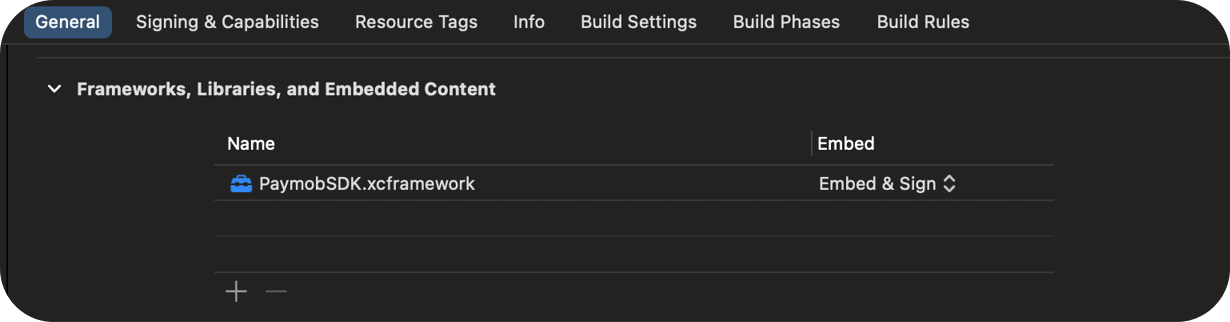
Step 4: Change the embedding option to "Embed & Sign"
In the general settings of your project, under libraries and frameworks, change the library from "Do not embed" to "Embed and Sign"
Manual Installation
Step 1: Download the SDK
Download the SDK from the provided link and extract it on your local machine.
Step 2: Add the SDK files to your project
Copy the extracted SDK files and place them inside your project’s folder structure.
Step 3: Add the SDK to Xcode
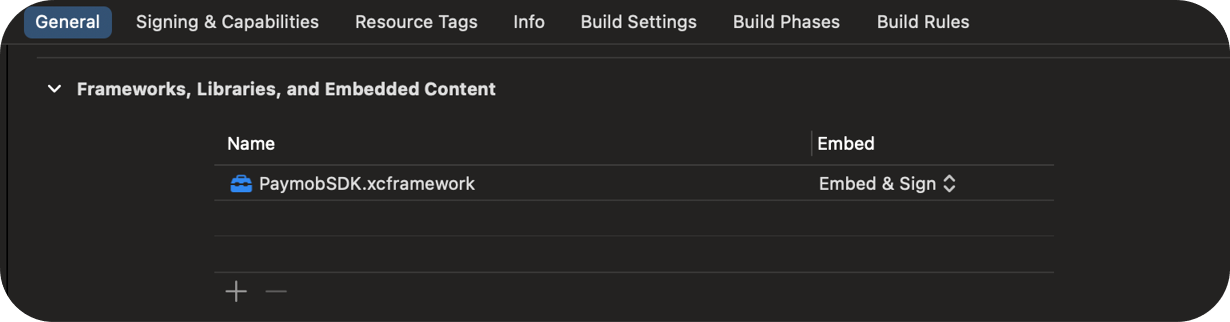
Open your project in Xcode, then drag and drop the PaymobSDK.xcframework into General → Frameworks, Libraries, and Embedded Content.
Step 4: Embed and sign the SDK
In Frameworks, Libraries, and Embedded Content, change the SDK option from Do Not Embed to Embed & Sign.
Usage
Step 1: Import the framework
import PaymobSDKStep 2: Add the delegate to the class, and add the protocol stubs
class ViewController: UIViewController, PaymobSDKDelegate {It should look like this.
 extension ViewController: PaymobSDKDelegate{
    func transactionRejected() {
        print("Transaction Rejected")

    }

    func transactionAccepted(transactionDetails: [String : Any]) {
        print("Transaction Successfull: \(transactionDetails)")
    }

    func transactionPending() {
        print("Transaction Pending")
    }
}Step 3: Create a constant
let paymob = PaymobSDK()Step 4: Pass self to delegate
paymob.delegate = selfStep 5: Create the variables
 // Replace this string with your payment key
let client_secret = "" //Put Client Secret Here
let public_key = "" // Put Public Key Here
Client Secret
A unique, intention-specific token used to redirect the customer to Paymob’s Unified Checkout or to render Paymob’s Pixel component.
Public Key
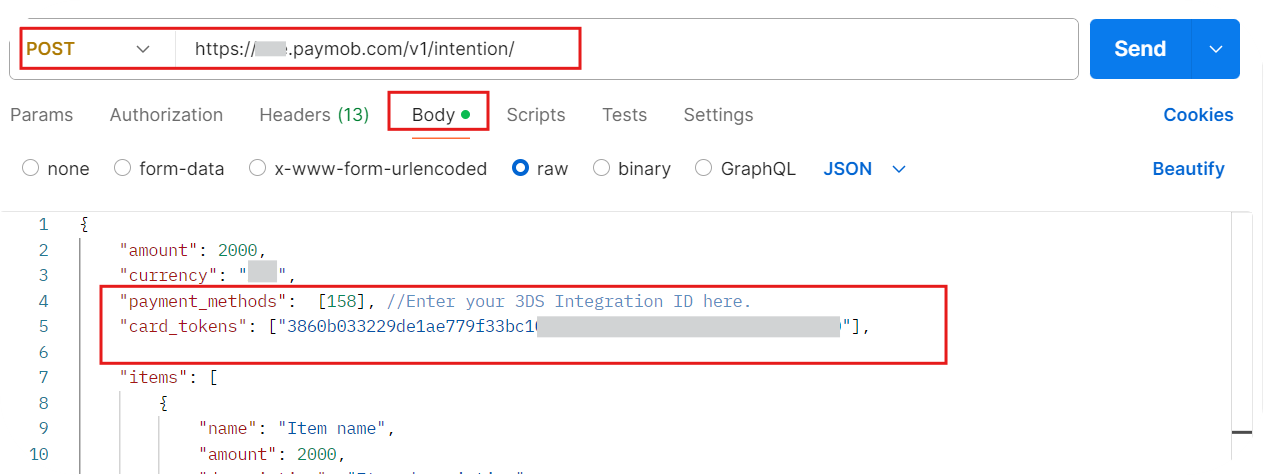
If you’re using saved cards, pass the saved token as a string in the
card_tokens array when calling the intention creation request
Step 6: Customize the UI of the SDK
You can customize the UI of the SDK, such as
 // the extra UI Customization parameters are

//sets the title to be the image you want
appIcon

//sets the title to be the name you want
appName

//changes the color of the buttons throughout the SDK, the default is black
buttonBackgroundColor

//changes the color of the buttons Texts throughout the SDK, the default is white
buttonTextColor

//set save card checkbox initial value
saveCardDefault

//set whether or not should show save card checkbox
showSaveCard

//used like this
let paymob = PaymobSDK()

paymob.paymobSDKCustomization.appIcon = UIImage()
paymob.paymobSDKCustomization.appName = ""
paymob.paymobSDKCustomization.buttonBackgroundColor = UIColor.black
paymob.paymobSDKCustomization.buttonTextColor = UIColor.white
paymob.paymobSDKCustomization.showSaveCard = truepaymob.paymobSDKCustomization.saveCardDefault = false

try paymob.presentPayVC(VC: self, PublicKey: public_key, ClientSecret: client_secret)
paymob.paymobSDKCustomization.saveCardDefault = false
Step 7: Run the SDK
 do{
    try paymob.presentPayVC(VC: self, PublicKey: public_key, ClientSecret: client_secret)
} catch let error {

}What made this section unhelpful for you?
On this page
- IOS SDK
Android SDK
Outcome: Integrate Paymob's native Android SDK
Manual installation
Step 1: Download SDK files (.jar/.aar)
Download the SDK from this link and unzip the “Sdk package” folder.
Step 2: Locate the SDK files in app/libs/ folder
Copy the SDK folder into the libs directory of your Android project.
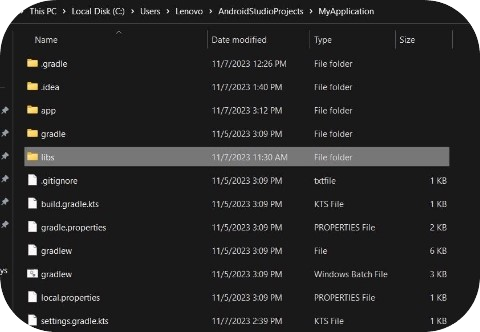

Step 3: Add the repository to settings.gradle.kts
Add required local Repositories as follows:
repositories { maven { url = rootProject.projectDir.toURI().resolve("libs") } maven { url = uri("https://jitpack.io") } }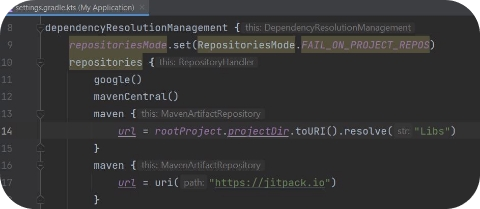
Step 4: Add a dependency in app/build.gradle.kts
implementation("com.paymob.sdk:Paymob-SDK:{{latest version}}")//Please change this version number to match the version number of the downloaded sdk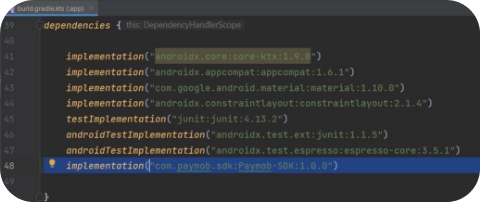
Step 5: Enable data binding in app/build.gradle.kts
Add your data-binding feature in BaseAppModuleExtensions as follows:
android { buildFeatures { dataBinding = true } }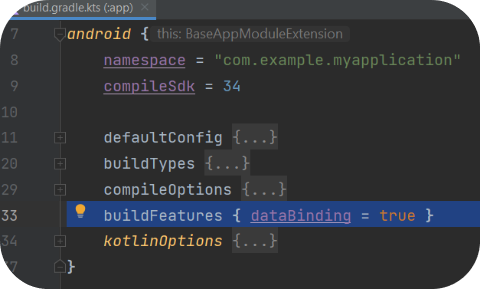
Step 6: Sync gradle project
Usage imports
 import com.paymob.paymob_sdk.PaymobSdk
import com.paymob.paymob_sdk.domain.model.CreditCard
import com.paymob.paymob_sdk.domain.model.SavedCard
import com.paymob.paymob_sdk.ui.PaymobSdkListener
Implement Paymob Sdk listener interface
 class MainActivity : AppCompatActivity(), PaymobSdkListener { override fun onCreate(savedInstanceState: Bundle?) {…}
override fun onSuccess() {
//If the Payment is successful }
override fun onFailure() {
//If The Payment is declined }
override fun onPending() {
//If The Payment is pending }
}Create a PaymobSdk instance
You can create the PaymobSdk instance using PaymobSdk.Builder()
 val paymobsdk = PaymobSdk.Builder(
context = this@MainActivity,
clientSecret = “CLIENT_SECRET”,//Place Client Secret here
publicKey = “PUBLIC_KEY”,//Place Public Key here
paymobSdkListener = this
)
.build()
Client Secret
A unique, intention-specific token used to redirect the customer to Paymob’s Unified Checkout or to render Paymob’s Pixel component.
Public Key
To pass the saved token to the SDK, you should pass the token as a string to the card_tokens array while calling the intention creation request
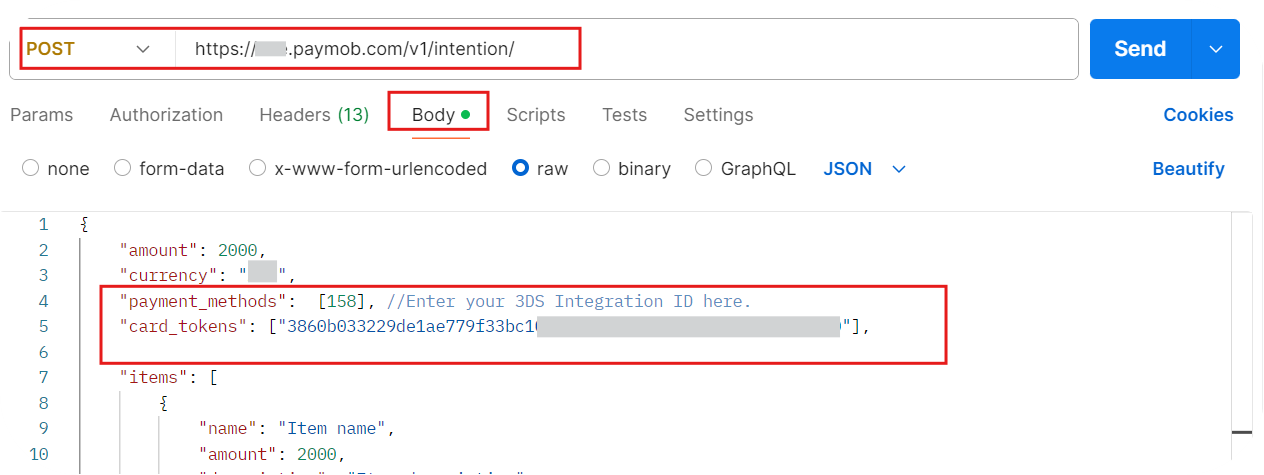
You can set the SDK buttons' color and buttons' text color using this builder object, for example:
val paymobsdk = PaymobSdk.Builder(context = this@MainActivity,clientSecret = “CLIENT_SECRET”,//Place Client Secret herepublicKey = “PUBLIC_KEY”,//Place Public Key herepaymobSdkListener = this,).setButtonBackgroundColor(Color.BLACK)//changes the color of button backgrounds throughout the SDK, and set by default to black.setButtonTextColor(Color.WHITE)//changes the color of button texts throughout the SDK, and set by default to white.showSaveCard(showSaveCard ?: true) //changes the ability for the sdk to save the card info or no.saveCardByDefault(saveCardDefault ?: false) //changes the ability for the sdk if the save card checkbox is checked ot not.build()Finally: Run the SDK
You can start the SDK by calling
sdk.start()What made this section unhelpful for you?
On this page
- Android SDK
Flutter SDK
Outcome: Integrate Paymob's native SDKs using a Flutter bridge
The Flutter SDK works as a bridge that connects your Flutter app to the native iOS and Android Paymob SDKs.
Dart section
Import dependency
- Redirect into your Dart file.
- Import the following dependency.
import 'package:flutter/services.dart';Add the code that will call the SDK
Add the following code to the same file.
This is the function that you will call in your Dart file when you need to call the SDK.
You need to pass the public and client secret keys to this function. These two parameters are required. The other parameters are optional.
static const methodChannel = MethodChannel('paymob_sdk_flutter'); // Method to call native PaymobSDKs Future<void> _payWithPaymob( String pk, String csk, { String? appName, Color? buttonBackgroundColor, Color? buttonTextColor, bool? saveCardDefault, bool? showSaveCard} ) async { try { final String result = await methodChannel.invokeMethod('payWithPaymob', { "publicKey": pk, "clientSecret": csk, "appName": appName, "buttonBackgroundColor": buttonBackgroundColor?.value, "buttonTextColor": buttonTextColor?.value, "saveCardDefault": saveCardDefault, "showSaveCard": showSaveCard }); print('Native result: $result'); switch (result) { case 'Successfull': print('Transaction Successfull'); // Do something for accepted break; case 'Rejected': print('Transaction Rejected'); // Do something for rejected break; case 'Pending': print('Transaction Pending'); // Do something for pending break; default: print('Unknown response'); // Handle unknown response } } on PlatformException catch (e) { print("Failed to call native SDK: '${e.message}'."); } }Client Secret
A unique, intention-specific token used to redirect the customer to Paymob’s Unified Checkout or to render Paymob’s Pixel component.
Public Key
To pass the saved token to the SDK, you should pass the token as a string to the card_tokens array while calling the intention creation request
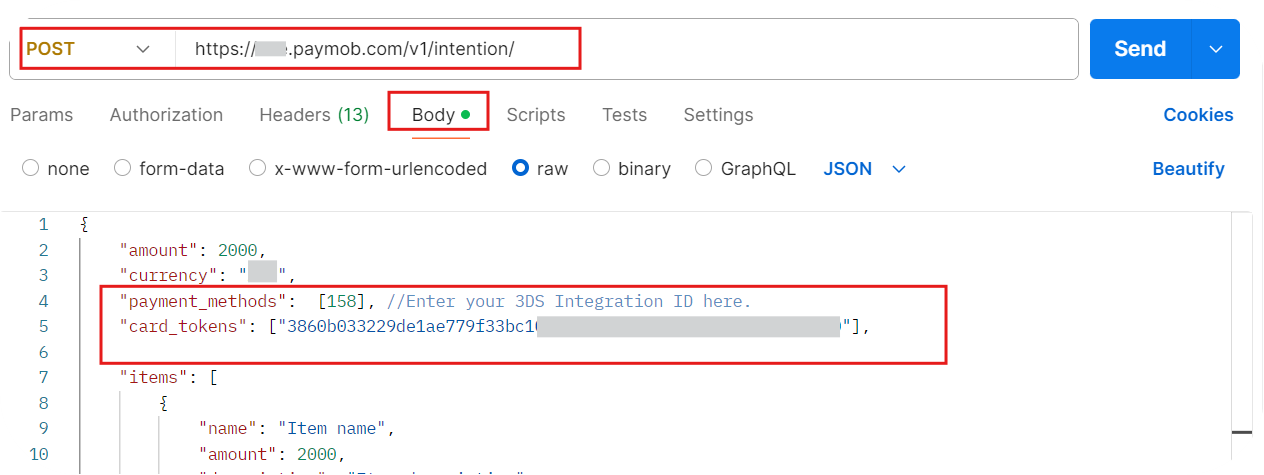
Optional parameters
The following are optional Parameters that are used to customize the SDK
// the extra UI Customization parameters are//sets the header to be the name you wantappName//changes the color of the buttons throughout the SDK, the default is blackbuttonBackgroundColor//changes the color of the buttons Texts throughout the SDK, the default is whitebuttonTextColor//set save card checkbox initial valuesaveCardDefault//set whether or not should show save card checkboxshowSaveCardIOS section
Download the SDK
You can download the SDK from this link and extract it on the local machine.
Locate SDK files in the project directory
Physically place the SDK files in your project folder structure
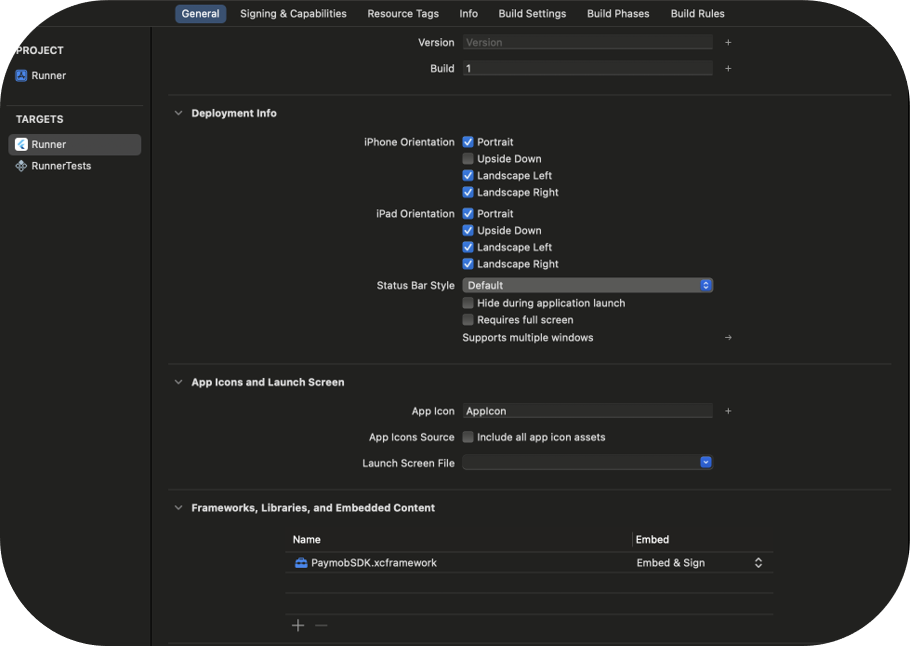
Add SDK to frameworks, libraries, and embedded content
Drag and drop the PaymobSDK.xcframework folder into Frameworks, Libraries, and Embedded Content under the General Settings of Xcode.
Change the embedding option to "Embed & Sign"
In the general settings of your project, under Frameworks, Libraries, and Embedded Content, change the library from "Do not embed" to "Embed and Sign"
Import the framework
In your AppDelegate file. Add the following import
import PaymobSDKCreate a global variable
var SDKResult: FlutterResult?Code to handle receiving a call from Dart
Add the following code to handle receiving a call from the Dart file
let controller : FlutterViewController = window?.rootViewController as! FlutterViewController let nativeChannel = FlutterMethodChannel(name: "paymob_sdk_flutter", binaryMessenger: controller.binaryMessenger) nativeChannel.setMethodCallHandler { (call: FlutterMethodCall, result: @escaping FlutterResult) -> Void in if call.method == "payWithPaymob", let args = call.arguments as? [String: Any]{ self.SDKResult = result self.callNativeSDK(arguments: args, VC: controller) } else { result(FlutterMethodNotImplemented) } }Code to handle calling the native PaymobSDK
 // Function to call native PaymobSDK
      private func callNativeSDK(arguments: [String: Any], VC: FlutterViewController) {

          // Initialize Paymob SDK
          let paymob = PaymobSDK()
          paymob.delegate = self

          //customize the SDK
          if let appName = arguments["appName"] as? String{
              paymob.paymobSDKCustomization.appName = appName
          }
          if let buttonBackgroundColor = arguments["buttonBackgroundColor"] as? NSNumber{

              let colorInt = buttonBackgroundColor.intValue
              let alpha = CGFloat((colorInt >> 24) & 0xFF) / 255.0
              let red = CGFloat((colorInt >> 16) & 0xFF) / 255.0
              let green = CGFloat((colorInt >> 8) & 0xFF) / 255.0
              let blue = CGFloat(colorInt & 0xFF) / 255.0

              let color = UIColor(red: red, green: green, blue: blue, alpha: alpha)

              paymob.paymobSDKCustomization.buttonBackgroundColor = color
          }
          if let buttonTextColor = arguments["buttonTextColor"] as? NSNumber{

              let colorInt = buttonTextColor.intValue
              let alpha = CGFloat((colorInt >> 24) & 0xFF) / 255.0
              let red = CGFloat((colorInt >> 16) & 0xFF) / 255.0
              let green = CGFloat((colorInt >> 8) & 0xFF) / 255.0
              let blue = CGFloat(colorInt & 0xFF) / 255.0

              let color = UIColor(red: red, green: green, blue: blue, alpha: alpha)

              paymob.paymobSDKCustomization.buttonTextColor = color
          }
          if let saveCardDefault = arguments["saveCardDefault"] as? Bool{
              paymob.paymobSDKCustomization.saveCardDefault = saveCardDefault
          }
          if let showSaveCard = arguments["showSaveCard"] as? Bool{
              paymob.paymobSDKCustomization.showSaveCard = showSaveCard
          }


          // Call Paymob SDK with publicKey and clientSecret
          if let publicKey = arguments["publicKey"] as? String,
             let clientSecret = arguments["clientSecret"] as? String{
              do{
                  try paymob.presentPayVC(VC: VC, PublicKey: publicKey, ClientSecret: clientSecret)
              } catch let error {
                  print(error.localizedDescription)
              }
              return
          }
      }
Code to handle the result of the SDK
Add the following at the bottom to handle the result of the SDK
 extension AppDelegate: PaymobSDKDelegate {
    public func transactionAccepted(transactionDetails: [String: Any]) {
        self.SDKResult?(["status": "Successfull", "details": transactionDetails])
    }

    public func transactionRejected(message : String) {
        self.SDKResult?("Rejected")
    }
    public func transactionPending() {
        self.SDKResult?("Pending")
    }
}
Android Section
Download SDK files (.jar/.aar)
Download the SDK from this link and unzip the “Sdk package” folder.
Locate the SDK files in app/libs/ the folder
Redirect into the Android directory.
Then, create a new directory there called 'libs' and place the Android SDK there
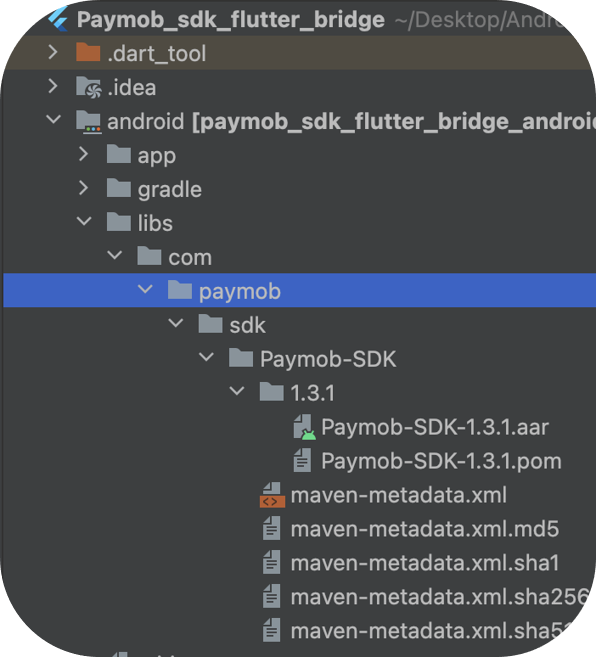
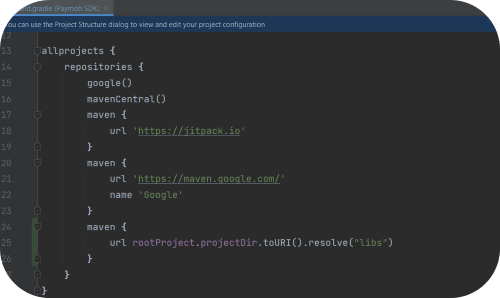
Add repository
Inside the root Android directory, open the build.gradle, Then, add the code below inside
allprojects { repositories { ... maven { url = rootProject.projectDir.toURI().resolve("libs") } maven { url = uri("https://jitpack.io") } }}should look like this.
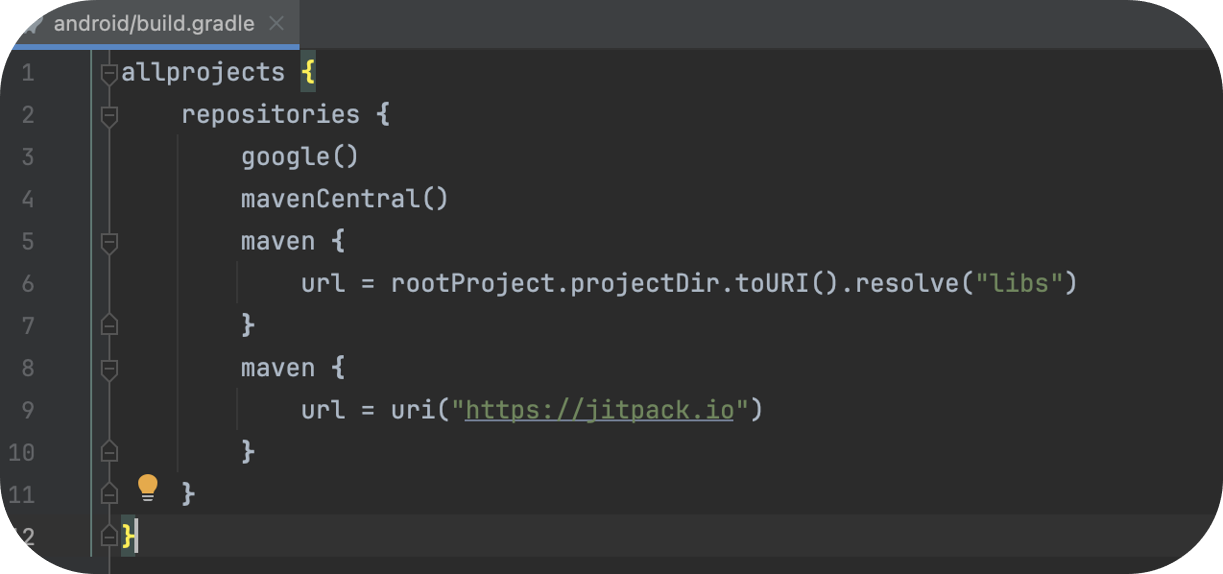
Then open the settings.gradle, Then add the following code
pluginManagement { repositories { ... maven { url = rootProject.projectDir.toURI().resolve("libs") } maven { url = uri("https://jitpack.io") }should look like this
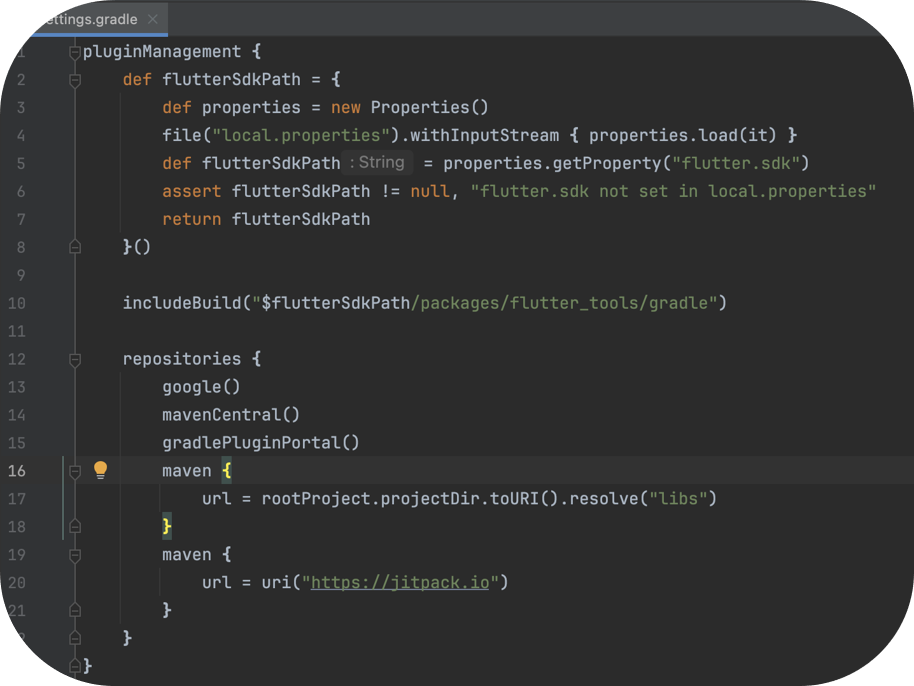
Add dependency and enable databinding
Inside the app directory, open the build.gradle file and add the following
dependencies { implementation("com.paymob.sdk:Paymob-SDK:{{latest version}}")//Please change this version number to match the version number of the downloaded sdk}android { ... buildFeatures { dataBinding = true }}should look like this
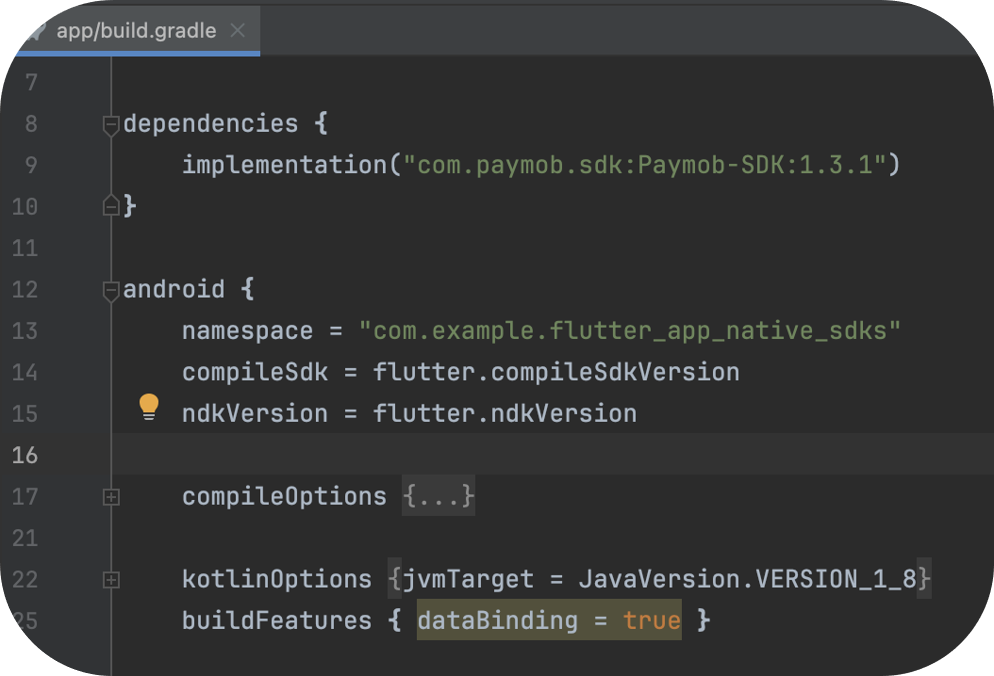
Code to handle receiving a call from Dart, calling the native SDK, and handling the result of the SDK
Then, in the MainActivity, add the following:
 import android.graphics.Color
import android.util.Log
import io.flutter.plugin.common.MethodCall
import io.flutter.plugin.common.MethodChannel
import io.flutter.plugin.common.MethodChannel.MethodCallHandler
import io.flutter.plugin.common.MethodChannel.Result
import io.flutter.embedding.android.FlutterActivity
import android.os.Bundle
import android.widget.Toast
import com.paymob.paymob_sdk.PaymobSdk
import com.paymob.paymob_sdk.domain.model.CreditCard
import com.paymob.paymob_sdk.domain.model.SavedCard
import com.paymob.paymob_sdk.ui.PaymobSdkListener
class MainActivity: FlutterActivity(), MethodCallHandler, PaymobSdkListener {
    private val CHANNEL = "paymob_sdk_flutter"
    private var SDKResult: MethodChannel.Result? = null
    override fun onCreate(savedInstanceState: Bundle?) {
        super.onCreate(savedInstanceState)
        flutterEngine?.dartExecutor?.binaryMessenger?.let {
            MethodChannel(it, CHANNEL).setMethodCallHandler { call, result ->
                if (call.method == "payWithPaymob") {
                    SDKResult = result
                    callNativeSDK(call)
                } else {
                    result.notImplemented()
                }
            }
        }
    }
    // Function to call native PaymobSDK
    private fun callNativeSDK(call: MethodCall) {
        val arguments = call.arguments as? Map<String, Any>
        val publicKey = call.argument<String>("publicKey")
        val clientSecret = call.argument<String>("clientSecret")
        var buttonBackgroundColor: Int? = null
        var buttonTextColor: Int? = null
        val appName = call.argument<String>("appName")
        val buttonBackgroundColorData = call.argument<Number>("buttonBackgroundColor")?.toInt() ?: 0
        val buttonTextColorData = call.argument<Number>("buttonTextColor")?.toInt() ?: 0
        val saveCardDefault = call.argument<Boolean>("saveCardDefault") ?: false
        val showSaveCard = call.argument<Boolean>("showSaveCard") ?: true

        if (buttonTextColorData != null){
            buttonTextColor = Color.argb(
                (buttonTextColorData shr 24) and 0xFF,  // Alpha
                (buttonTextColorData shr 16) and 0xFF,  // Red
                (buttonTextColorData shr 8) and 0xFF,   // Green
                buttonTextColorData and 0xFF            // Blue
            )
        }
        Log.d("color", buttonTextColor.toString())
        if (buttonBackgroundColorData != null){
            buttonBackgroundColor = Color.argb(
                (buttonBackgroundColorData shr 24) and 0xFF,  // Alpha
                (buttonBackgroundColorData shr 16) and 0xFF,  // Red
                (buttonBackgroundColorData shr 8) and 0xFF,   // Green
                buttonBackgroundColorData and 0xFF            // Blue
            )
        }
        val paymobsdk = PaymobSdk.Builder(
            context = this@MainActivity,
            clientSecret = clientSecret.toString(),
            publicKey = publicKey.toString(),
            paymobSdkListener = this,
        ).setButtonBackgroundColor(buttonBackgroundColor ?: Color.BLACK)
            .setButtonTextColor(buttonTextColor ?: Color.WHITE)
            .setAppName(appName)            .showSaveCard(showSaveCard ?: true)
            .saveCardByDefault(saveCardDefault ?: false)
        .build()
        paymobsdk.start()
        return
    }
    //PaymobSDK Return Values
    override fun onSuccess() {
        //If The Payment is Accepted
        SDKResult?.success("Successfull")
    }
    override fun onFailure() {
        //If The Payment is declined
        SDKResult?.success("Rejected")
    }
    override fun onPending() {
        //If The Payment is pending
        SDKResult?.success("Pending")
    }
     override fun onMethodCall(call: MethodCall, result: Result) {
    }
}What made this section unhelpful for you?
On this page
- Flutter SDK
React Native SDK
Outcome: Integrate Paymob's React Native SDK
Installation Steps for React Native SDK
To get started with the paymob-reactnative package, follow these steps:
- Open your terminal, navigate to your React Native project directory, and install the
paymob-reactnativepackage using yarn:
yarn add paymob-reactnative@https://github.com/PaymobAccept/paymob-reactnative-sdk.git
iOS
Install CocoaPods for iOS
If you’re building for iOS, you’ll need CocoaPods to link the native SDK correctly.
From your project root, run:
This step ensures that the necessary native modules are linked correctly in your iOS project.
Android
Add the dependency repository
AAdd the following snippet to your project-level build.gradlefile.
allprojects { repositories { maven { url = rootProject.projectDir.toURI().resolve("../node_modules/paymob-reactnative/android/libs") } maven { url = uri("https://jitpack.io") } }}Enable data binding
Add the following snippet to your app-level build.gradlefile.
android { buildFeatures { dataBinding = true }}Using Paymob
To begin using the Paymob SDK in your react native application, start by importing the module in your component:
import Paymob, { PaymentResult, CreditCardType } from 'paymob-reactnative';Customize the SDK
You can adjust the SDK’s look and behavior to match your app’s branding before showing the payment screen.
 Paymob.setAppIcon(base64Image); // Set your merchant logo using a base64 encoded image
Paymob.setAppName('Paymob SDK'); // Customize merchant app name displayed in the Paymob interface
Paymob.setButtonTextColor('#FFFFFF'); // Set the text color of buttons in the SDK
Paymob.setButtonBackgroundColor('#000000'); // Set the background color of buttons in the SDK
Paymob.setShowSaveCard(true); // Enable the option for users to save their cards
Paymob.setSaveCardDefault(true); // Set saved card option as default for transactions
These options help keep the payment experience consistent with your app’s design.
Listen for payment results
To handle payment results effectively, you can add a listener that will respond to different transaction statuses. This is crucial for providing feedback to users about their payment transactions:
 Paymob.setSdkListener((status: PaymentResult) => {
  switch (status) {
    case PaymentResult.SUCCESS:
      // Handle successful payment
      break;
    case PaymentResult.FAIL:
      // Handle failed payment
      break;
    case PaymentResult.PENDING:
      // Handle pending payment status
      break;
  }
});
This listener will allow you to implement logic based on the result of the payment process, enhancing the user experience.
Invoking the SDK
After configuring the SDK, you can invoke the Paymob payment interface with the following code:
 const savedBankCards = [
  {
    maskedPan: '1234', // The masked card number displayed to the user
    savedCardToken: 'CARD_TOKEN', // The token representing the saved card
    creditCard: CreditCardType.MASTERCARD, // The type of the credit card (e.g., Mastercard)
  },
];

Paymob.presentPayVC('CLIENT_SECRET', 'PUBLIC_KEY', savedBankCards);
Note: The savedBankCards parameter is optional. If you do not have saved bank cards to provide, you can simply call the presentPayVC method without it.
This function call opens the Paymob payment interface, allowing users to complete their transactions securely. Make sure to replace 'CLIENT_SECRET' and 'PUBLIC_KEY' with your actual credentials.
Here’s the updated explanation with a revised first sentence and the inclusion of the repository cloning step:
Example App
To explore the SDK or test its features, you can clone the repository and run the example app by following these steps:
- Clone the RepositoryClone the repository to your local machine.
yarn
2. Run the Example App
You can run the example app for both iOS and Android platforms:
- To run the app on iOS, use the following command:
yarn example ios
- To run the app on Android, use this command:
yarn example android
By following these steps, you can explore the functionality of the SDK in the example app.
What made this section unhelpful for you?
On this page
- React Native SDK
Overview
Outcome: Understand the different types of Paymob callbacks, their purposes, and HMAC calculation.
Definition
Transaction callbacks are mechanisms used by Paymob to notify your system about payment-related events and transaction statuses. They ensure your platform stays in sync with what happens during and after a customer completes a payment.
When does Paymob send the transaction callback?
Paymob sends the transaction callback only if the transaction succeeds or is declined
Types of Transaction Callbacks
Paymob provides two types of transaction callbacks to keep both your system and your customers informed about payment results:
Transaction Processed Callback
Used to notify your backend system about transaction events and status changes, allowing you to update orders, trigger business logic, and keep your records in sync.
Transaction Response Callback
Used to redirect the customer back to your platform after payment, so you can display the payment result and guide the next user action.
Each callback serves a different purpose and is designed to support both system-level handling and customer-facing communication. Detailed technical implementation for each callback is covered in the following sub-page.
What made this section unhelpful for you?
On this page
- Overview
Transaction callbacks
Outcome: Understand the different types of Paymob callbacks and the purpose of each one.
Transaction Processed Callback
This is an endpoint in your web application where you will receive notifications with the transaction details after the payment or after any action on the payment. The callback will be sent as a POST request containing a JSON object with key details about the transaction.
Main keys to observe their values:
id ⇒ Transaction ID
success ⇒ Status of the transaction (True/False)
order.id ⇒ Paymob order ID, which you'll mostly use to correlate between the transaction you received its callback and the order on your system, which you bound to the Paymob order ID while creating the intention.
is_refunded ⇒ Indicates whether the transaction has been refunded or not (True/False)
refunded_amount_cents ⇒ The total of the refunded amount. (The payment transaction can have more than one partial refund transaction)
is_voided ⇒ Indicates whether the transaction has been voided or not (True/False)
is_captured ⇒ Indicates whether the transaction has been captured or not (True/False)
captured_amount ⇒ The total of the captured amount. (The payment transaction can have more than one partial capture transaction)
On the right side of this page, you'll see an example of a request that you would receive on your transaction-processed callback endpoint for a successful transaction. While you don’t need to use all the keys included, the table below describes some of the key details within the callback object:
Transaction Response Callback
After a customer completes a payment, Paymob will redirect them back to your platform on the URL you'll specify as a response callback URL in the integration ID. Prepare this endpoint to show a page with a clear message indicating the status of the payment they just made.
The transaction response callback consists of a set of query parameters that we append to the URL of your endpoint. After the payment is processed, we will redirect the customer to this endpoint. You can then parse these parameters and display an appropriate message to the customer based on the payment status.
These query parameters correspond to the same keys found in the transaction processed callback JSON object listed in the above table.
Transaction Response Callback sample:
https://webhook.site/de237c03-271f-40ba-8327-f667ce71ee90?id=316004&pending=false&amount_cents=50000&success=true&is_auth=false&is_capture=false&is_standalone_payment=true&is_voided=false&is_refunded=false&is_3d_secure=true&integration_id=2936&profile_id=106&has_parent_transaction=false&order=378804&created_at=2024-06-25T15%3A16%3A25.910710%2B04%3A00¤cy=EGP&merchant_commission=0&discount_details=%5B%5D&is_void=false&is_refund=false&error_occured=false&refunded_amount_cents=0&captured_amount=0&updated_at=2024-06-25T15%3A16%3A46.544538%2B04%3A00&is_settled=false&bill_balanced=false&is_bill=false&owner=211&data.message=Approved&source_data.type=card&source_data.pan=2346&source_data.sub_type=MasterCard&acq_response_code=00&txn_response_code=APPROVED&hmac=8aa3e005de7f639dac10952884963d47a65b2b85d3381803b3f22ff2cd372e57ef881dea2c94a9e171c9df7cef4fd898f2fc92f229dc4369d61d5acfb6b311ce
Transaction Processed Callbacks vs Transaction Response Callbacks
Request Type | POST | GET |
Request Content | JSON | Query Param |
Direction | Server Side | Client Side |
Useful Testing Tools
To receive transaction callbacks, your app must be deployed on a publicly accessible endpoint. If you are developing your app locally and need to test receiving callbacks, you may need to set up a secure, introspectable tunnel to your localhost webhook. One recommended tool for this is ngrok, which generates a public URL that you can use as your callback URL.
If you are not receiving callbacks and need to debug the issue, you can use one of the following HTTP request inspection tools: Webhook, RequestBin, or RequestWatch. These tools generate endpoint URLs that you can add to your transaction processed/response callbacks, allowing you to verify whether the callbacks are being received after a payment is processed.
Transaction Callbacks
The unique identifier for this transaction. You can find this ID in the "Transaction" tab of your Merchant portal
The complete transaction object containing all relevant details related to the callback event
Show child attributes
The name or identifier of the bank that issued the payment method used in the transaction
An array containing responses received from downstream systems after processing the transaction callback
What made this section unhelpful for you?
What made this section unhelpful for you?
HMAC
Who is this for: Technical product managers and developers who need to understand how they can authenticate Paymob callbacks.
Outcome: Understand the HMAC calculation mechanism.
What is HMAC Authentication?
HMAC (Hash-based Message Authentication Code) is a widely used cryptographic technique designed to ensure both the integrity and authenticity of a message. It combines a cryptographic hash function (such as SHA-512) with a secret key and a string of data to produce a unique signature, known as an HMAC. This signature serves as a guarantee that the message has not been altered during transmission and confirms the identity of the sender.
Whenever you receive a callback from Accept, even if it's (Processed, Response, or Card token), it includes an HMAC query parameter. You should calculate the HMAC using the received data and compare it with the provided value to verify the callback’s authenticity.
Calculation steps guidelines
At a high level, HMAC authentication works as follows:
- Paymob sends transaction data along with an HMAC value.
- You recreate this HMAC using the received data and your hmac secret key.
- You compare your generated HMAC with the one received.
- If both values match, the callback is verified and trusted.
This mechanism ensures that your system only processes valid callbacks sent by Paymob.
On this page
- HMAC
Refund
Outcome: Refund transactions through API
Authorization
Add your “secret key“ in the authorization header preceded by the word ”Token ”.
Header Parameters
Bearer token authentication. Format: "Token YOUR_SECRET_KEY"
Body Parameters
The transaction ID you want to refund (Integer).
The amount will be refunded (Integer)
Response
Response Attributes
Unique identifier for the transaction
Indicates whether the transaction is still pending
Transaction amount in cents
Indicates whether the transaction was successful
Indicates if this is an authorization transaction
Indicates if this is a capture transaction
Indicates if this is a standalone payment
Indicates if the transaction has been voided
Indicates if the transaction has been refunded
Indicates if 3D Secure authentication was used
The integration ID used for this transaction
The merchant profile ID
Indicates if this transaction has a parent transaction
Order details associated with this transaction
Show child attributes
Timestamp when the record was created
Currency code (e.g., EGP, USD)
Show child attributes
Show child attributes
Indicates if the transaction is hidden
Payment key claims data
Indicates if an error occurred during processing
Indicates if this is a live (production) transaction
Reference from external endpoint
The amount that has been refunded in cents
Source identifier
Indicates if the transaction has been captured
The amount that has been captured in cents
Staff tag for merchant tracking
Timestamp when the record was last updated
Indicates if the transaction has been settled
Indicates if the bill is balanced
Indicates if this is a bill payment
Owner identifier
Parent transaction ID
What made this section unhelpful for you?
Base URL
Production:
Sandbox:
Response
What made this section unhelpful for you?
Void
Outcome: Void transactions through API
Authorization
Add your “secret key“ in the authorization header preceded by the word ”Token ”.
Header Parameters
Bearer token authentication. Format: "Token YOUR_SECRET_KEY"
Body Parameters
The transaction ID you want to refund (Integer).
Response
Response Attributes
Unique identifier for the transaction
Indicates whether the transaction is still pending
Transaction amount in cents
Indicates whether the transaction was successful
Indicates if this is an authorization transaction
Indicates if this is a capture transaction
Indicates if this is a standalone payment
Indicates if the transaction has been voided
Indicates if the transaction has been refunded
Indicates if 3D Secure authentication was used
The integration ID used for this transaction
The merchant profile ID
Indicates if this transaction has a parent transaction
Order details associated with this transaction
Show child attributes
Timestamp when the record was created
Currency code (e.g., EGP, USD)
Show child attributes
Show child attributes
Indicates if the transaction is hidden
Payment key claims data
Indicates if an error occurred during processing
Indicates if this is a live (production) transaction
Reference from external endpoint
The amount that has been refunded in cents
Source identifier
Indicates if the transaction has been captured
The amount that has been captured in cents
Staff tag for merchant tracking
Timestamp when the record was last updated
Indicates if the transaction has been settled
Indicates if the bill is balanced
Indicates if this is a bill payment
Owner identifier
Parent transaction ID
What made this section unhelpful for you?
Base URL
Production:
Sandbox:
Response
What made this section unhelpful for you?
Capture
Outcome: Capture Auth transactions through API
Authorization
Add your “secret key“ in the authorization header preceded by the word ”Token ”.
Header Parameters
Bearer token authentication. Format: "Token YOUR_SECRET_KEY"
Body Parameters
The transaction ID you want to refund (Integer).
The amount will be refunded (Integer)
Response
Response Attributes
Unique identifier for the transaction
Indicates whether the transaction is still pending
Transaction amount in cents
Indicates whether the transaction was successful
Indicates if this is an authorization transaction
Indicates if this is a capture transaction
Indicates if this is a standalone payment
Indicates if the transaction has been voided
Indicates if the transaction has been refunded
Indicates if 3D Secure authentication was used
The integration ID used for this transaction
The merchant profile ID
Indicates if this transaction has a parent transaction
Order details associated with this transaction
Show child attributes
Timestamp when the record was created
Currency code (e.g., EGP, USD)
Show child attributes
Show child attributes
Indicates if the transaction is hidden
Payment key claims data
Indicates if an error occurred during processing
Indicates if this is a live (production) transaction
Reference from external endpoint
The amount that has been refunded in cents
Source identifier
Indicates if the transaction has been captured
The amount that has been captured in cents
Staff tag for merchant tracking
Timestamp when the record was last updated
Indicates if the transaction has been settled
Indicates if the bill is balanced
Indicates if this is a bill payment
Owner identifier
Parent transaction ID
What made this section unhelpful for you?
Base URL
Production:
Sandbox:
Response
What made this section unhelpful for you?
Create Subscription plan
Outcome: Create a subscription plan that defines the characteristics of periodic subscription deductions per user.
Authorization
You should send a valid auth token as a Bearer Token.
Header Parameters
Bearer token authentication. Format: "Token YOUR_SECRET_KEY"
Body Parameters
Specify the frequency of deduction (e.g., Weekly, Biweekly, Monthly, Two months, Quarterly, Half annual, Yearly). Values in numbers are (7, 15, 30, 60, 90, 180, 360).
Name the subscription plan for identification purposes. The maximum number of characters is 200.
You need to enter the unique webhook URL in this parameter
Specify the number of days before which you want to send a notification to the customer to pay (currently supporting email notifications).
Define the days on which the subscription will be attempted again in case of a failure to collect the previous subscription amount.
The type of subscription plan. It accepts the values (rent) and the default is “rent.”
The number of deductions from this subscription. The default value is null.
Specify the subscription amount that will be charged.
If this flag is enabled, the system will use the first transaction amount instead of the specified subscription amount. Otherwise, it will use the subscription amount from the “Amount Cents”. Default value is false
Indicates whether the plan will be created, will be active, or will be paused. The default value is true.
MIGS Moto Integration ID, which will be used for upcoming transactions (recurring transactions).
Response
Response Attributes
Unique identifier for the transaction
Timestamp when the record was created
Timestamp when the record was last updated
Name of the item
Transaction amount in cents
Indicates if the subscription is active
What made this section unhelpful for you?
Base URL
Production:
Sandbox:
Response
What made this section unhelpful for you?
Create Subscription
Outcome: Create a subscription for a user under a specific subscription plan.
Subscription Creation Mechanism
Subscription creation is being done by completing one 3DS transaction to save the customer's card and connect it with the subscription. To implement this, please check the Create Intention API documentation
Below are the specific technical details related to the subscription itself, not the Intention in general.
What made this section unhelpful for you?
On this page
- Create Subscription
Plan actions
Outcome: know briefly the actions that can be executed on the subscription plan.
Overview
There are some actions that can be executed on the subscription plan through APIs.
Actions can be executed on the subscription plan
- Update the parameters (number of deductions, plan amount, Moto integration ID)
- Suspend the plan temporarily
- Resume a suspended plan
- List the plans
Endpoints
Subscription actions
Outcome: A brief about the actions that can be executed on the subscription plans
Overview
There are some actions that can be executed on the subscription plan through APIs.
Actions can be executed on the subscription plan
- Update the parameters (number of deductions, plan amount, Moto integration ID)
- Suspend the plan temporarily
- Resume a suspended plan
- List the plans
Endpoints
HMAC Calculation for Subscription Callback
Outcome: Calculate HMAC for Subscription callback
When a webhook is registered to a subscription, any actions performed on the subscription will trigger a callback. This callback is sent as a POST request to the registered webhook, containing the updated subscription data. The HMAC value for this callback is provided in the body of the subscription callback request as a parameter named hmac (unlike transaction or card token callbacks, where it is typically sent as a query parameter).
Subscription Callback Sample
 {
  "paymob_request_id": "df9e4ecf-12e0-4925-b258-65423f32bc98",
  "subscription_data": {
    "id": 1264,
    "client_info": {
      "email": "test@test.com",
      "full_name": "mo ay",
      "phone_number": "01010101010"
    },
    "frequency": 365,
    "created_at": "2024-12-03T22:11:02.280164",
    "updated_at": "2024-12-03T22:11:02.280179",
    "name": "Testplan 3",
    "reminder_days": null,
    "retrial_days": null,
    "plan_id": 1186,
    "state": "suspended",
    "amount_cents": 330,
    "starts_at": "2024-12-20",
    "next_billing": "2024-12-20",
    "reminder_date": null,
    "ends_at": null,
    "resumed_at": null,
    "suspended_at": "2024-12-03",
    "webhook_url": "https://webhook.site/a16ba9d5-4f4a-47dc-8005-e6ec2d197f26",
    "integration": 4565330,
    "initial_transaction": 241322967
  },
  "trigger_type": "suspended",
  "hmac": "dd5b3018888d9f98574cd180793db10d969b522e08c62baf2ea33357d1546b567b7fd79760e90046e90eaacf30024ede5539cbd0748bd9e6c005faf5117e0e7b"
}
HMAC Calculation Method
1. Extract the Relevant Parameters
subscription_data.id: Subscription ID (1264in the example).trigger_type: The action taken on the subscription (suspendedin the example).
2. Create the Concatenated String
The string format is the concatenation of the trigger_type + “for” + subscription_data.id
”{trigger_type}for{subscription_data.id}”
Example: The string for the above object is “suspendedfor1264“
3. Hash the String
- Use the
SHA-512hashing algorithm. - Hash the concatenated string using the merchant’s HMAC secret key. (This step is the same as calculating HMAC for normal callbacks)
4. Compare the HMAC
Compare the HMAC value sent in the request body (hmac parameter) with the calculated HMAC. If they match, the request is authenticated.
What made this section unhelpful for you?
On this page
- HMAC Calculation for Subscription Callback
Create Card Token
Outcome: Create a Card Token to be used in future payments
What made this section unhelpful for you?
On this page
- Create Card Token
CIT (Customer Initiated Transaction)
Outcome: Make the customer pay with the saved card through one of Paymob UIs without reentering his card details
Pre-requisites
- Create a card token, you can check the Create Card Token guide.
What made this section unhelpful for you?
On this page
- CIT (Customer Initiated Transaction)
MIT (Merchant Initiated Transaction)
Outcome: Make the merchant deduct from a saved card without the customer's interaction
Pre-requisites
- Create a card token, you can check the Create Card Token guide.
Body Parameters
Show child attributes
A unique identifier for payment with specific payment method.
What made this section unhelpful for you?
What made this section unhelpful for you?
Overview
Outcome: Understand what QuickLinks APIs are used for
QuickLinks APIs allow you to programmatically create and manage payment links using Paymob’s backend APIs. These links can then be shared with customers to complete payments through a Paymob-hosted checkout experience.
What Are QuickLinks APIs?
QuickLinks APIs enable you to:
- Create secure, Paymob-hosted payment links programmatically
- Define payment details such as amount, currency, and allowed payment methods
- Cancel payment links from your backend
Once created, a QuickLink can be shared with customers through any communication channel, allowing them to complete the payment without additional integration steps.
Available API Operations
Create QuickLink
Use this API to generate a new payment link with predefined payment details and configurations.
Cancel QuickLink
Use this API to invalidate an existing payment link and prevent it from being used for future payments.
What made this section unhelpful for you?
On this page
- Overview
Create QuickLink
Outcome: Create a QuickLink through API
Authorization
You should send a valid auth token as a Bearer Token.
Header Parameters
Bearer token authentication. Format: "Token YOUR_SECRET_KEY"
Body Parameters
Image file to be displayed on the payment link page. Supported formats include common image types (e.g., PNG, JPG).
Transaction amount in cents (e.g., 5500 = 55.00).
Expiration date and time for the payment link in ISO 8601 format (YYYY-MM-DDTHH:MM: SS).
Merchant-defined unique reference for the payment link, used for tracking
ID(s) of the allowed payment methods for this payment link. To enable multiple methods, repeat this parameter with each payment method’s integration ID.
The customer’s email address is associated with the payment link.
Indicates whether the payment link is created in live mode (true) or test mode (false).
Customer’s full name.
Customer’s phone number in international format (e.g., +201XXXXXXXXX).
Description or note displayed for the payment link.
Response
Response Attributes
Unique identifier for the transaction
Currency code (e.g., EGP, USD)
Show child attributes
Transaction amount in cents
Description of the item
Timestamp when the record was created
Staff tag for merchant tracking
State or province
Order details associated with this transaction
Response Attributes
Response Attributes
Response Attributes
What made this section unhelpful for you?
Base URL
Production:
Sandbox:
Response
What made this section unhelpful for you?
Cancel QuickLink
Outcome: Permanently terminate subscription through API
Authorization
You should send a valid auth token as a Bearer Token.
Header Parameters
Path Parameters
Body Parameters
Response
Response Attributes
What made this section unhelpful for you?
Base URL
Production:
Sandbox:
Response
What made this section unhelpful for you?
By Transaction ID
Outcome: Retrieve transaction details by transaction ID
Authorization
You should send a valid auth token as a Bearer Token.
Path Parameters
The transaction ID you want to retrieve the details for.
Response
Response Attributes
Show child attributes
Show child attributes
Show child attributes
Show child attributes
Show child attributes
What made this section unhelpful for you?
Base URL
Production:
Sandbox:
Response
What made this section unhelpful for you?
By Order ID or Reference
Outcome: Retrieve the last transaction details by the Order ID or the Merchant Order ID
You can retrieve the last transaction related to an order ID or a Merchant Order ID (Which you sent while creating and Intention as a special_reference)
Path Parameters
Body Parameters
You can get a valid auth token by Authentication Request .
The order ID you want to retrieve the last transaction ID related to it.
The Merchant Order ID you want to retrieve the last transaction ID related to it. It's not a required field.
Response
Response Attributes
Show child attributes
Show child attributes
Show child attributes
Show child attributes
What made this section unhelpful for you?
Base URL
Production:
Sandbox:
Response
What made this section unhelpful for you?
Split Features Implementation
Outcome: Implement Split Payment and Split Amount using the Intention Creation API, and explain how each split type is represented in the payment request.
Split Features are implemented during payment intention creation. Both Split Payment and Split Amount are configured by adding specific parameters to the Create Intention API request.
The checkout experience, payment method selection, and confirmation flow remain unchanged. The split logic is handled internally by Paymob based on the parameters you provide.
Split Amount
Request Body
Below are the parameters related to the Split Amount; other parameters are explained in the Create Intention API documentation
Field | Description | Mandatory |
Split Amounts (split_amounts) | An array of objects, each of which represents one sub-split amount | Yes |
 "split_amounts": [
        {
            "mid": {{connected_MID1}},
            "amount_cents": {{splitted_amount1}},
            "description": "{{description1}}"
        },
        {
            "mid": {{connected_MID2}},
            "amount_cents": {{splitted_amount2}},
            "description": "{{description2}}"
        }
    ]
Split Payment
Request Body
Below are the parameters related to the Split Payment; other parameters are explained in the Create Intention API documentation
Field | Description | Mandatory |
Split Payment Methods (split_payment_methods) | An array of integers will contain an Auth Integration ID that will be used for split. | Yes |
 "split_payment_methods": [
    {{auth_integration_id}}
]
Callback
Below is a sample callback request sent to your configured Processed Callback URL.
The callback includes an array of transactions. For each sub-payment, two transactions are returned:
- Authorization (Auth)
- Capture
This means the total number of transactions in the callback is two per sub-payment.
{
"order_id":453550057,
"is_split_payment":true,
"transactions":[
{
"id":399618139,
"pending":false,
"amount_cents":500,
"success":true,
"is_auth":false,
"is_capture":true,
"is_standalone_payment":false,
"is_voided":false,
"is_refunded":false,
"is_3d_secure":false,
"integration_id":1999062,
"profile_id":164295,
"has_parent_transaction":true,
"order":{
"id":453550057,
"created_at":"2026-01-18T08:08:55.240695",
"delivery_needed":false,
"merchant":{
"id":164295,
"created_at":"2022-03-24T20:13:47.852384",
"phones":[
"+201010101011",
"+201010101010"
],
"company_emails":[
"mohamedabdelsttar97@gmail.com",
"test@test.com"
],
"company_name":"Parmagly",
"state":"",
"country":"EGY",
"city":"Cairo",
"postal_code":"",
"street":""
},
"collector":null,
"amount_cents":1000,
"shipping_data":{
"id":218335393,
"first_name":"test",
"last_name":"test",
"street":"15 street",
"building":"16",
"floor":"1",
"apartment":"NA",
"city":"NA",
"state":"NA",
"country":"Egypt",
"email":"testtest@gmail.com",
"phone_number":"01010101010",
"postal_code":"NA",
"extra_description":"",
"shipping_method":"UNK",
"order_id":453550057,
"order":453550057
},
"currency":"EGP",
"is_payment_locked":false,
"is_return":false,
"is_cancel":false,
"is_returned":false,
"is_canceled":false,
"merchant_order_id":null,
"wallet_notification":null,
"paid_amount_cents":1000,
"notify_user_with_email":false,
"items":[
{
"name":"Item name 2",
"amount_cents":1000,
"quantity":1
}
],
"order_url":"NA",
"commission_fees":0,
"delivery_fees_cents":0,
"delivery_vat_cents":0,
"payment_method":"tbc",
"merchant_staff_tag":null,
"api_source":"OTHER",
"data":{
},
"payment_status":"PAID",
"terminal_version":null
},
"created_at":"2026-01-18T08:14:12.262774",
"transaction_processed_callback_responses":[
],
"currency":"EGP",
"source_data":{
"pan":"2346",
"type":"card",
"tenure":null,
"sub_type":"MasterCard"
},
"api_source":"OTHER",
"terminal_id":null,
"merchant_commission":0,
"accept_fees":0,
"installment":null,
"discount_details":[
],
"is_void":false,
"is_refund":false,
"data":{
"klass":"MigsPayment",
"amount":500.0,
"acs_eci":"",
"message":"Approved",
"batch_no":20260118,
"card_num":"512345xxxxxx2346",
"currency":"EGP",
"merchant":"TESTMERCH_AUS_2P",
"card_type":"MASTERCARD",
"created_at":"2026-01-18T06:14:13.475067",
"migs_order":{
"id":"453550057-399617899",
"amount":5.0,
"status":"CAPTURED",
"currency":"EGP",
"reference":"_399617899_453",
"chargeback":{
"amount":0,
"currency":"EGP"
},
"creationTime":"2026-01-18T06:12:01.894Z",
"merchantAmount":5.0,
"lastUpdatedTime":"2026-01-18T06:14:13.307Z",
"merchantCurrency":"EGP",
"totalCapturedAmount":5.0,
"totalRefundedAmount":0.0,
"merchantCategoryCode":"7299",
"totalAuthorizedAmount":5.0
},
"order_info":"453550057-399617899",
"receipt_no":"601806006448",
"migs_result":"SUCCESS",
"secure_hash":"",
"authorize_id":"006448",
"transaction_no":"123456789",
"avs_result_code":"",
"captured_amount":5.0,
"refunded_amount":0.0,
"merchant_txn_ref":"399618139",
"migs_transaction":{
"id":"399618139",
"stan":"333047",
"type":"CAPTURE",
"amount":5.0,
"source":"INTERNET",
"receipt":"601806006448",
"acquirer":{
"id":"BMNF_S2I",
"date":"0118",
"batch":20260118,
"timeZone":"+0200",
"merchantId":"MERCH_AUS_2P",
"transactionId":"123456789",
"settlementDate":"2026-01-18"
},
"currency":"EGP",
"terminal":"BMNF0578",
"reference":"_399618139",
"authorizationCode":"006448"
},
"acq_response_code":"00",
"authorised_amount":5.0,
"txn_response_code":"APPROVED",
"avs_acq_response_code":"00",
"gateway_integration_pk":1999062
},
"is_hidden":false,
"payment_key_claims":null,
"error_occured":false,
"is_live":false,
"other_endpoint_reference":null,
"refunded_amount_cents":0,
"source_id":-1,
"is_captured":false,
"captured_amount":0,
"merchant_staff_tag":null,
"updated_at":"2026-01-18T08:14:13.480424",
"is_settled":false,
"bill_balanced":false,
"is_bill":false,
"owner":302852,
"parent_transaction":399617899,
"hmac":"c04cc61424f704ca64541d0aa1b8950f249be7cad5e8145a74b8cfb12c1b5d9a9a8cc3d0abde9b09346fbc2dccf3e6e68719c5bc19abca79cc8dca6a1331d36c"
},
{
"id":399617899,
"pending":false,
"amount_cents":500,
"success":true,
"is_auth":true,
"is_capture":false,
"is_standalone_payment":true,
"is_voided":false,
"is_refunded":false,
"is_3d_secure":true,
"integration_id":1999062,
"profile_id":164295,
"has_parent_transaction":false,
"order":{
"id":453550057,
"created_at":"2026-01-18T08:08:55.240695",
"delivery_needed":false,
"merchant":{
"id":164295,
"created_at":"2022-03-24T20:13:47.852384",
"phones":[
"+201010101011",
"+201010101010"
],
"company_emails":[
"mohamedabdelsttar97@gmail.com",
"test@test.com"
],
"company_name":"Parmagly",
"state":"",
"country":"EGY",
"city":"Cairo",
"postal_code":"",
"street":""
},
"collector":null,
"amount_cents":1000,
"shipping_data":{
"id":218335393,
"first_name":"test",
"last_name":"test",
"street":"15 street",
"building":"16",
"floor":"1",
"apartment":"NA",
"city":"NA",
"state":"NA",
"country":"Egypt",
"email":"testtest@gmail.com",
"phone_number":"01010101010",
"postal_code":"NA",
"extra_description":"",
"shipping_method":"UNK",
"order_id":453550057,
"order":453550057
},
"currency":"EGP",
"is_payment_locked":false,
"is_return":false,
"is_cancel":false,
"is_returned":false,
"is_canceled":false,
"merchant_order_id":null,
"wallet_notification":null,
"paid_amount_cents":1000,
"notify_user_with_email":false,
"items":[
{
"name":"Item name 2",
"amount_cents":1000,
"quantity":1
}
],
"order_url":"NA",
"commission_fees":0,
"delivery_fees_cents":0,
"delivery_vat_cents":0,
"payment_method":"tbc",
"merchant_staff_tag":null,
"api_source":"OTHER",
"data":{
},
"payment_status":"PAID",
"terminal_version":null
},
"created_at":"2026-01-18T08:11:42.794271",
"transaction_processed_callback_responses":[
],
"currency":"EGP",
"source_data":{
"pan":"2346",
"type":"card",
"tenure":null,
"sub_type":"MasterCard"
},
"api_source":"IFRAME",
"terminal_id":null,
"merchant_commission":0,
"accept_fees":0,
"installment":null,
"discount_details":[
],
"is_void":false,
"is_refund":false,
"data":{
"klass":"MigsPayment",
"amount":500.0,
"acs_eci":"02",
"message":"Approved",
"batch_no":20260118,
"card_num":"512345xxxxxx2346",
"currency":"EGP",
"merchant":"TESTMERCH_AUS_2P",
"card_type":"MASTERCARD",
"created_at":"2026-01-18T06:12:07.996712",
"migs_order":{
"id":"453550057-399617899",
"amount":5.0,
"status":"AUTHORIZED",
"currency":"EGP",
"reference":"_399617899_453",
"chargeback":{
"amount":0,
"currency":"EGP"
},
"description":"PAYMOB Parmagly",
"creationTime":"2026-01-18T06:12:01.894Z",
"merchantAmount":5.0,
"lastUpdatedTime":"2026-01-18T06:12:07.800Z",
"merchantCurrency":"EGP",
"acceptPartialAmount":false,
"totalCapturedAmount":0.0,
"totalRefundedAmount":0.0,
"authenticationStatus":"AUTHENTICATION_SUCCESSFUL",
"merchantCategoryCode":"7299",
"totalAuthorizedAmount":5.0
},
"order_info":"453550057-399617899",
"receipt_no":"601806006448",
"migs_result":"SUCCESS",
"secure_hash":"",
"authorize_id":"006448",
"transaction_no":"123456789",
"avs_result_code":"",
"captured_amount":0.0,
"refunded_amount":0.0,
"merchant_txn_ref":"399617899",
"migs_transaction":{
"id":"399617899",
"stan":"6448",
"type":"AUTHORIZATION",
"amount":5.0,
"source":"INTERNET",
"receipt":"601806006448",
"acquirer":{
"id":"BMNF_S2I",
"date":"0118",
"batch":20260118,
"merchantId":"MERCH_AUS_2P",
"transactionId":"123456789"
},
"currency":"EGP",
"terminal":"BMNF0577",
"reference":"_399617899",
"authorizationCode":"006448",
"authenticationStatus":"AUTHENTICATION_SUCCESSFUL"
},
"acq_response_code":"00",
"authorised_amount":5.0,
"txn_response_code":"APPROVED",
"avs_acq_response_code":"00",
"gateway_integration_pk":1999062
},
"is_hidden":false,
"payment_key_claims":{
"extra":{
"NID":"2970874765694775",
"merchant_order_id":null
},
"user_id":302852,
"currency":"EGP",
"order_id":453550057,
"created_by":302852,
"is_partner":false,
"amount_cents":1000,
"billing_data":{
"city":"NA",
"email":"testtest@gmail.com",
"floor":"1",
"state":"NA",
"street":"15 street",
"country":"Egypt",
"building":"16",
"apartment":"NA",
"last_name":"test",
"first_name":"test",
"postal_code":"NA",
"phone_number":"01010101010",
"extra_description":"NA"
},
"redirect_url":"https://accept.paymob.com/unifiedcheckout/payment-status?payment_token=ZXlKaGJHY2lPaUpJVXpVeE1pSXNJblI1Y0NJNklrcFhWQ0o5LmV5SjFjMlZ5WDJsa0lqb3pNREk0TlRJc0ltRnRiM1Z1ZEY5alpXNTBjeUk2TVRBd01Dd2lZM1Z5Y21WdVkza2lPaUpGUjFBaUxDSnBiblJsWjNKaGRHbHZibDlwWkNJNk1UazVPVEEyTWl3aWIzSmtaWEpmYVdRaU9qUTFNelUxTURBMU55d2lZbWxzYkdsdVoxOWtZWFJoSWpwN0ltWnBjbk4wWDI1aGJXVWlPaUowWlhOMElpd2liR0Z6ZEY5dVlXMWxJam9pZEdWemRDSXNJbk4wY21WbGRDSTZJakUxSUhOMGNtVmxkQ0lzSW1KMWFXeGthVzVuSWpvaU1UWWlMQ0ptYkc5dmNpSTZJakVpTENKaGNHRnlkRzFsYm5RaU9pSk9RU0lzSW1OcGRIa2lPaUpPUVNJc0luTjBZWFJsSWpvaVRrRWlMQ0pqYjNWdWRISjVJam9pUldkNWNIUWlMQ0psYldGcGJDSTZJblJsYzNSMFpYTjBRR2R0WVdsc0xtTnZiU0lzSW5Cb2IyNWxYMjUxYldKbGNpSTZJakF4TURFd01UQXhNREV3SWl3aWNHOXpkR0ZzWDJOdlpHVWlPaUpPUVNJc0ltVjRkSEpoWDJSbGMyTnlhWEIwYVc5dUlqb2lUa0VpZlN3aWJHOWphMTl2Y21SbGNsOTNhR1Z1WDNCaGFXUWlPbVpoYkhObExDSmxlSFJ5WVNJNmV5Sk9TVVFpT2lJeU9UY3dPRGMwTnpZMU5qazBOemMxSWl3aWJXVnlZMmhoYm5SZmIzSmtaWEpmYVdRaU9tNTFiR3g5TENKemFXNW5iR1ZmY0dGNWJXVnVkRjloZEhSbGJYQjBJanBtWVd4elpTd2lZM0psWVhSbFpGOWllU0k2TXpBeU9EVXlMQ0pwYzE5d1lYSjBibVZ5SWpwbVlXeHpaU3dpYm1WNGRGOXdZWGx0Wlc1MFgybHVkR1Z1ZEdsdmJpSTZJbkJwWDNSbGMzUmZOV1EzTldSa1pXUmpPVE13TkRjME5qazBZMkZoWWpNMFpETXlaVFkwWW1FaUxDSnpjR3hwZEY5d1lYbHRaVzUwWDIxbGRHaHZaSE1pT2xzeE9UazVNRFl5WFgwLnpNTmdweVJWWDZMNWl4eEtZZGptRXVHTzhhZlNyV2w1Wk1ENHBFdzNsX0VPdWE0YzBWOC1vNmFRZEs0bkg1TGFtSUprcE9KYzNneW5weU5QZmV5WEVn&trx_id=399617899",
"integration_id":1999062,
"lock_order_when_paid":false,
"split_payment_methods":[
1999062
],
"next_payment_intention":"pi_test_5d75ddedc930474694caab34d32e64ba",
"single_payment_attempt":false
},
"error_occured":false,
"is_live":false,
"other_endpoint_reference":null,
"refunded_amount_cents":0,
"source_id":-1,
"is_captured":true,
"captured_amount":500,
"merchant_staff_tag":null,
"updated_at":"2026-01-18T08:14:13.477801",
"is_settled":false,
"bill_balanced":false,
"is_bill":false,
"owner":302852,
"parent_transaction":null,
"hmac":"db615e406e32d30ca22d3ce48aeb7f9ff98b35997f6cf73fe887664be3cb468ca0ce2d8a72b385df5a4ae03638ae6067d3883fd120966fce13fd69daefd48d2d"
},
{
"id":399618134,
"pending":false,
"amount_cents":500,
"success":true,
"is_auth":false,
"is_capture":true,
"is_standalone_payment":false,
"is_voided":false,
"is_refunded":false,
"is_3d_secure":false,
"integration_id":1999062,
"profile_id":164295,
"has_parent_transaction":true,
"order":{
"id":453550057,
"created_at":"2026-01-18T08:08:55.240695",
"delivery_needed":false,
"merchant":{
"id":164295,
"created_at":"2022-03-24T20:13:47.852384",
"phones":[
"+201010101011",
"+201010101010"
],
"company_emails":[
"mohamedabdelsttar97@gmail.com",
"test@test.com"
],
"company_name":"Parmagly",
"state":"",
"country":"EGY",
"city":"Cairo",
"postal_code":"",
"street":""
},
"collector":null,
"amount_cents":1000,
"shipping_data":{
"id":218335393,
"first_name":"test",
"last_name":"test",
"street":"15 street",
"building":"16",
"floor":"1",
"apartment":"NA",
"city":"NA",
"state":"NA",
"country":"Egypt",
"email":"testtest@gmail.com",
"phone_number":"01010101010",
"postal_code":"NA",
"extra_description":"",
"shipping_method":"UNK",
"order_id":453550057,
"order":453550057
},
"currency":"EGP",
"is_payment_locked":false,
"is_return":false,
"is_cancel":false,
"is_returned":false,
"is_canceled":false,
"merchant_order_id":null,
"wallet_notification":null,
"paid_amount_cents":1000,
"notify_user_with_email":false,
"items":[
{
"name":"Item name 2",
"amount_cents":1000,
"quantity":1
}
],
"order_url":"NA",
"commission_fees":0,
"delivery_fees_cents":0,
"delivery_vat_cents":0,
"payment_method":"tbc",
"merchant_staff_tag":null,
"api_source":"OTHER",
"data":{
},
"payment_status":"PAID",
"terminal_version":null
},
"created_at":"2026-01-18T08:14:10.912635",
"transaction_processed_callback_responses":[
],
"currency":"EGP",
"source_data":{
"pan":"2346",
"type":"card",
"tenure":null,
"sub_type":"MasterCard"
},
"api_source":"OTHER",
"terminal_id":null,
"merchant_commission":0,
"accept_fees":0,
"installment":null,
"discount_details":[
],
"is_void":false,
"is_refund":false,
"data":{
"klass":"MigsPayment",
"amount":500.0,
"acs_eci":"",
"message":"Approved",
"batch_no":20260118,
"card_num":"512345xxxxxx2346",
"currency":"EGP",
"merchant":"TESTMERCH_AUS_2P",
"card_type":"MASTERCARD",
"created_at":"2026-01-18T06:14:12.219505",
"migs_order":{
"id":"453550057-399618094",
"amount":5.0,
"status":"CAPTURED",
"currency":"EGP",
"reference":"_399618094_453",
"chargeback":{
"amount":0,
"currency":"EGP"
},
"creationTime":"2026-01-18T06:14:00.335Z",
"merchantAmount":5.0,
"lastUpdatedTime":"2026-01-18T06:14:12.038Z",
"merchantCurrency":"EGP",
"totalCapturedAmount":5.0,
"totalRefundedAmount":0.0,
"merchantCategoryCode":"7299",
"totalAuthorizedAmount":5.0
},
"order_info":"453550057-399618094",
"receipt_no":"601806333045",
"migs_result":"SUCCESS",
"secure_hash":"",
"authorize_id":"333045",
"transaction_no":"123456789",
"avs_result_code":"",
"captured_amount":5.0,
"refunded_amount":0.0,
"merchant_txn_ref":"399618134",
"migs_transaction":{
"id":"399618134",
"stan":"14614",
"type":"CAPTURE",
"amount":5.0,
"source":"INTERNET",
"receipt":"601806333045",
"acquirer":{
"id":"BMNF_S2I",
"date":"0118",
"batch":20260118,
"timeZone":"+0200",
"merchantId":"MERCH_AUS_2P",
"transactionId":"123456789",
"settlementDate":"2026-01-18"
},
"currency":"EGP",
"terminal":"BMNF0573",
"reference":"_399618134",
"authorizationCode":"333045"
},
"acq_response_code":"00",
"authorised_amount":5.0,
"txn_response_code":"APPROVED",
"avs_acq_response_code":"00",
"gateway_integration_pk":1999062
},
"is_hidden":false,
"payment_key_claims":null,
"error_occured":false,
"is_live":false,
"other_endpoint_reference":null,
"refunded_amount_cents":0,
"source_id":-1,
"is_captured":false,
"captured_amount":0,
"merchant_staff_tag":null,
"updated_at":"2026-01-18T08:14:12.225703",
"is_settled":false,
"bill_balanced":false,
"is_bill":false,
"owner":302852,
"parent_transaction":399618094,
"hmac":"0abf79f3f36c916cfe1f73eab0894519a5c5907f05ef7df7169d74ac4c38ee742db8867f0eb3f923410a4d1c534c83ded46d9476a78ba84c3022c373d14a7347"
},
{
"id":399618094,
"pending":false,
"amount_cents":500,
"success":true,
"is_auth":true,
"is_capture":false,
"is_standalone_payment":true,
"is_voided":false,
"is_refunded":false,
"is_3d_secure":true,
"integration_id":1999062,
"profile_id":164295,
"has_parent_transaction":false,
"order":{
"id":453550057,
"created_at":"2026-01-18T08:08:55.240695",
"delivery_needed":false,
"merchant":{
"id":164295,
"created_at":"2022-03-24T20:13:47.852384",
"phones":[
"+201010101011",
"+201010101010"
],
"company_emails":[
"mohamedabdelsttar97@gmail.com",
"test@test.com"
],
"company_name":"Parmagly",
"state":"",
"country":"EGY",
"city":"Cairo",
"postal_code":"",
"street":""
},
"collector":null,
"amount_cents":1000,
"shipping_data":{
"id":218335393,
"first_name":"test",
"last_name":"test",
"street":"15 street",
"building":"16",
"floor":"1",
"apartment":"NA",
"city":"NA",
"state":"NA",
"country":"Egypt",
"email":"testtest@gmail.com",
"phone_number":"01010101010",
"postal_code":"NA",
"extra_description":"",
"shipping_method":"UNK",
"order_id":453550057,
"order":453550057
},
"currency":"EGP",
"is_payment_locked":false,
"is_return":false,
"is_cancel":false,
"is_returned":false,
"is_canceled":false,
"merchant_order_id":null,
"wallet_notification":null,
"paid_amount_cents":1000,
"notify_user_with_email":false,
"items":[
{
"name":"Item name 2",
"amount_cents":1000,
"quantity":1
}
],
"order_url":"NA",
"commission_fees":0,
"delivery_fees_cents":0,
"delivery_vat_cents":0,
"payment_method":"tbc",
"merchant_staff_tag":null,
"api_source":"OTHER",
"data":{
},
"payment_status":"PAID",
"terminal_version":null
},
"created_at":"2026-01-18T08:13:38.716883",
"transaction_processed_callback_responses":[
],
"currency":"EGP",
"source_data":{
"pan":"2346",
"type":"card",
"tenure":null,
"sub_type":"MasterCard"
},
"api_source":"IFRAME",
"terminal_id":null,
"merchant_commission":0,
"accept_fees":0,
"installment":null,
"discount_details":[
],
"is_void":false,
"is_refund":false,
"data":{
"klass":"MigsPayment",
"amount":500.0,
"acs_eci":"02",
"message":"Approved",
"batch_no":20260118,
"card_num":"512345xxxxxx2346",
"currency":"EGP",
"merchant":"TESTMERCH_AUS_2P",
"card_type":"MASTERCARD",
"created_at":"2026-01-18T06:14:04.578434",
"migs_order":{
"id":"453550057-399618094",
"amount":5.0,
"status":"AUTHORIZED",
"currency":"EGP",
"reference":"_399618094_453",
"chargeback":{
"amount":0,
"currency":"EGP"
},
"description":"PAYMOB Parmagly",
"creationTime":"2026-01-18T06:14:00.335Z",
"merchantAmount":5.0,
"lastUpdatedTime":"2026-01-18T06:14:04.394Z",
"merchantCurrency":"EGP",
"acceptPartialAmount":false,
"totalCapturedAmount":0.0,
"totalRefundedAmount":0.0,
"authenticationStatus":"AUTHENTICATION_SUCCESSFUL",
"merchantCategoryCode":"7299",
"totalAuthorizedAmount":5.0
},
"order_info":"453550057-399618094",
"receipt_no":"601806333045",
"migs_result":"SUCCESS",
"secure_hash":"",
"authorize_id":"333045",
"transaction_no":"123456789",
"avs_result_code":"",
"captured_amount":0.0,
"refunded_amount":0.0,
"merchant_txn_ref":"399618094",
"migs_transaction":{
"id":"399618094",
"stan":"333045",
"type":"AUTHORIZATION",
"amount":5.0,
"source":"INTERNET",
"receipt":"601806333045",
"acquirer":{
"id":"BMNF_S2I",
"date":"0118",
"batch":20260118,
"merchantId":"MERCH_AUS_2P",
"transactionId":"123456789"
},
"currency":"EGP",
"terminal":"BMNF0571",
"reference":"_399618094",
"authorizationCode":"333045",
"authenticationStatus":"AUTHENTICATION_SUCCESSFUL"
},
"acq_response_code":"00",
"authorised_amount":5.0,
"txn_response_code":"APPROVED",
"avs_acq_response_code":"00",
"gateway_integration_pk":1999062
},
"is_hidden":false,
"payment_key_claims":{
"extra":{
"NID":"2970874765694775",
"merchant_order_id":null
},
"user_id":302852,
"currency":"EGP",
"order_id":453550057,
"created_by":302852,
"is_partner":false,
"amount_cents":1000,
"billing_data":{
"city":"NA",
"email":"testtest@gmail.com",
"floor":"1",
"state":"NA",
"street":"15 street",
"country":"Egypt",
"building":"16",
"apartment":"NA",
"last_name":"test",
"first_name":"test",
"postal_code":"NA",
"phone_number":"01010101010",
"extra_description":"NA"
},
"redirect_url":"https://accept.paymob.com/unifiedcheckout/payment-status?payment_token=ZXlKaGJHY2lPaUpJVXpVeE1pSXNJblI1Y0NJNklrcFhWQ0o5LmV5SjFjMlZ5WDJsa0lqb3pNREk0TlRJc0ltRnRiM1Z1ZEY5alpXNTBjeUk2TVRBd01Dd2lZM1Z5Y21WdVkza2lPaUpGUjFBaUxDSnBiblJsWjNKaGRHbHZibDlwWkNJNk1UazVPVEEyTWl3aWIzSmtaWEpmYVdRaU9qUTFNelUxTURBMU55d2lZbWxzYkdsdVoxOWtZWFJoSWpwN0ltWnBjbk4wWDI1aGJXVWlPaUowWlhOMElpd2liR0Z6ZEY5dVlXMWxJam9pZEdWemRDSXNJbk4wY21WbGRDSTZJakUxSUhOMGNtVmxkQ0lzSW1KMWFXeGthVzVuSWpvaU1UWWlMQ0ptYkc5dmNpSTZJakVpTENKaGNHRnlkRzFsYm5RaU9pSk9RU0lzSW1OcGRIa2lPaUpPUVNJc0luTjBZWFJsSWpvaVRrRWlMQ0pqYjNWdWRISjVJam9pUldkNWNIUWlMQ0psYldGcGJDSTZJblJsYzNSMFpYTjBRR2R0WVdsc0xtTnZiU0lzSW5Cb2IyNWxYMjUxYldKbGNpSTZJakF4TURFd01UQXhNREV3SWl3aWNHOXpkR0ZzWDJOdlpHVWlPaUpPUVNJc0ltVjRkSEpoWDJSbGMyTnlhWEIwYVc5dUlqb2lUa0VpZlN3aWJHOWphMTl2Y21SbGNsOTNhR1Z1WDNCaGFXUWlPbVpoYkhObExDSmxlSFJ5WVNJNmV5Sk9TVVFpT2lJeU9UY3dPRGMwTnpZMU5qazBOemMxSWl3aWJXVnlZMmhoYm5SZmIzSmtaWEpmYVdRaU9tNTFiR3g5TENKemFXNW5iR1ZmY0dGNWJXVnVkRjloZEhSbGJYQjBJanBtWVd4elpTd2lZM0psWVhSbFpGOWllU0k2TXpBeU9EVXlMQ0pwYzE5d1lYSjBibVZ5SWpwbVlXeHpaU3dpYm1WNGRGOXdZWGx0Wlc1MFgybHVkR1Z1ZEdsdmJpSTZJbkJwWDNSbGMzUmZOV1EzTldSa1pXUmpPVE13TkRjME5qazBZMkZoWWpNMFpETXlaVFkwWW1FaUxDSnpjR3hwZEY5d1lYbHRaVzUwWDIxbGRHaHZaSE1pT2xzeE9UazVNRFl5WFgwLnpNTmdweVJWWDZMNWl4eEtZZGptRXVHTzhhZlNyV2w1Wk1ENHBFdzNsX0VPdWE0YzBWOC1vNmFRZEs0bkg1TGFtSUprcE9KYzNneW5weU5QZmV5WEVn&trx_id=399618094",
"integration_id":1999062,
"lock_order_when_paid":false,
"split_payment_methods":[
1999062
],
"next_payment_intention":"pi_test_5d75ddedc930474694caab34d32e64ba",
"single_payment_attempt":false
},
"error_occured":false,
"is_live":false,
"other_endpoint_reference":null,
"refunded_amount_cents":0,
"source_id":-1,
"is_captured":true,
"captured_amount":500,
"merchant_staff_tag":null,
"updated_at":"2026-01-18T08:14:12.222190",
"is_settled":false,
"bill_balanced":false,
"is_bill":false,
"owner":302852,
"parent_transaction":null,
"hmac":"1a51585b4c249e9eacec8a6140ebac1561e16c22b9a434db4f50cdad430579625f1ed07dc1661fc4db9c0b529b5e95610899edd955372b80fae934813a18952d"
}
]
}HMAC calculation
The HMAC calculation method is similar to the one followed for normal transactions, but each transaction in the array received in the callback has its own hmac parameter, which will be used to compare with after following the guide in the HMAC documentation.
What made this section unhelpful for you?
On this page
- Split Features Implementation
Need Help?

Who is this for: Everyone
Outcome: Quickly resolve questions, understand key concepts, and complete required setup steps with confidence.
Overview
This section is designed to help you find answers quickly, clarify terminology, and complete common setup tasks required to go live with Paymob. It brings together reference materials and step-by-step guides to support you throughout your integration journey.
Whether you’re troubleshooting an issue, looking up a term, or completing Apple Pay setup requirements, this section points you to the right resources.
What You’ll Find Here
Glossary
A centralized reference for Paymob terms and payment concepts, helping you understand common terminology used across the documentation, dashboard, and APIs.
FAQs
Answers to frequently asked questions related to integrations, payment flows, features, and common issues.
When to Use This Section
Use the Need Help? section when you:
- Are stuck during setup or configuration
- Want quick answers or definitions
On this page
- Need Help?